VoxlyPOS User Manual
Your complete guide to using VoxlyPOS — covering every module from Point of Sale and Inventory to HRM, Accounting, Online Store, and more.
🔐
Login
Access the system securely with your credentials.
📊
Dashboard
Real-time business overview — sales, stock, revenue.
📦
Products
Manage your products catalog with categories, units, and barcodes.
🖥️
POS Terminal
Process transactions quickly with barcode scanning.
💰
Sales
Create invoices, record payments, track due amounts.
🛒
Purchases
Record supplier orders and manage deliveries.
👥
Customers
Maintain customer database with purchase history.
🏭
Suppliers
Manage vendor relationships and supply chain.
👔
HRM
Staff management, payroll, attendance, and leave.
📊
Accounting
Full double-entry accounting with reports.
📈
Reports
Comprehensive analytics for every module.
⚙️
Settings
Configure your system, warehouses, and preferences.
🔐
Login & Authentication
Access the VoxlyPOS system using your email or username and password. The system uses a secure session-based login with automatic redirect to your dashboard.
Use the credentials provided by your system administrator:
URL
https://demo.voxlypos.com/login
⚠️Security ReminderChange the default password immediately after your first login. Go to Profile → Change Password to update it.
1
Open the Login Page
Navigate to https://demo.voxlypos.com/login in any modern browser.
2
Enter Your Credentials
Type your Email or Username in the first field and your Password in the second. Click the Show button to verify your password.
3
Click Sign In
Press the Sign In button. On success you are redirected to the Dashboard.
Login Page
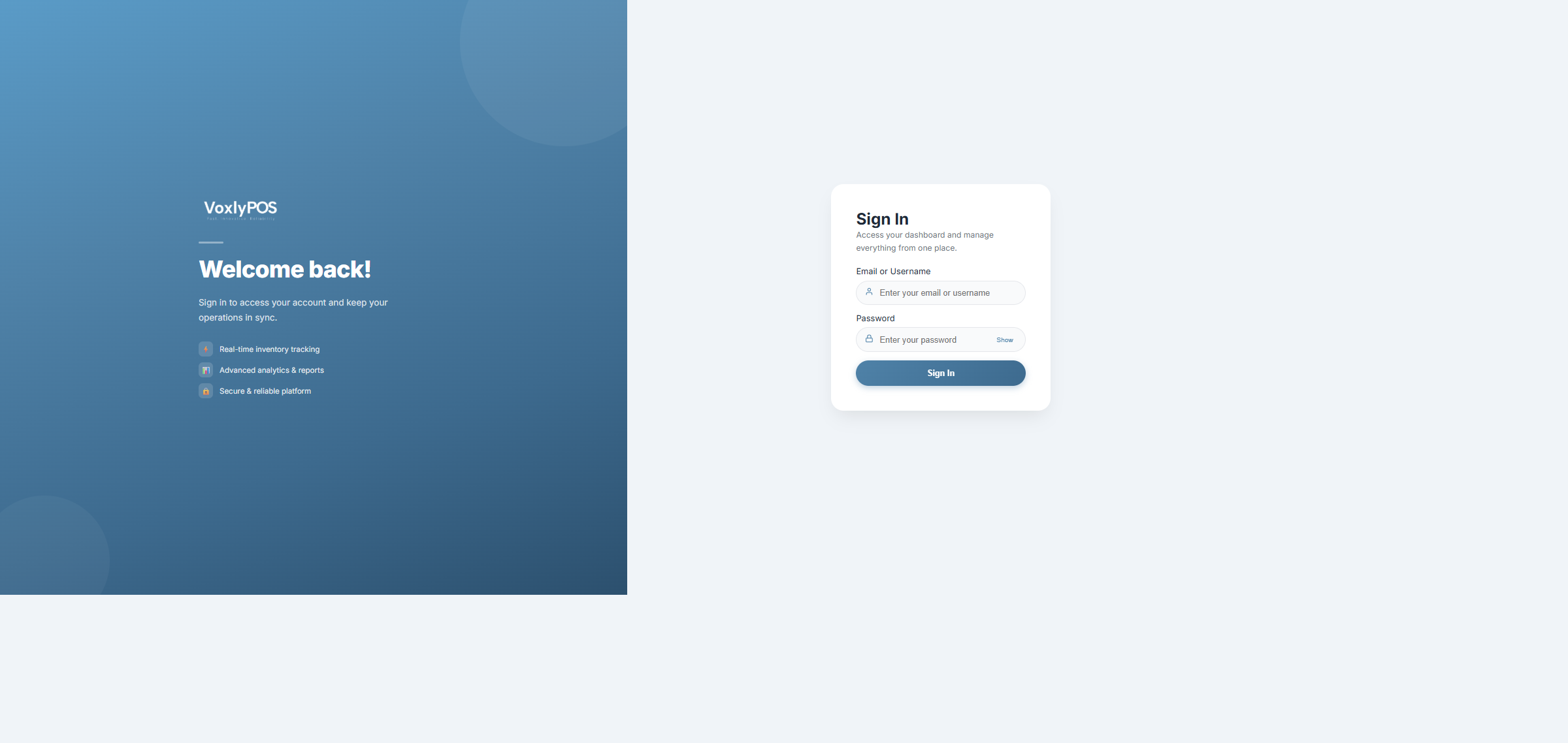
The VoxlyPOS login page — enter credentials and click Sign In.
📊
Dashboard
The Dashboard gives a real-time overview of your entire business — sales, purchases, revenue, stock value, customer insights, and top products at a glance.
The top section displays key performance summary cards for the selected date range:
💰
Total Sales
Sum of all sales for the period
🛒
Total Purchases
Sum of all purchase orders
↩️
Sales Returns
Total value of customer returns
↩️
Purchase Returns
Total returned to suppliers
📋
Sales Due
Outstanding customer balances
📋
Purchase Due
Amounts owed to suppliers
📈
Profit
Net profit for the period
📦
Stock Value
Current total inventory value
Dashboard Overview
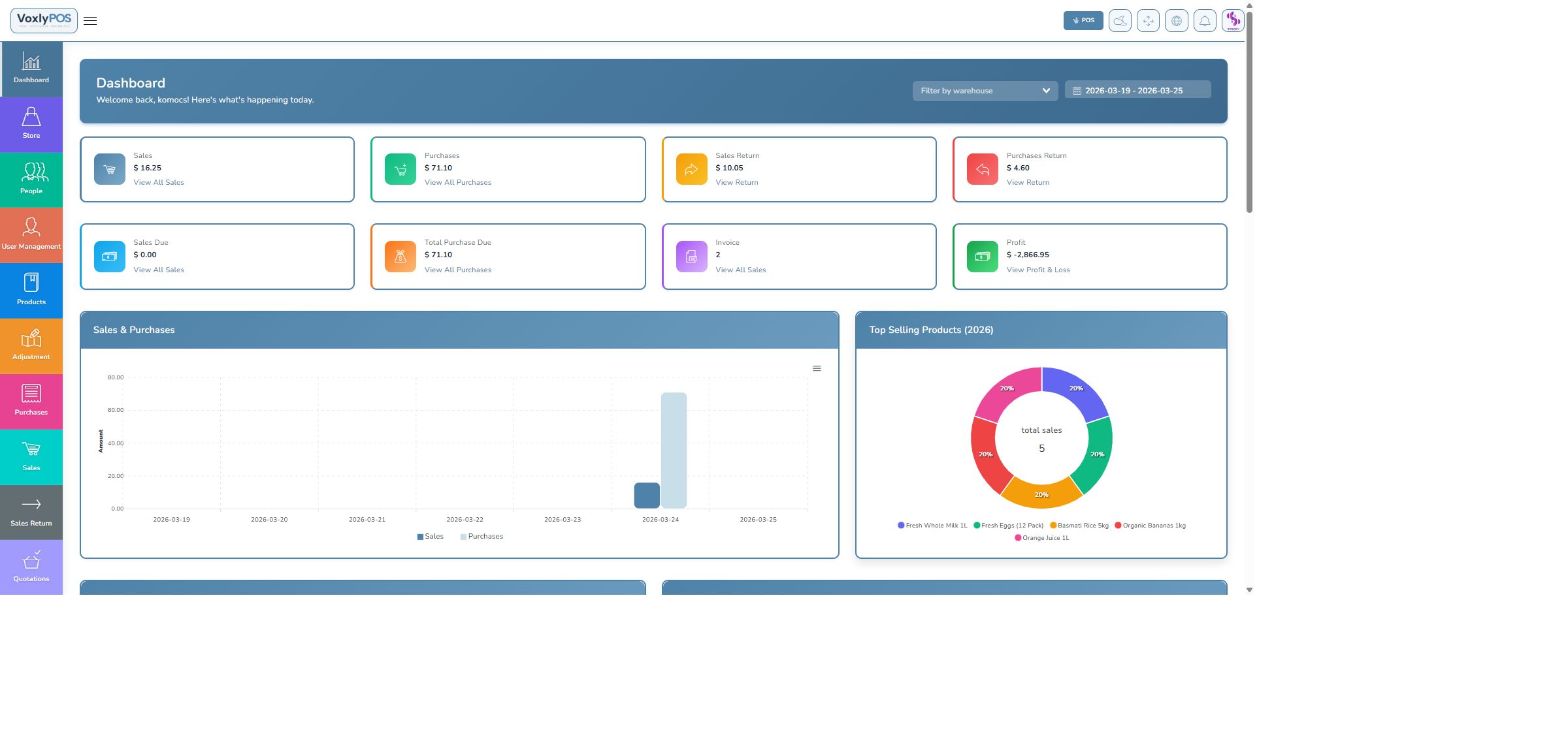
The VoxlyPOS dashboard showing KPI cards, charts, and recent activity. 🔍 Click image to enlarge
Interactive charts provide deep visual insights:
- Sales vs Purchases Chart – Daily comparison bar chart (downloadable)
- Top Selling Products – Yearly product sales breakdown
- Sales by Payment Method – Cash, card, cheque distribution
- Low Stock Alerts – Products below minimum threshold
- Top 5 Customers – Monthly top customers by value
📦
Products & Inventory
Manage your complete product catalog — pricing, stock levels, barcodes, images, and multi-warehouse stock tracking.
Navigation: Products › Product List
View, search, edit, and delete all products. Filter by category, warehouse, or stock level.
Products List
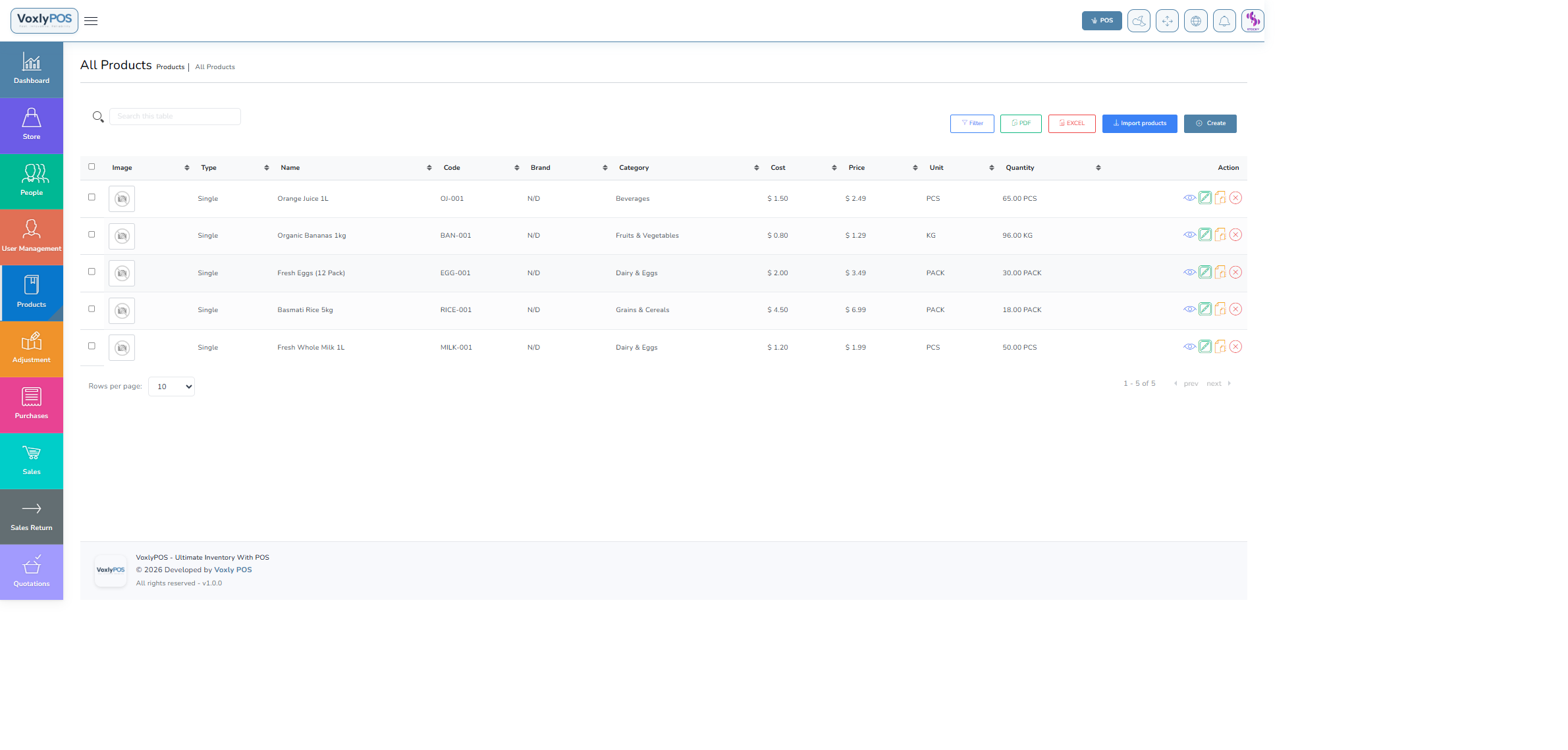
All products with stock levels, prices, and action buttons. 🔍 Click image to enlarge
Navigation: Products › Create Product
1
Enter Product Name & Code
Give the product a descriptive name (e.g., "Basmati Rice Premium 5kg") and a unique SKU/barcode.
2
Select Category & Unit
Choose the product category (e.g., Grains & Rice) and unit of measure (e.g., Kilogram).
3
Set Pricing
Enter Product Cost (buying price) and Product Price (selling price). Optionally set a wholesale price.
4
Configure Stock Settings
Set the Stock Alert quantity for low-stock notifications. Assign to a warehouse.
5
Upload Image & Submit
Optionally upload a product image, then click Submit to save.
Create Product Form
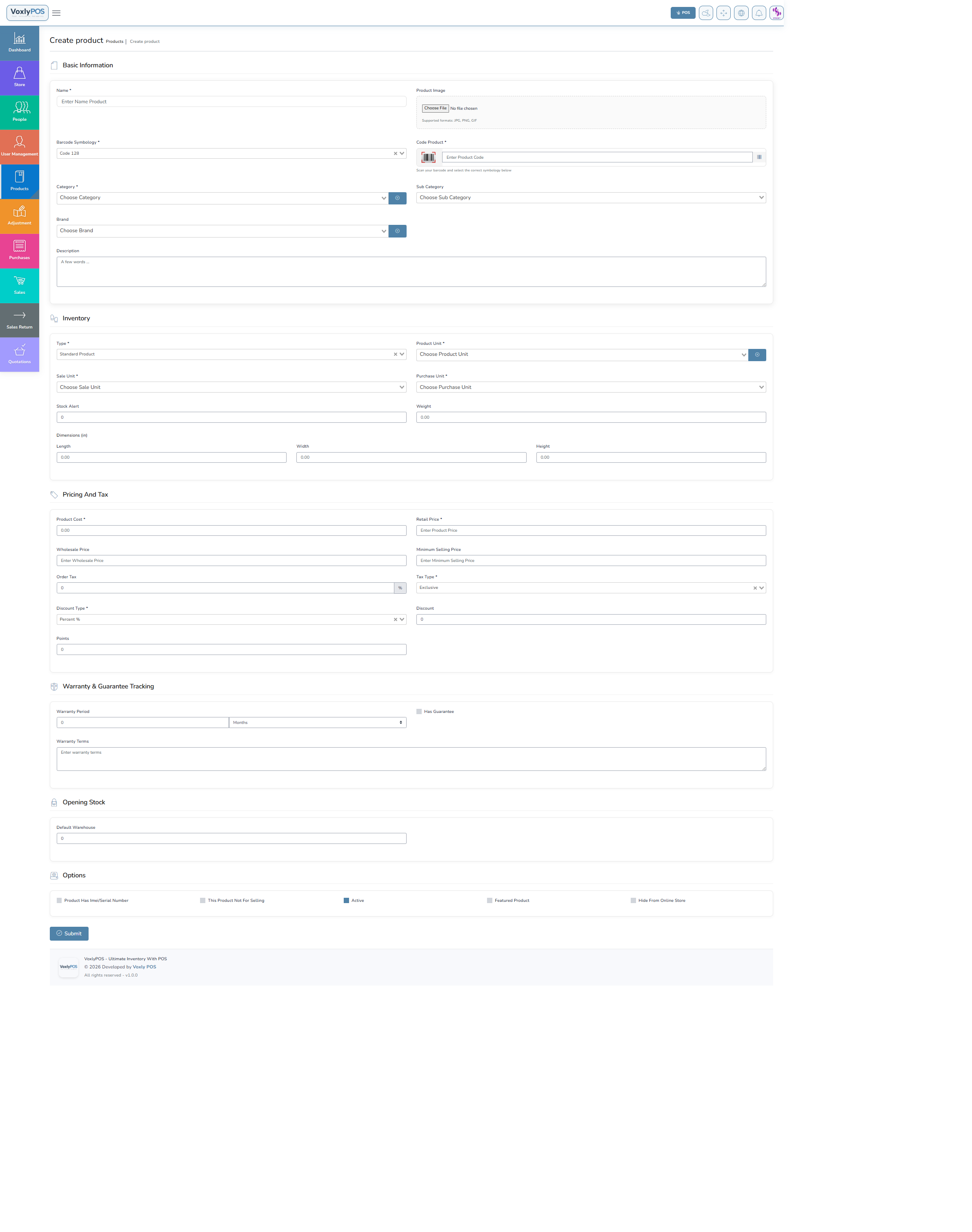
Product creation form with all fields for an item. 🔍 Click image to enlarge
| Field | Description | Required |
|---|
| Product Name | Descriptive product name shown on invoices | Required |
| Product Code | Unique SKU or barcode number | Required |
| Category | Product category for filtering and reports | Required |
| Unit | Unit of measure (kg, litre, piece, etc.) | Required |
| Product Cost | Purchase/buying price | Required |
| Product Price | Default selling price | Required |
| Stock Alert | Minimum quantity before low-stock warning | Optional |
| Product Image | Visual thumbnail for POS display | Optional |
💡Bulk ImportYou can import multiple products at once using a CSV file. Go to Products › Import Products and download the template.
🏷️
Categories & Units
Organise your products with custom categories and define units of measurement for accurate stock and reporting.
Navigation: Products › Categories
Categories help organise products for easy navigation in POS and for generating category-level reports. Example product categories: Fruits & Vegetables, Dairy, Grains, Beverages, Frozen Foods.
Product Categories
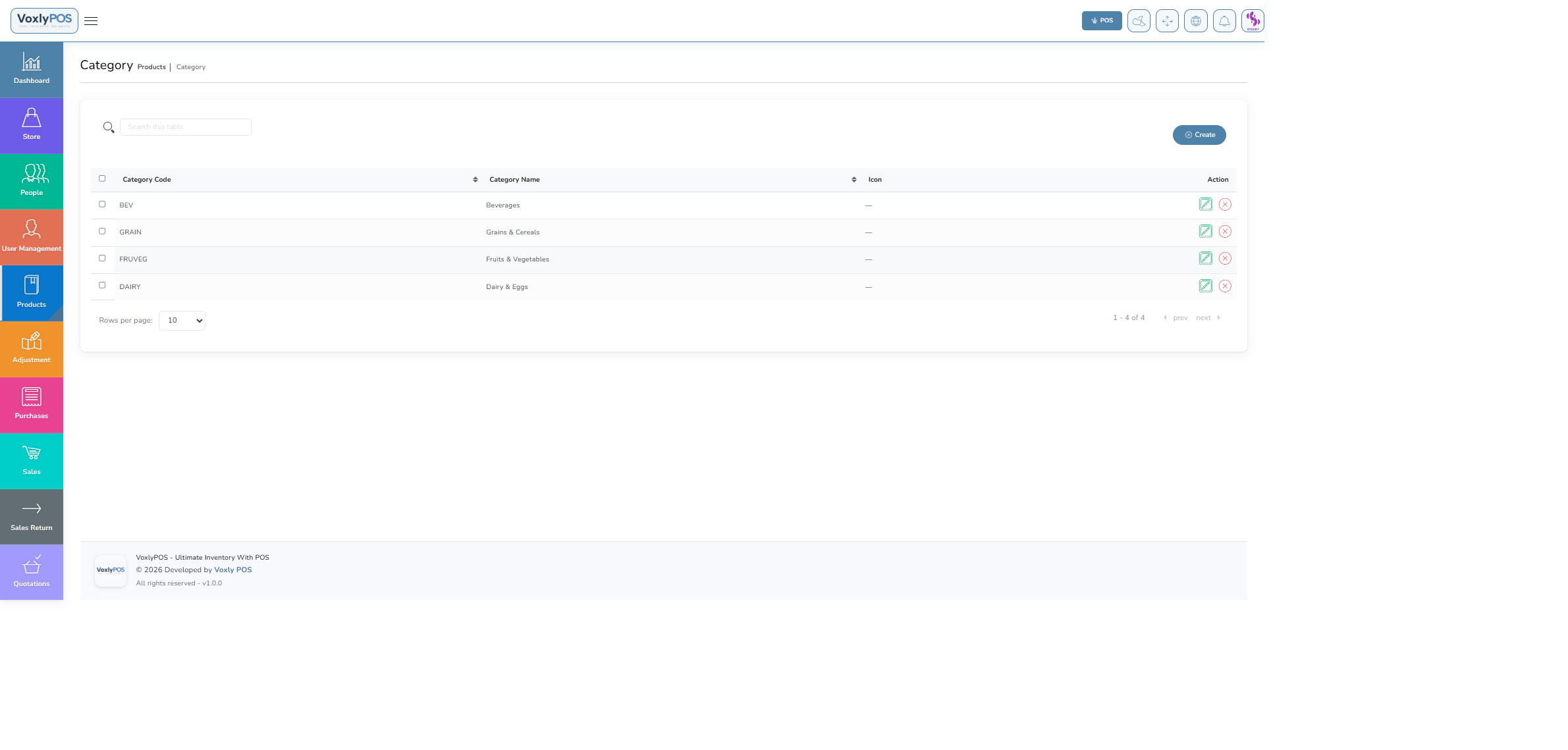
Category list with add, edit, and delete options. 🔍 Click image to enlarge
1
Go to Products › Categories
Click Categories in the Products section of the sidebar.
2
Click Create
Click the Create button at the top right.
3
Enter Name & Code
Provide a category name and optional short code, then click Submit.
Navigation: Products › Units
Units define how products are measured and sold. Common product units: Kilogram (kg), Litre (L), Piece (pcs), Dozen (dz), Gram (g), Millilitre (ml).
Product Units
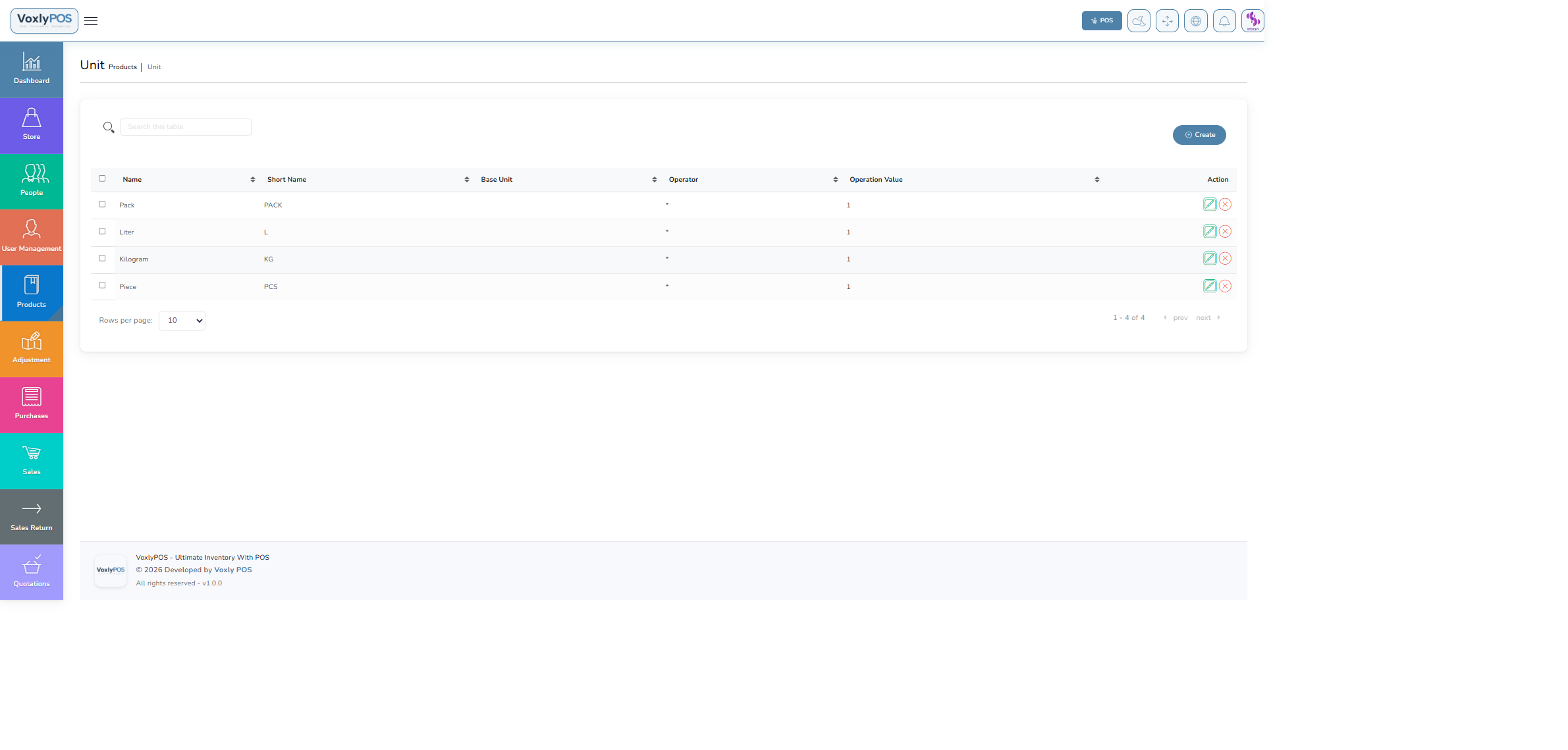
Units list showing all configured units of measure. 🔍 Click image to enlarge
🔀
Stock Transfers
Move inventory between warehouses to balance stock levels across multiple locations.
Navigation: Stock Transfers › Transfer List
Stock Transfers List
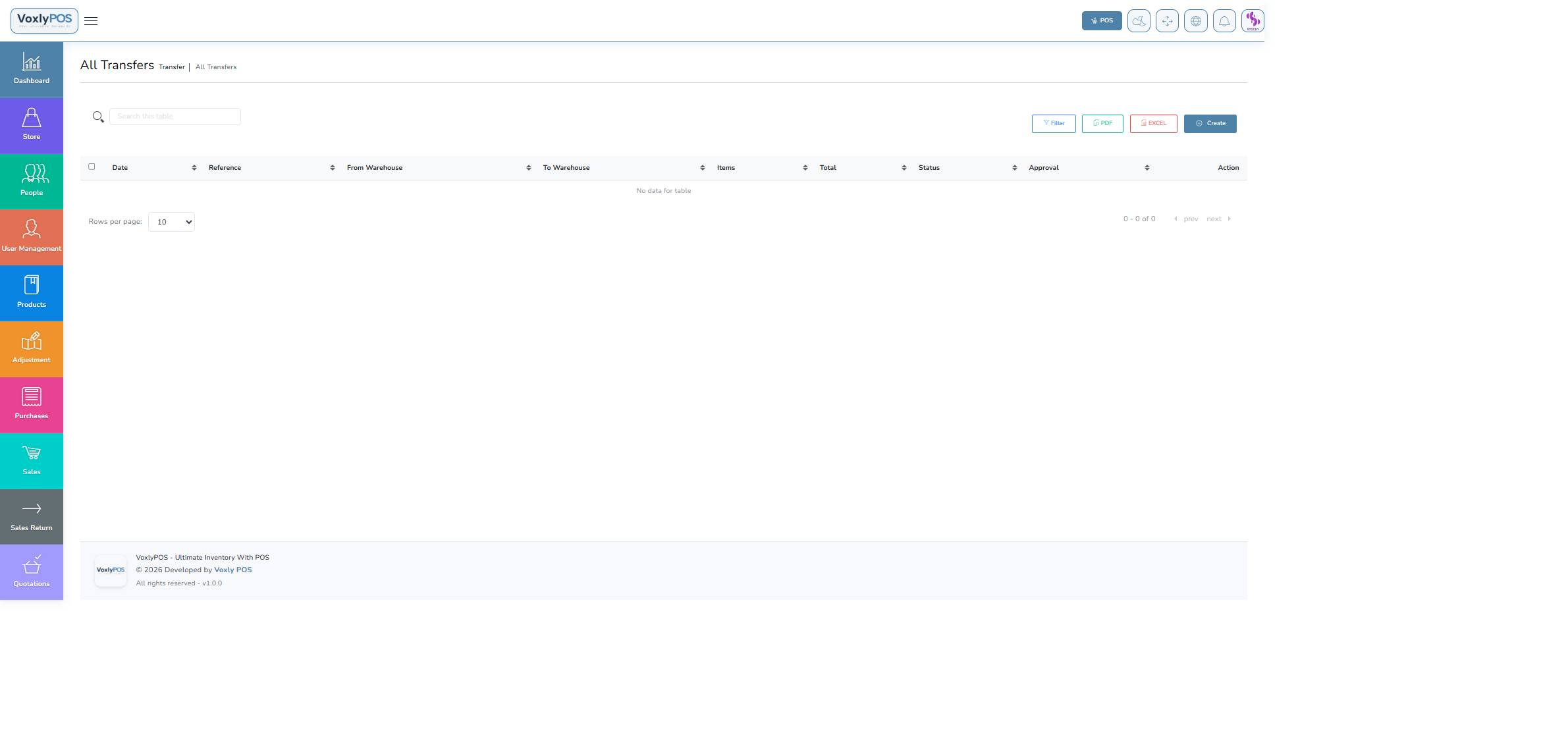
All transfers with from/to warehouse, date, and status. 🔍 Click image to enlarge
1
Navigate to Create Transfer
Go to Stock Transfers › Create Transfer.
2
Select Warehouses
Choose the From Warehouse (source) and To Warehouse (destination).
3
Add Products
Search and add products with the quantity to transfer.
4
Submit
Click Submit. Stock is deducted from source and added to destination instantly.
⚖️
Stock Adjustments
Correct inventory discrepancies due to breakage, theft, miscounting, or data entry errors.
Navigation: Stock Adjustments › Adjustment List
Adjustments List
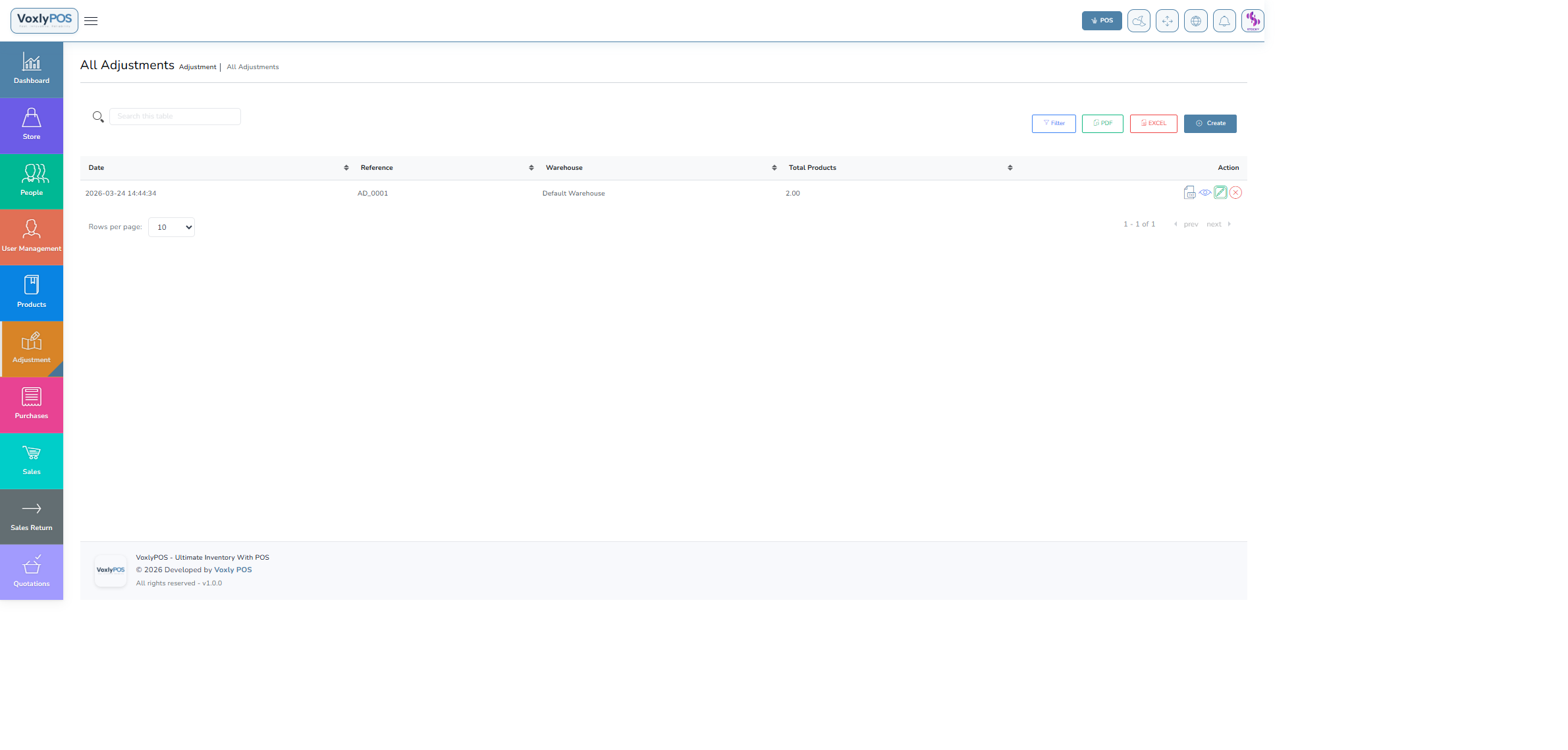
All stock adjustments with type, quantity, and reason. 🔍 Click image to enlarge
Navigation: Stock Adjustments › Create Adjustment
Create Adjustment Form
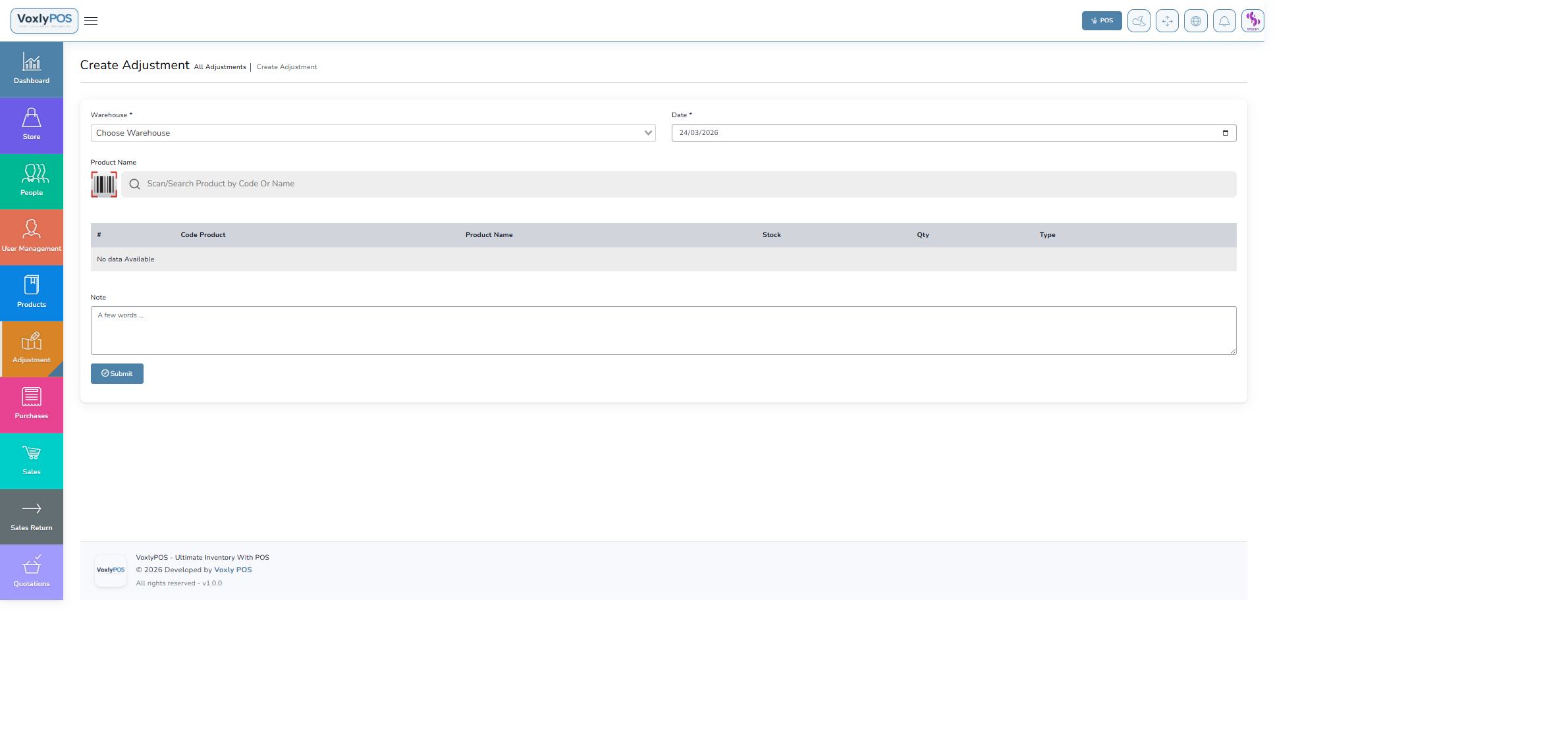
Adjustment form showing product search and quantity fields. 🔍 Click image to enlarge
1
Select Warehouse
Choose the warehouse where the adjustment applies.
2
Add Products
Search for the product(s) that need adjusting.
3
Set Quantity & Type
Enter the quantity and select Addition (stock in) or Subtraction (stock out).
4
Add Notes & Submit
Describe the reason (e.g., "Expiry", "Damaged during delivery") and click Submit.
🚨Irreversible ActionAdjustments permanently change stock levels. Always double-check quantities before submitting.
📋
Stock Count
Perform a physical stock count to verify inventory accuracy. Reconcile differences between system records and actual shelf quantities.
Navigation: Products › Count Stock
Stock Count
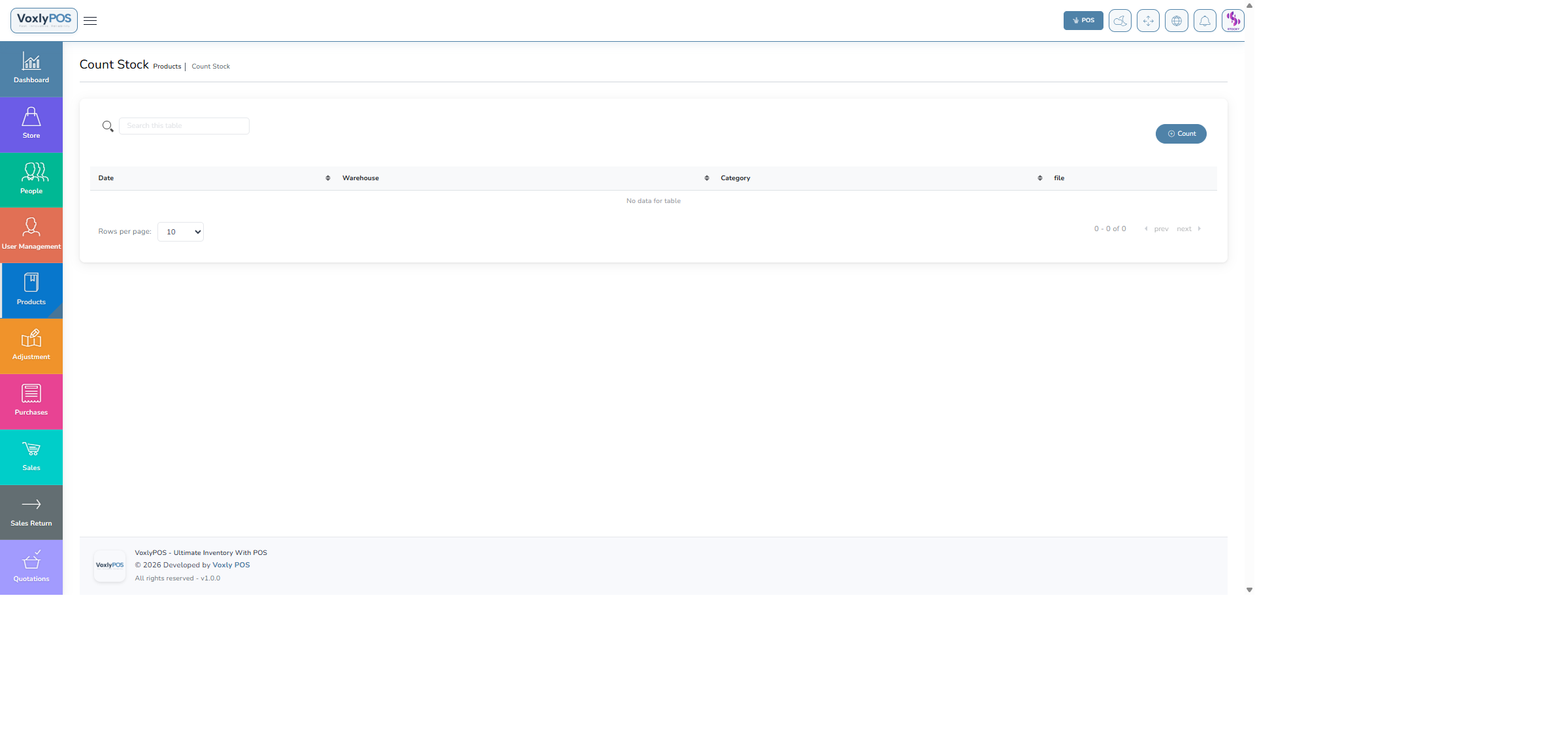
Count stock interface showing products and counted quantities. 🔍 Click image to enlarge
1
Select Warehouse
Choose the warehouse to count.
2
Enter Actual Quantities
Go through each product and enter the physically counted quantity.
3
Review Discrepancies
The system highlights differences between recorded and counted stock in red/green.
4
Submit
Submit the count to automatically create adjustment entries for all differences.
ℹ️Best PracticePerform stock counts outside business hours to avoid discrepancies from live transactions.
💔
Damages
Record damaged, expired, or spoiled products to keep inventory accurate. Essential for shops tracking perishable goods losses.
Navigation: Damages › Damages List
Damages List
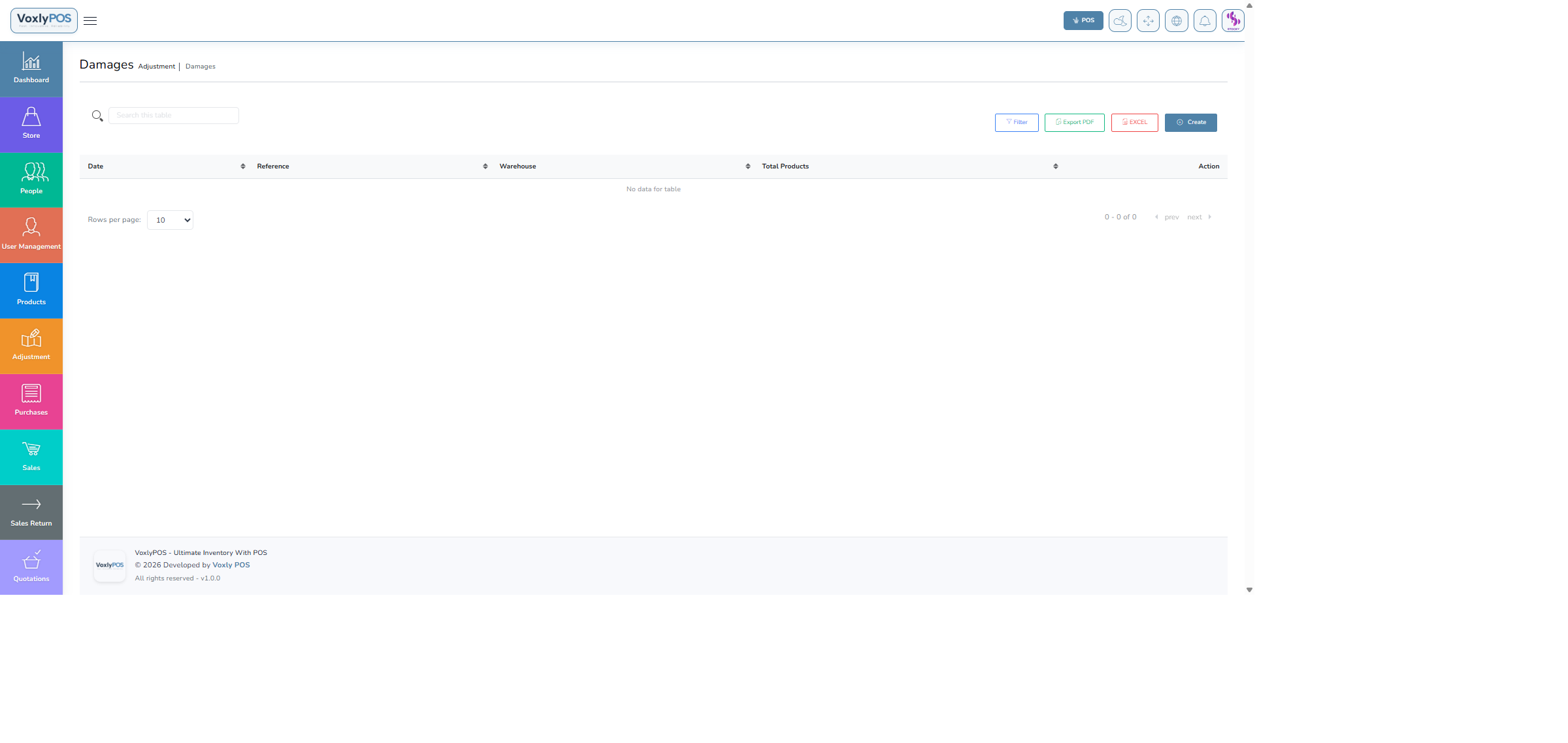
All recorded damage entries with product, quantity, and date. 🔍 Click image to enlarge
Navigation: Damages › Create Damage
Create Damage Form
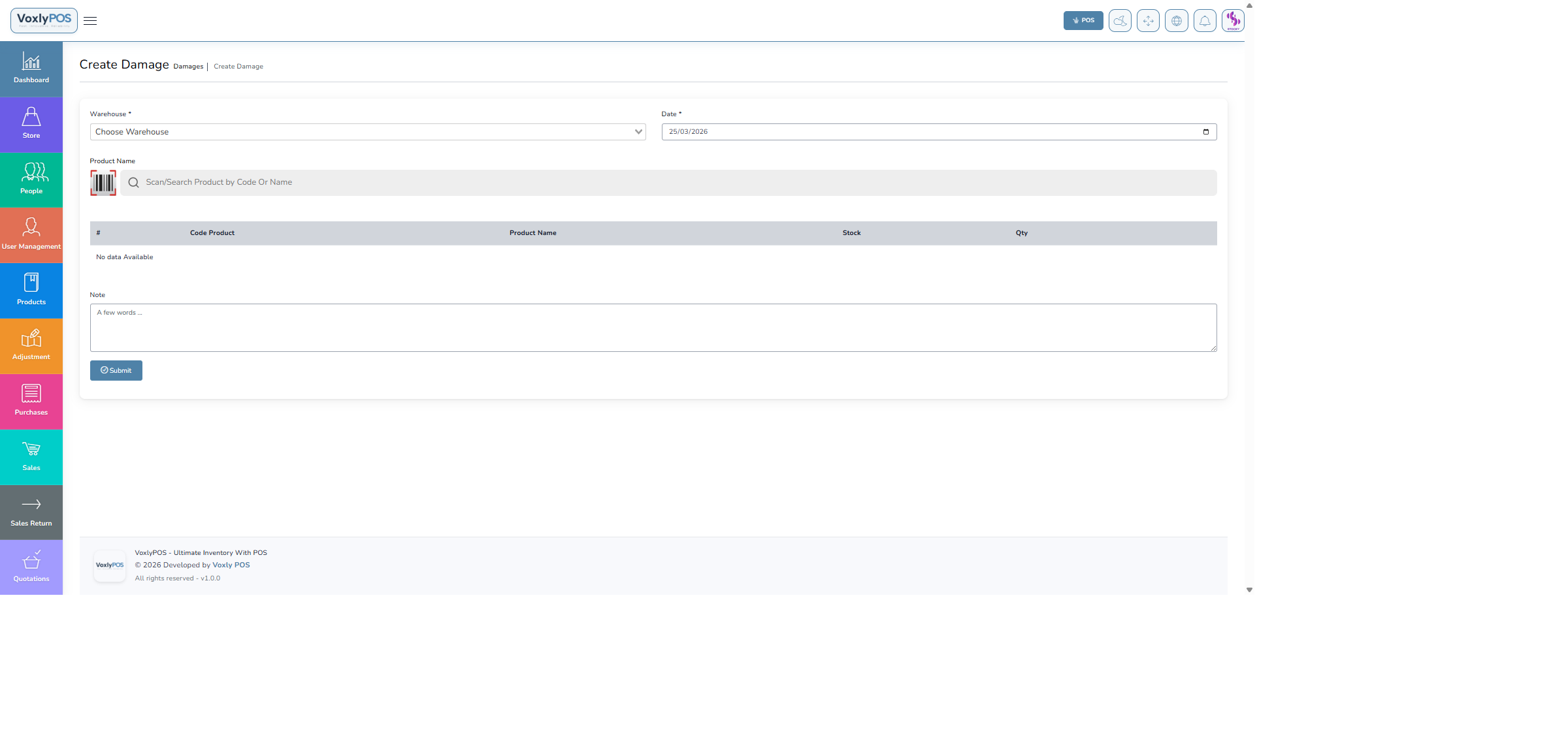
Damage entry form showing warehouse and product selection. 🔍 Click image to enlarge
1
Go to Damages › Create Damage
Navigate using the sidebar link.
2
Select Warehouse & Date
Choose which warehouse had the damage and set the date it occurred.
3
Add Damaged Products
Search for each product and enter the damaged quantity.
4
Add Notes & Submit
Describe the cause (e.g., "Expired", "Broken packaging", "Rodent damage") and click Submit.
⚠️Stock ImpactDamage records permanently reduce stock levels. Review quantities carefully before saving.
🔖
Print Labels & Barcodes
Generate and print barcode labels for shelf tagging, price labelling, and inventory scanning.
Navigation: Products › Print Labels
Print Labels
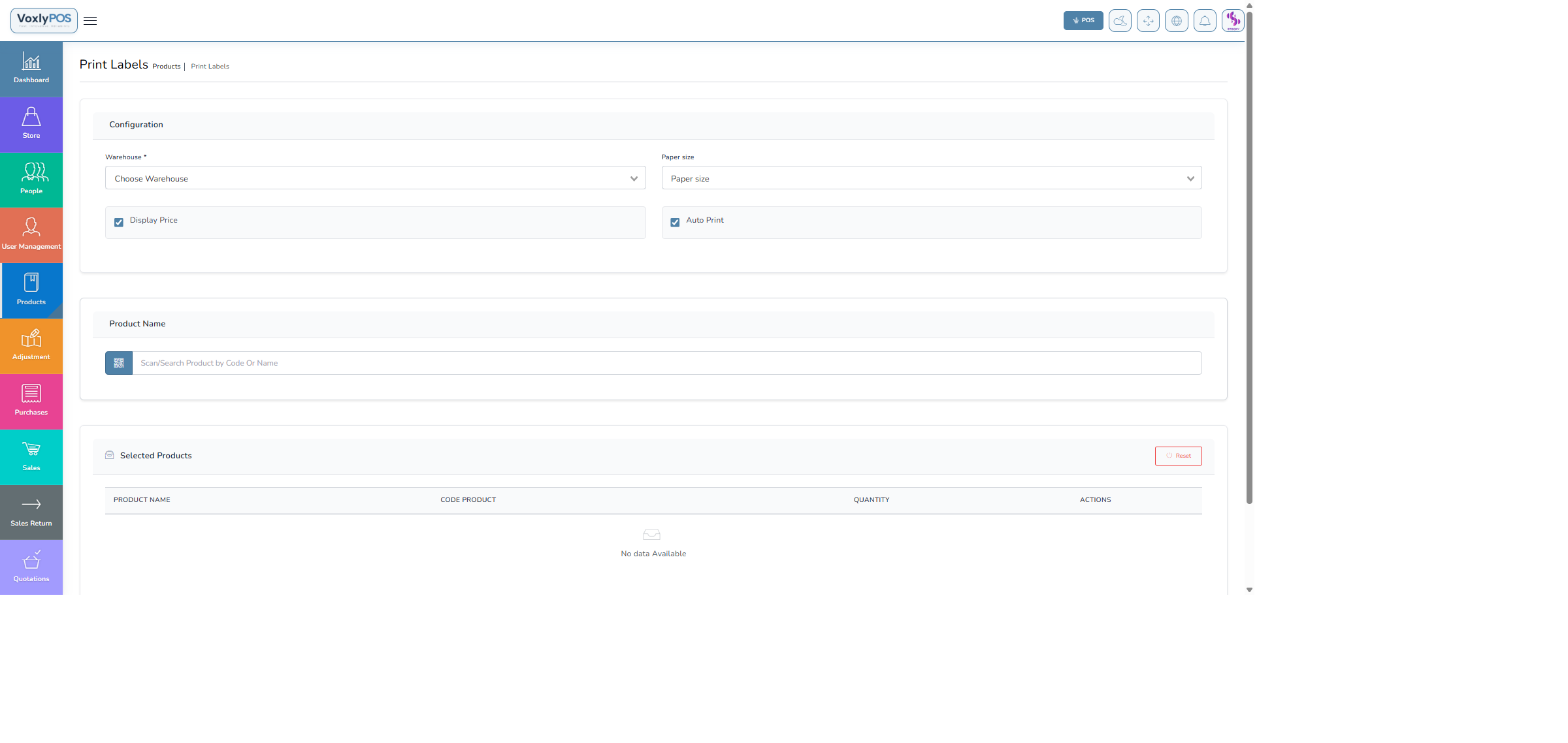
Label printing interface with product selection and format options. 🔍 Click image to enlarge
1
Navigate to Print Labels
Go to Products › Print Labels in the sidebar.
2
Select Warehouse
Choose the warehouse to pull product data from.
3
Add Products
Search and add products you need labels for. Set the number of labels per product.
4
Choose Format & Print
Select label size (small, medium, large) and click Print. Labels open in a print-ready window.
💡TipUse a thermal label printer for best results. Labels include the product name, price, and scannable barcode.
📝
Quotations
Create price quotations for customers. Approved quotations can be converted directly to sales with a single click.
Navigation: Quotations › Quotation List
Quotations List
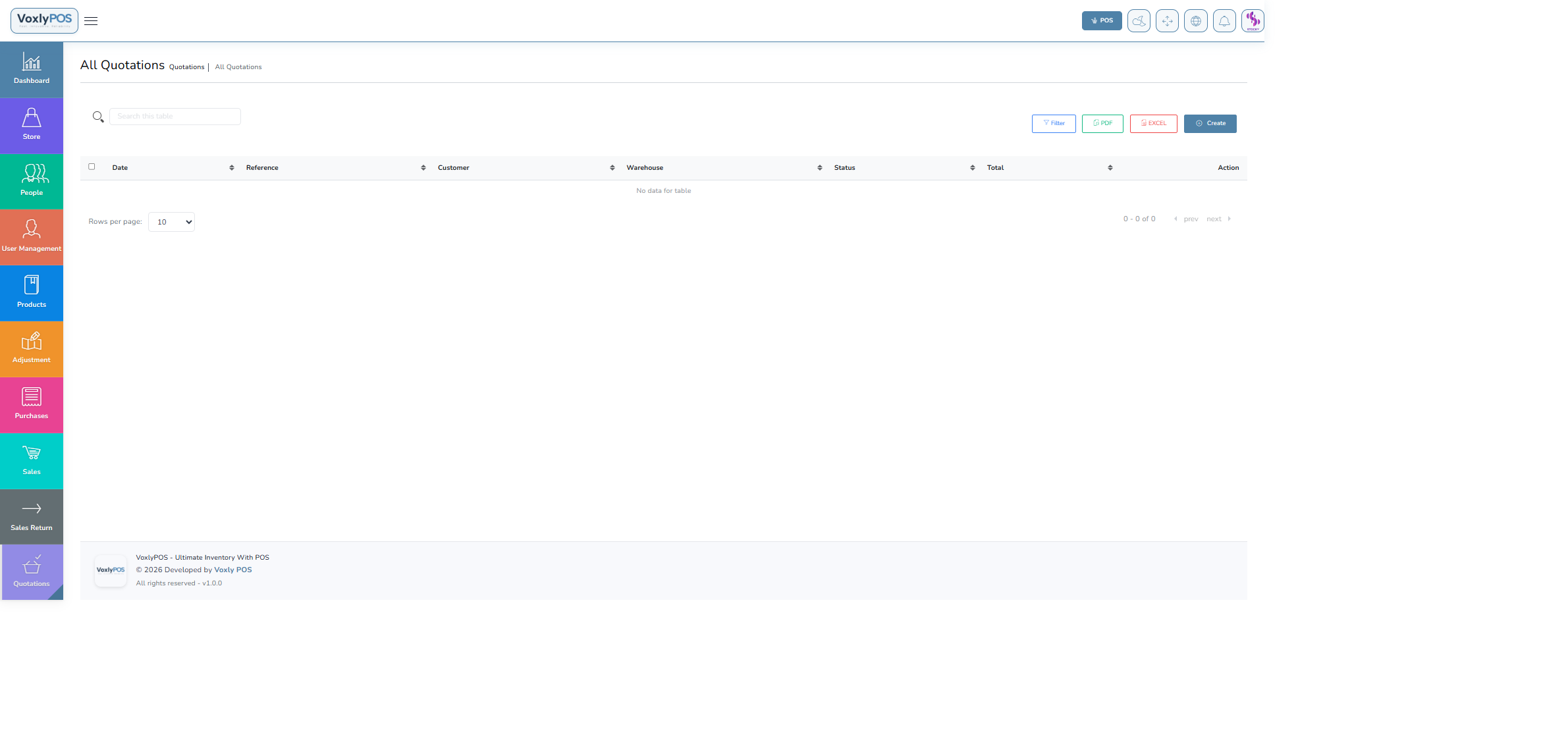
All quotations with status (Draft, Sent, Converted) and customer details. 🔍 Click image to enlarge
1
Go to Quotations › Create Quotation
Navigate using the sidebar.
2
Select Customer
Choose an existing customer or create a new one.
3
Add Products
Search and add items with quantities and pricing.
4
Set Validity Period
Specify how long the quote is valid.
5
Submit & Send
Save the quotation. Send it to the customer via email from the quote detail view.
6
Convert to Sale
Once the customer accepts, click Convert to Sale from the quotation detail page.
💰
Sales
Create sales invoices, record payments, and track outstanding balances. Full support for partial payments and multi-currency.
Navigation: Sales › Sales List
Sales List
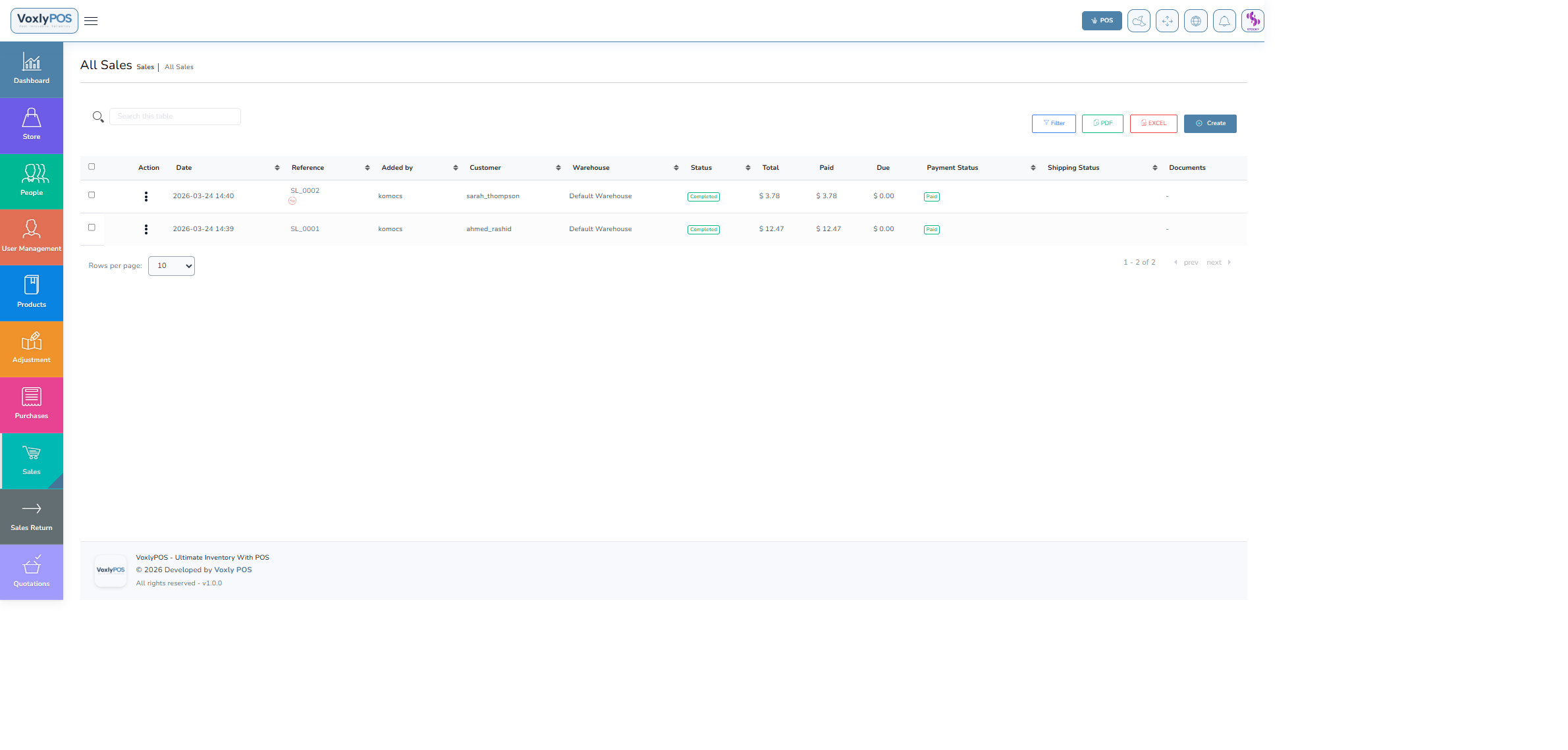
All sales invoices with payment status, amount, and customer details. 🔍 Click image to enlarge
Navigation: Sales › Create Sale
Create Sale Form
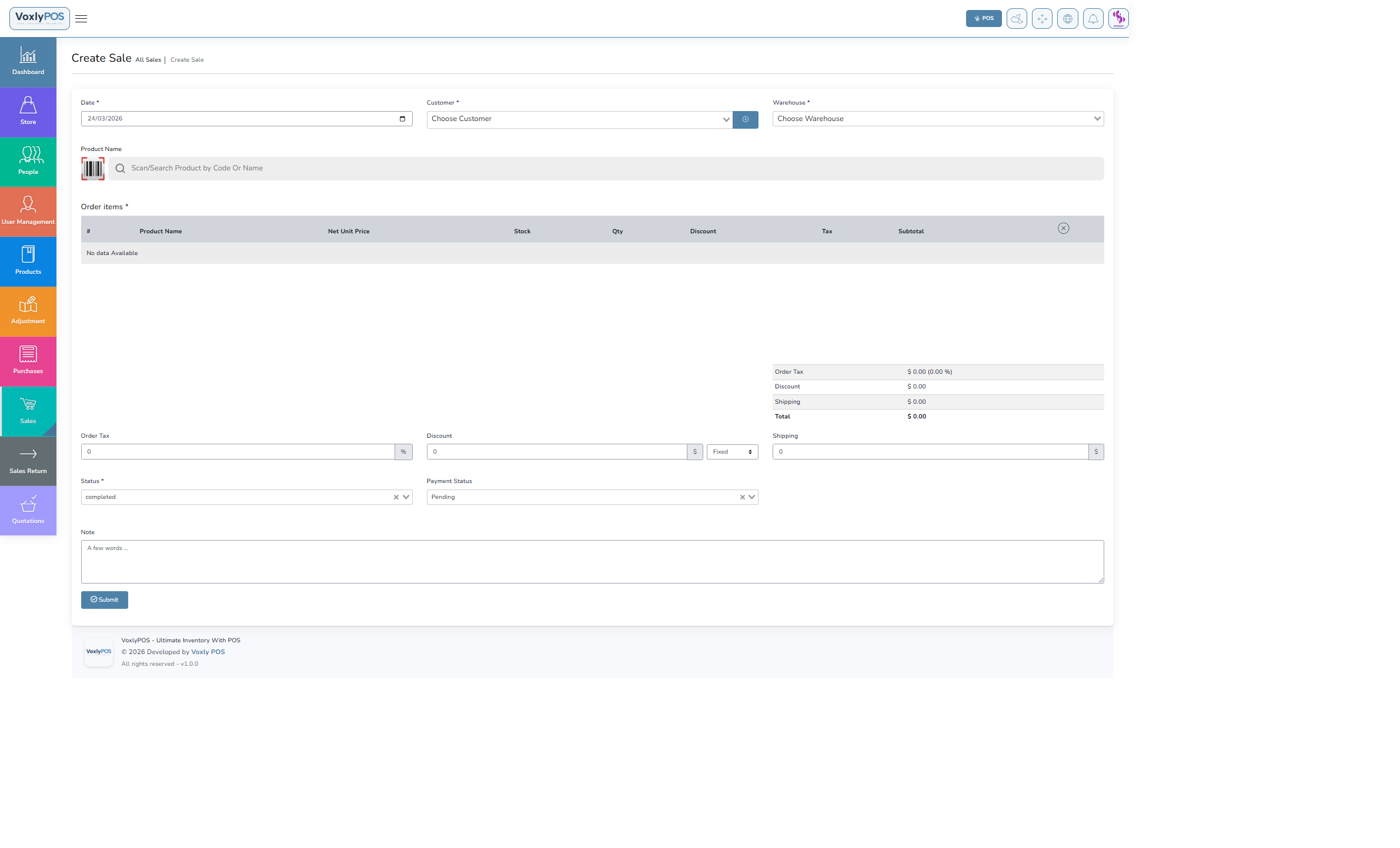
Sale creation form with customer selection and product search. 🔍 Click image to enlarge
1
Select Customer
Choose or create the customer for this sale.
2
Select Warehouse
Stock will be deducted from this warehouse.
3
Add Products
Search and add products with quantities and confirm unit prices.
4
Apply Discounts & Tax
Set line-item or global discounts. Apply tax if required.
5
Set Payment Details
Choose Payment Status (Paid / Partial / Unpaid) and Payment Method.
6
Submit
Click Submit. The invoice is generated and stock deducted.
💡TipFor walk-in customers use the POS terminal instead — it is faster and designed for high-volume checkout.
🖥️
POS Terminal
The Point of Sale terminal provides a fast, touch-friendly checkout experience. Supports barcode scanning, multiple payment methods, and instant receipts.
Navigation: POS
POS Screen
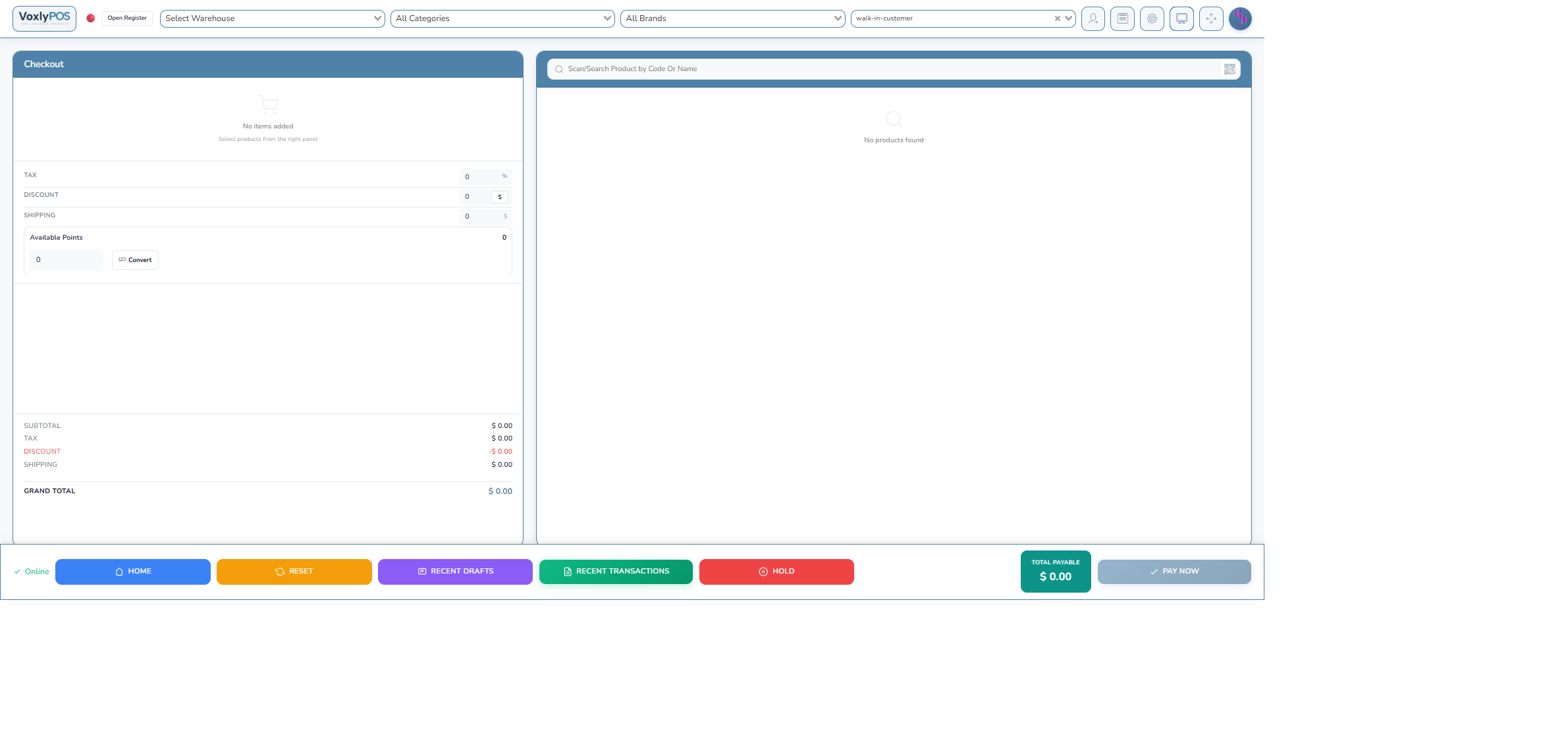
The main POS interface with product grid and cart on the right. 🔍 Click image to enlarge
🔍 Barcode scanning
🏷️ Product search by name
💳 Multiple payment methods
🧾 Instant receipt printing
👤 Customer selection
% Discount support
Click on any product card to add it to the cart. Use the search bar to find items quickly. Adjust quantities using the +/- buttons in the cart.
POS with Items
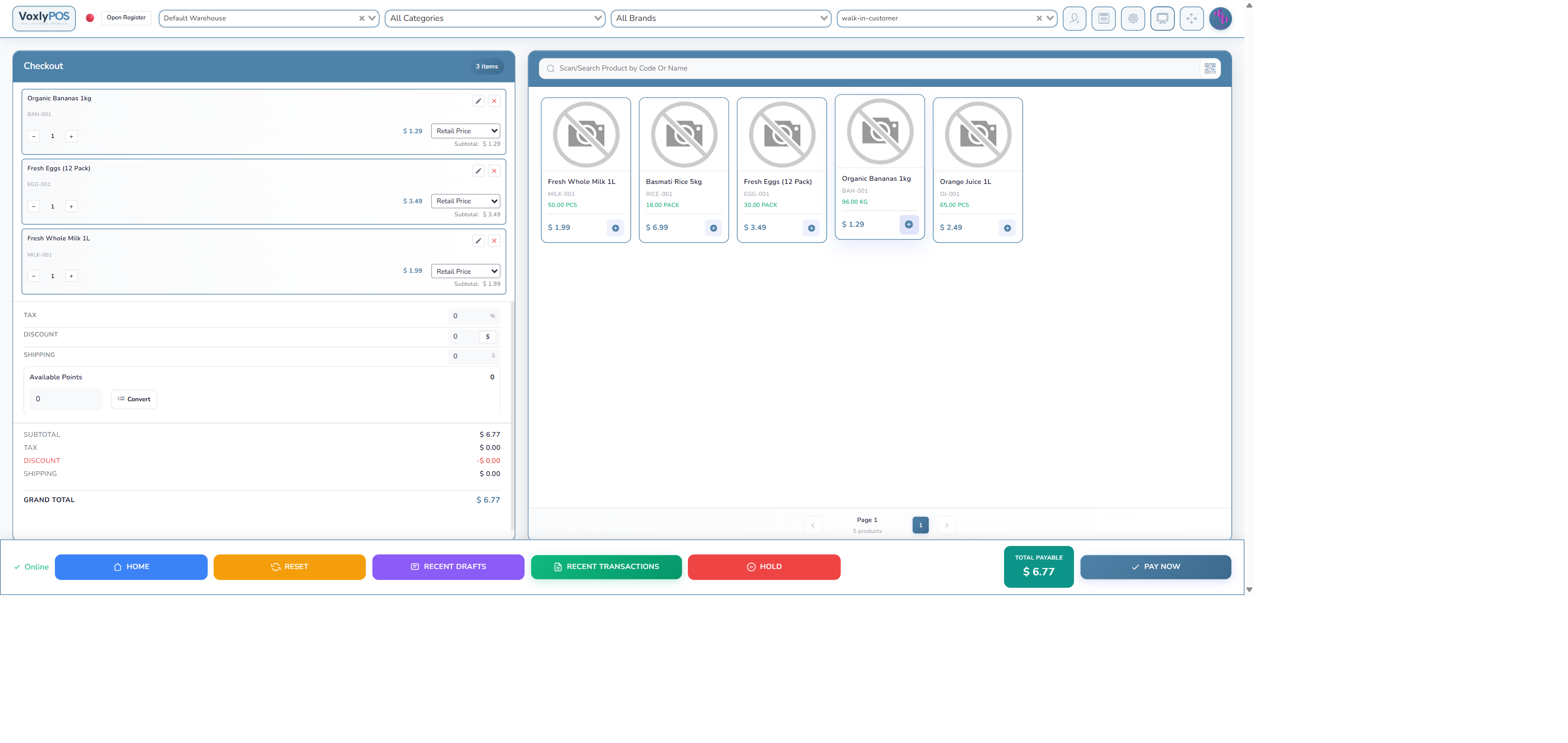
POS screen with items added to the cart and running total. 🔍 Click image to enlarge
1
Review Cart
Verify all items and quantities in the cart. Apply any discounts if needed.
2
Click Payment
Press the Payment button to open the payment dialog.
3
Select Payment Method
Choose Cash, Card, Bank Transfer, Cheque, or a split payment combination.
4
Enter Amount Received
Type the cash tendered. The system calculates the change automatically.
5
Submit & Print Receipt
Click Submit to complete the sale. A printable receipt is generated.
POS Payment Dialog
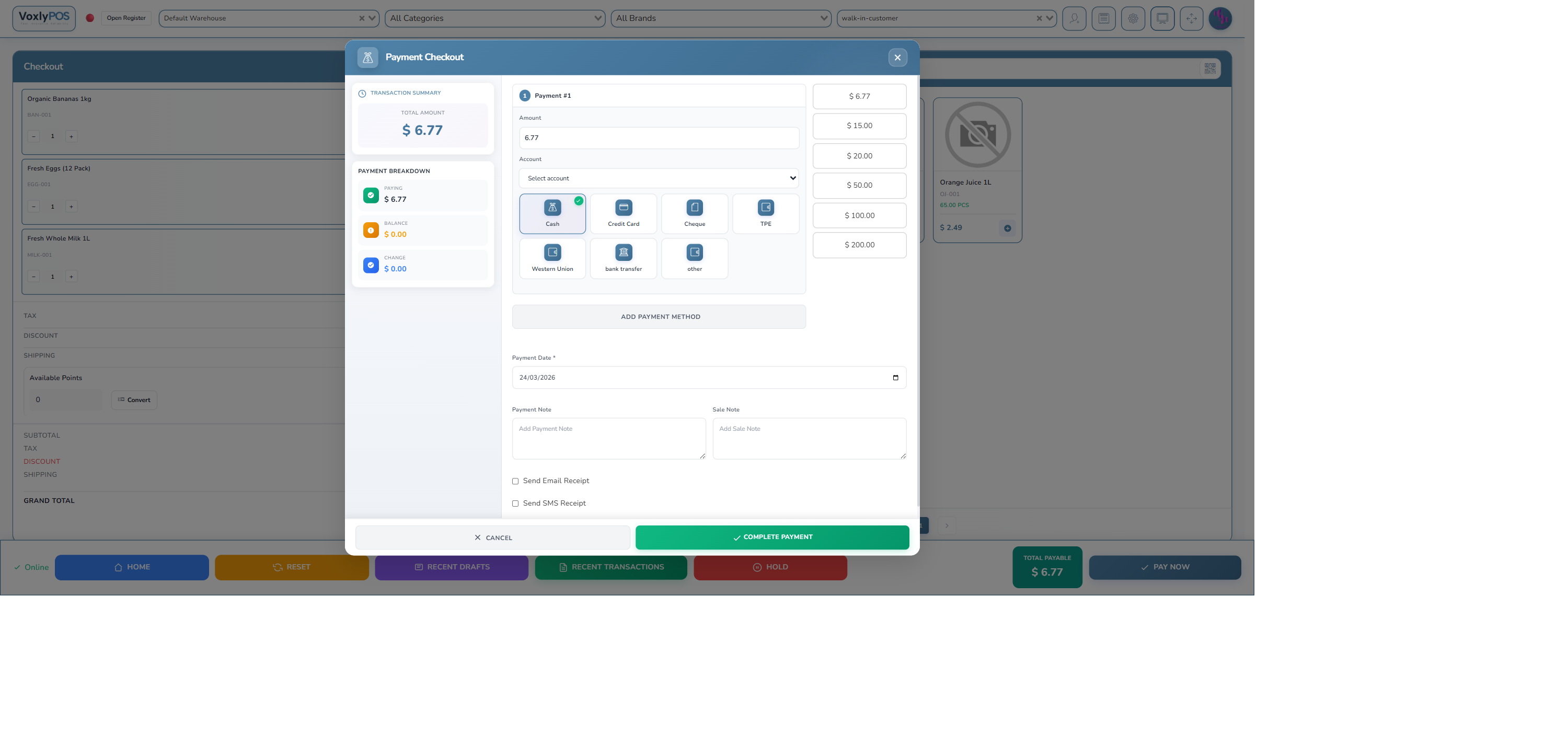
Payment dialog showing method selection, amount received, and change calculation. 🔍 Click image to enlarge
↩️
Sale Returns
Process customer returns and issue refunds. Stock levels are automatically updated when a return is processed.
Navigation: Sale Returns › Sale Return List
Sale Returns List
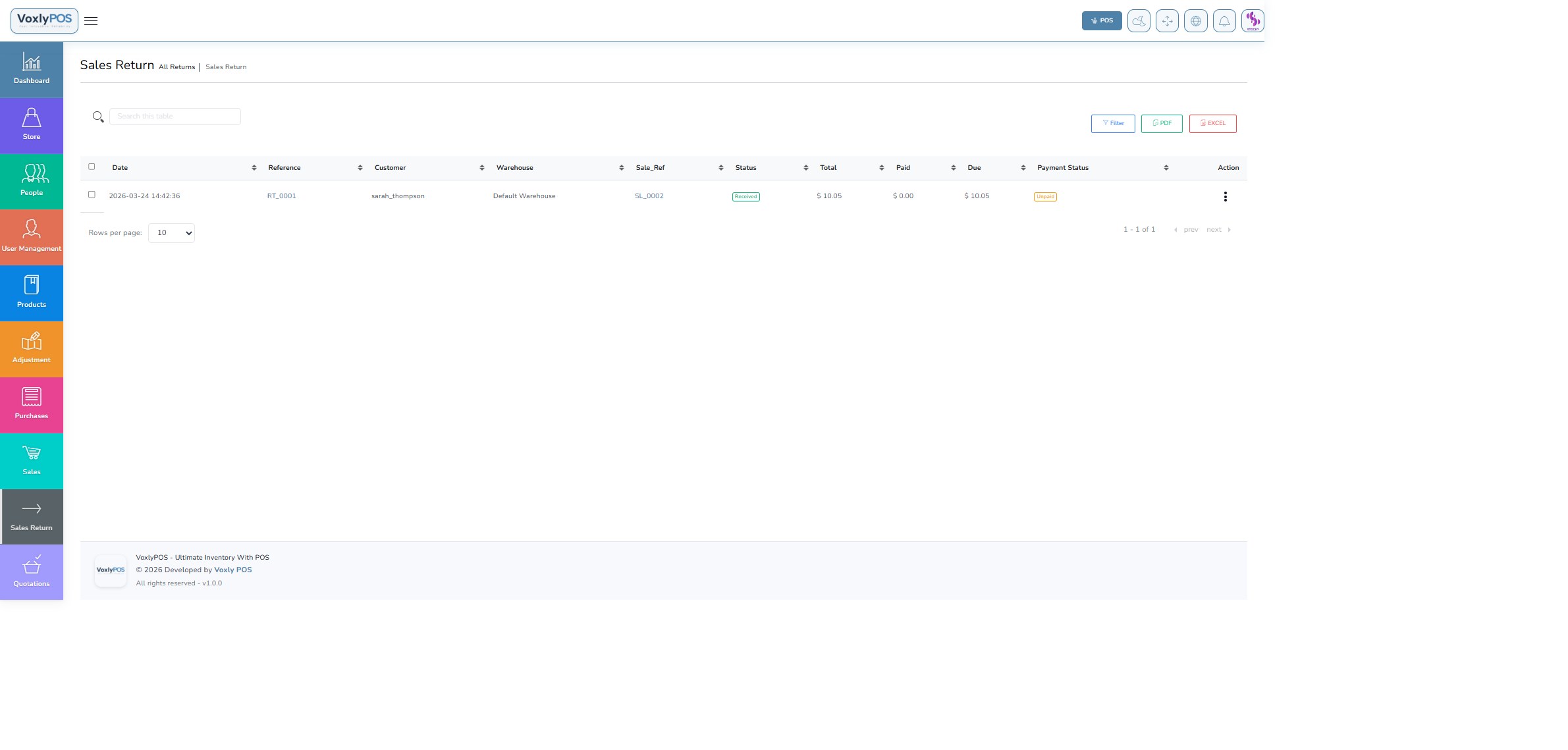
All processed sale returns with customer, amount, and status. 🔍 Click image to enlarge
1
Go to Sale Returns › Create
Navigate to the Create Sale Return form.
2
Select Customer & Warehouse
Choose the customer making the return and the receiving warehouse.
3
Add Returned Products
Search and add the returned items with quantities.
4
Process Refund
Select refund method and update payment status, then click Submit.
🛒
Purchases
Record all supplier orders to maintain accurate inventory levels and monitor costs. Supports partial payments and purchase tracking.
Navigation: Purchases › Purchase List
Purchases List
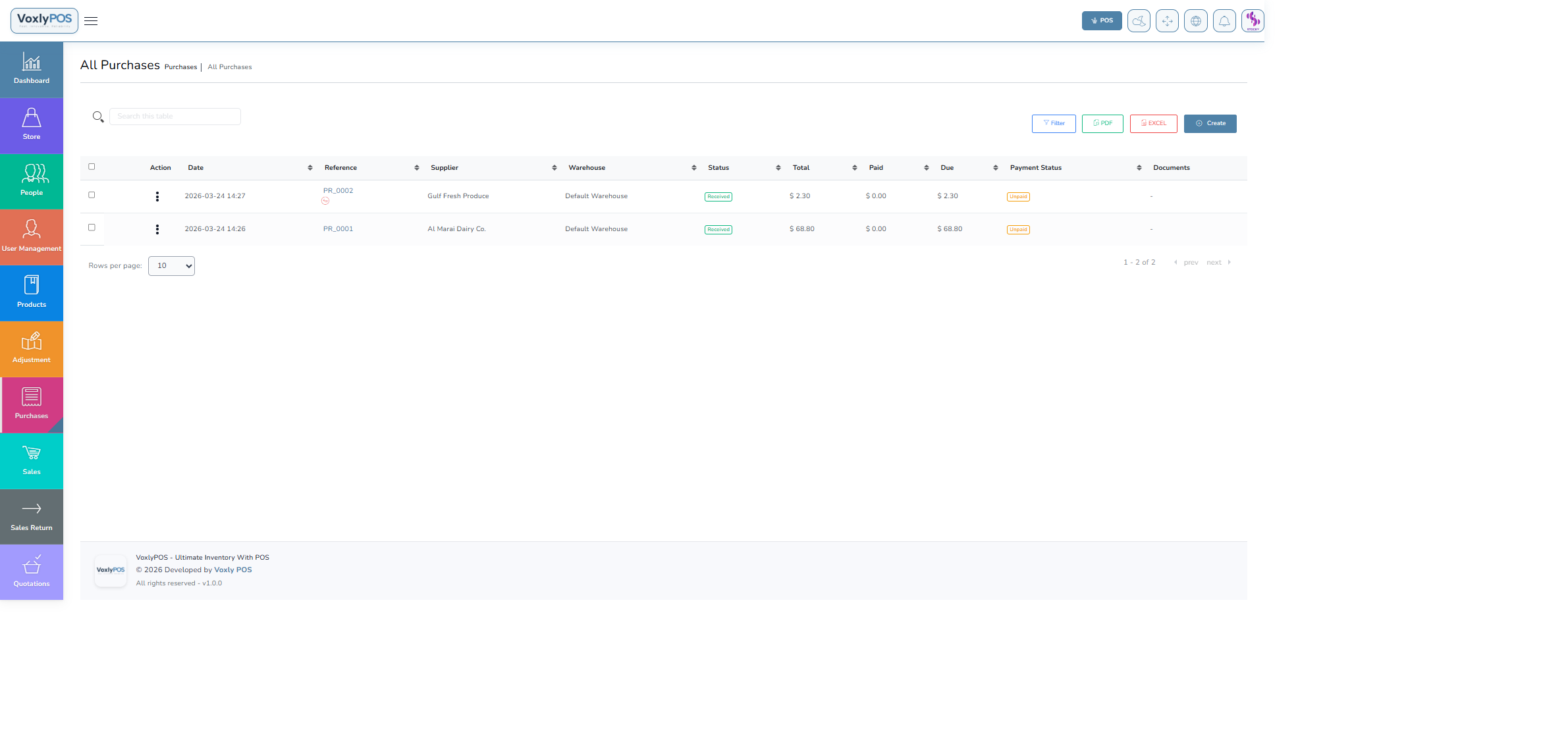
All purchase orders with supplier, amount, payment status, and date. 🔍 Click image to enlarge
Navigation: Purchases › Create Purchase
Create Purchase Form
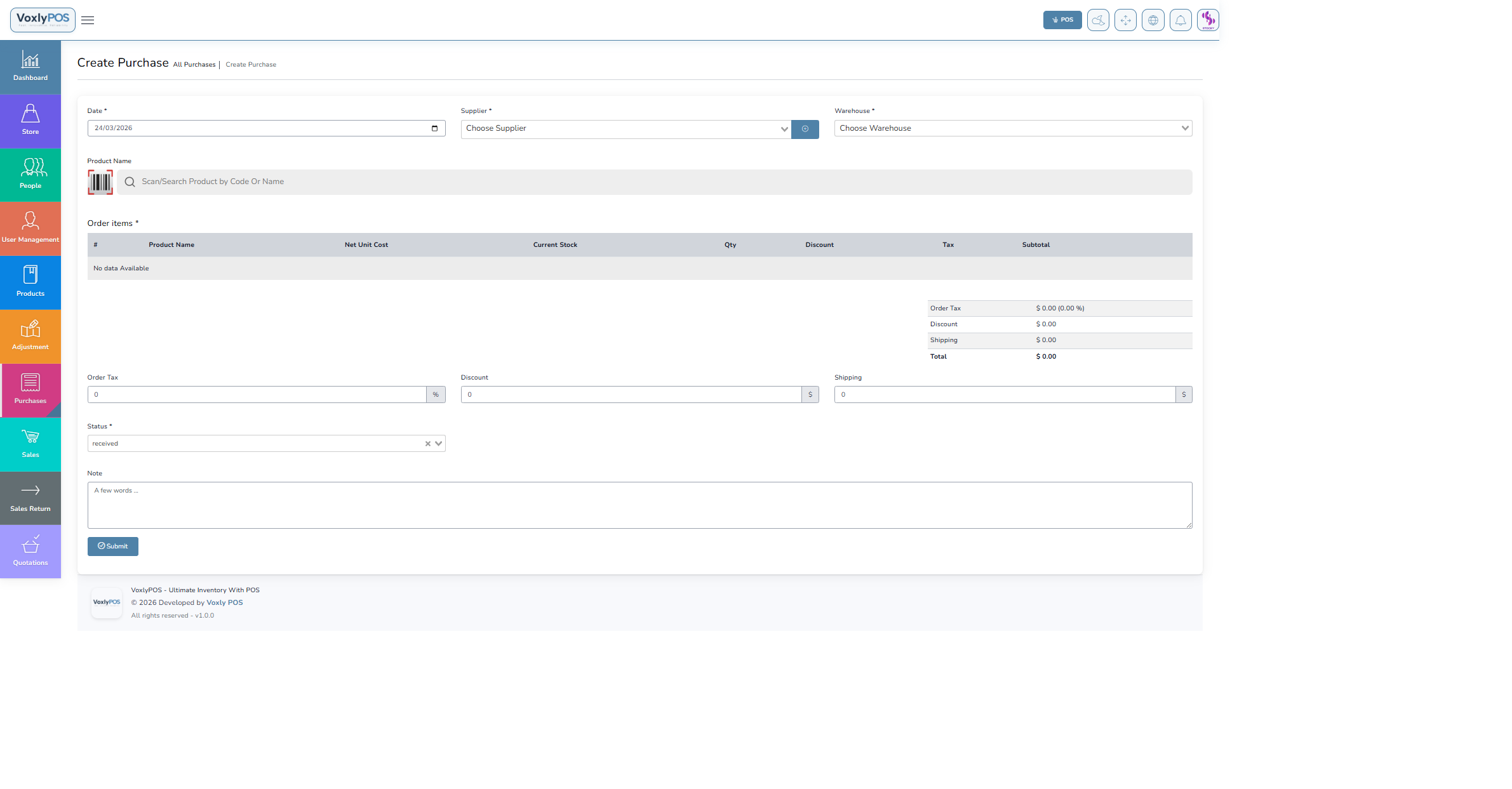
Purchase order form with supplier selection and product search. 🔍 Click image to enlarge
1
Select Supplier
Choose the supplier for this purchase order.
2
Select Warehouse
Stock will be added to this warehouse upon receipt.
3
Add Products
Search and add products with quantities and unit costs.
4
Apply Discount & Tax
Set any applicable discounts or taxes.
5
Set Payment Status
Choose Paid, Partial, or Unpaid. Select the payment method.
6
Submit
Click Submit. Inventory is updated and the purchase record is saved.
↩️
Purchase Returns
Return damaged, incorrect, or excess goods back to suppliers. Inventory is automatically adjusted.
Navigation: Purchase Returns › Purchase Return List
Purchase Returns List
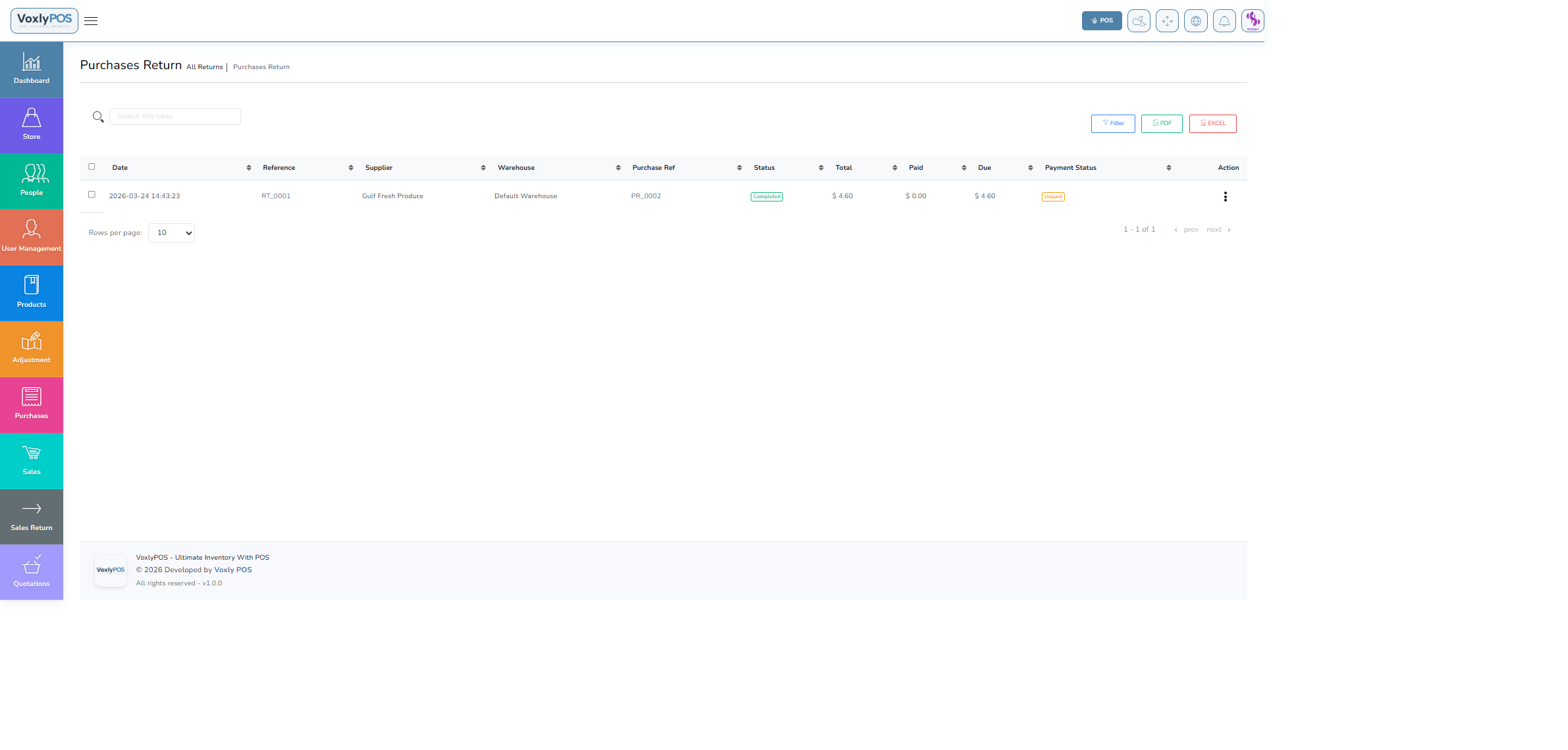
All purchase returns with supplier, products, and credit amounts. 🔍 Click image to enlarge
1
Go to Purchase Returns › Create
Navigate to the Create Purchase Return form.
2
Select Supplier & Warehouse
Choose the supplier and the warehouse the goods are leaving from.
3
Add Returned Products
Search for the products being returned with their quantities.
4
Set Payment Adjustment
Specify the credit or refund amount from the supplier.
5
Submit
Click Submit to record the return. Stock is deducted automatically.
👥
Customers
Manage your complete customer database. Track purchase history, outstanding balances, and customer-specific pricing.
Navigation: People › Customers
Customers List

All customers with contact info, balance, and action buttons. 🔍 Click image to enlarge
Navigation: People › Customers › Create Customer
Create Customer Form
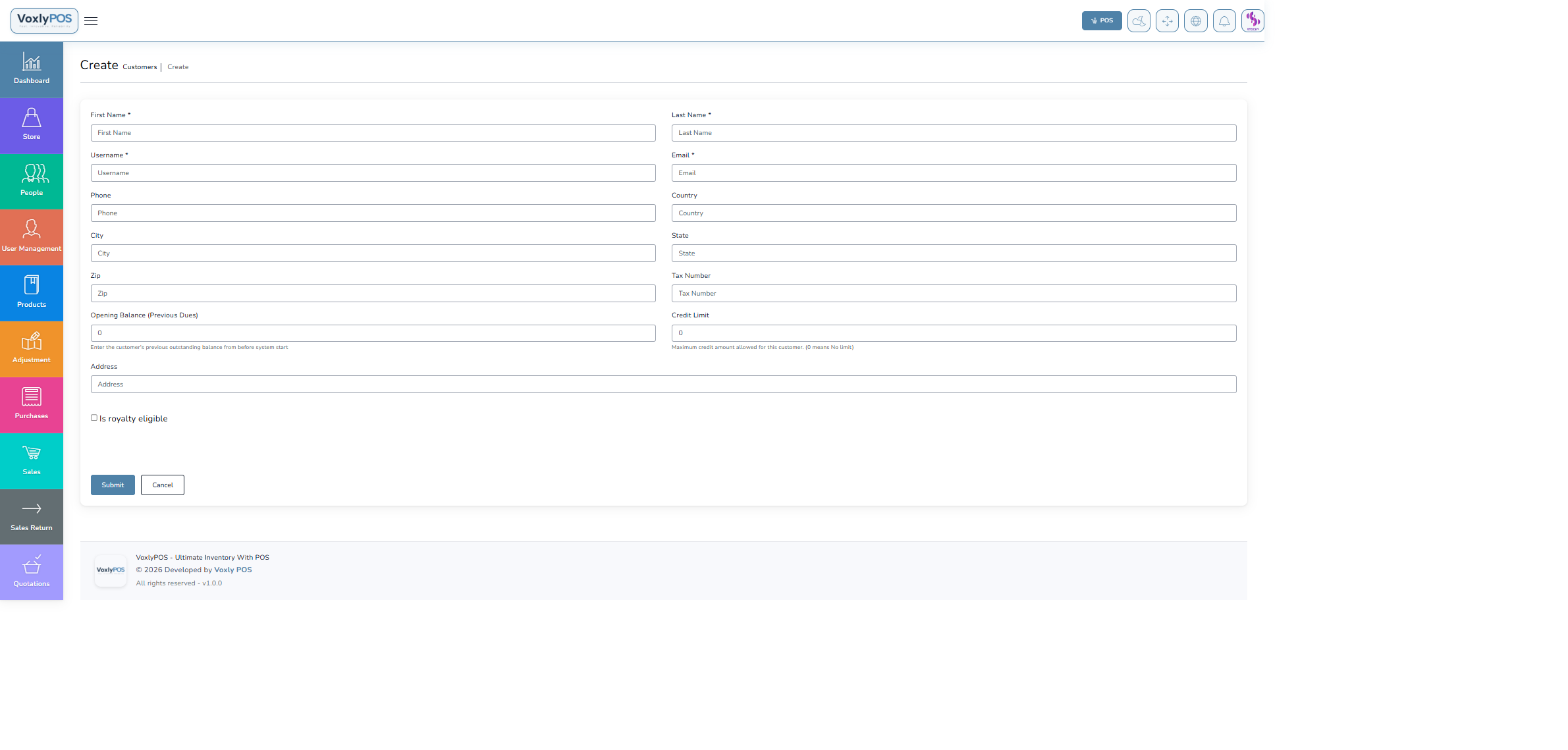
Customer creation form with name, contact, and address fields. 🔍 Click image to enlarge
1
Click Create Customer
Use the button at the top of the Customers list.
2
Enter Details
Fill in Name, Email, Phone number, and Address.
3
Set Customer Group
Optionally assign to a group for bulk pricing or discounts.
4
Submit
Click Submit to save the customer record.
🏭
Suppliers
Maintain your supplier directory. Track deliveries, purchase history, outstanding balances, and contact information.
Navigation: People › Suppliers
Suppliers List
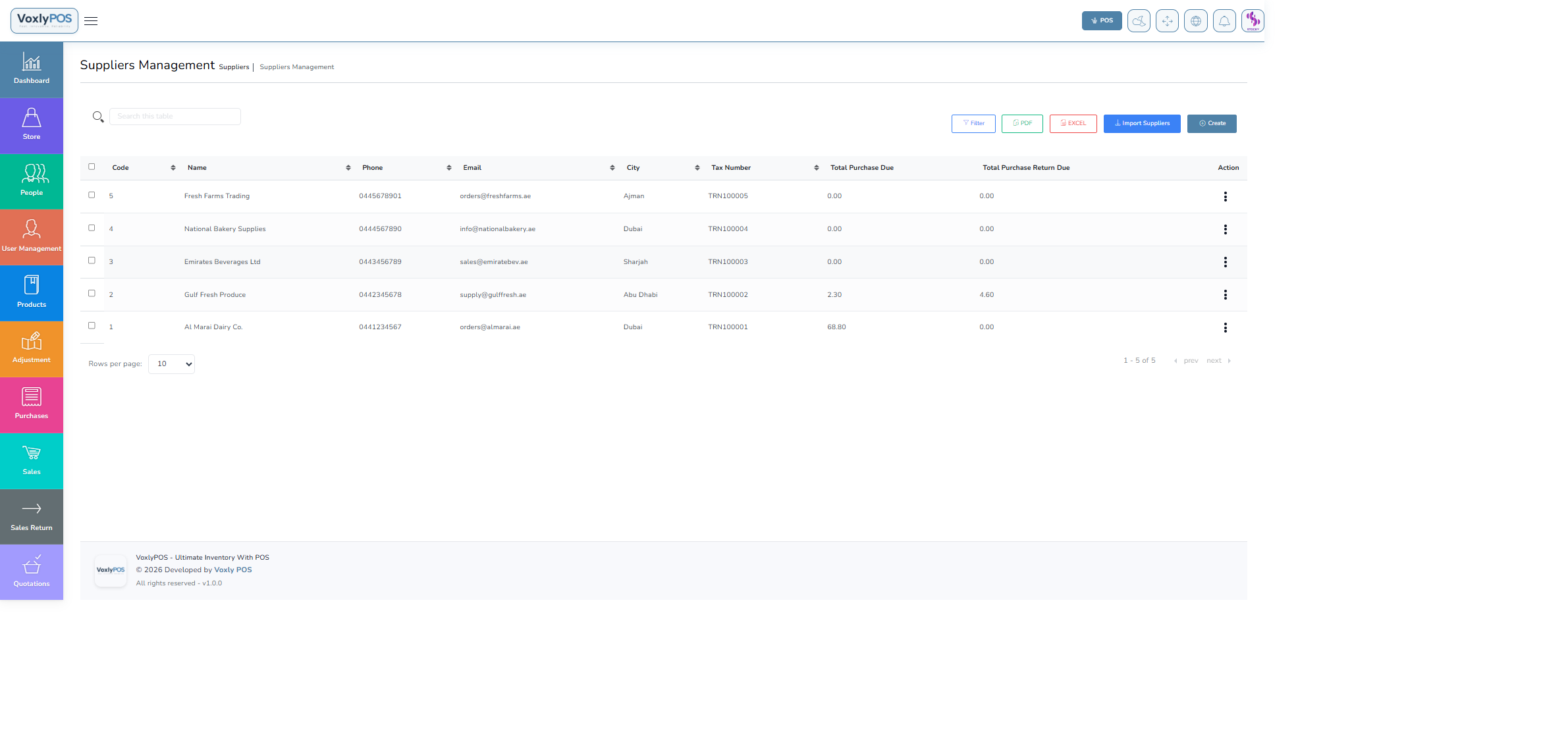
All suppliers with contact details, balance, and purchase totals. 🔍 Click image to enlarge
Navigation: People › Suppliers › Create Supplier
Create Supplier Form
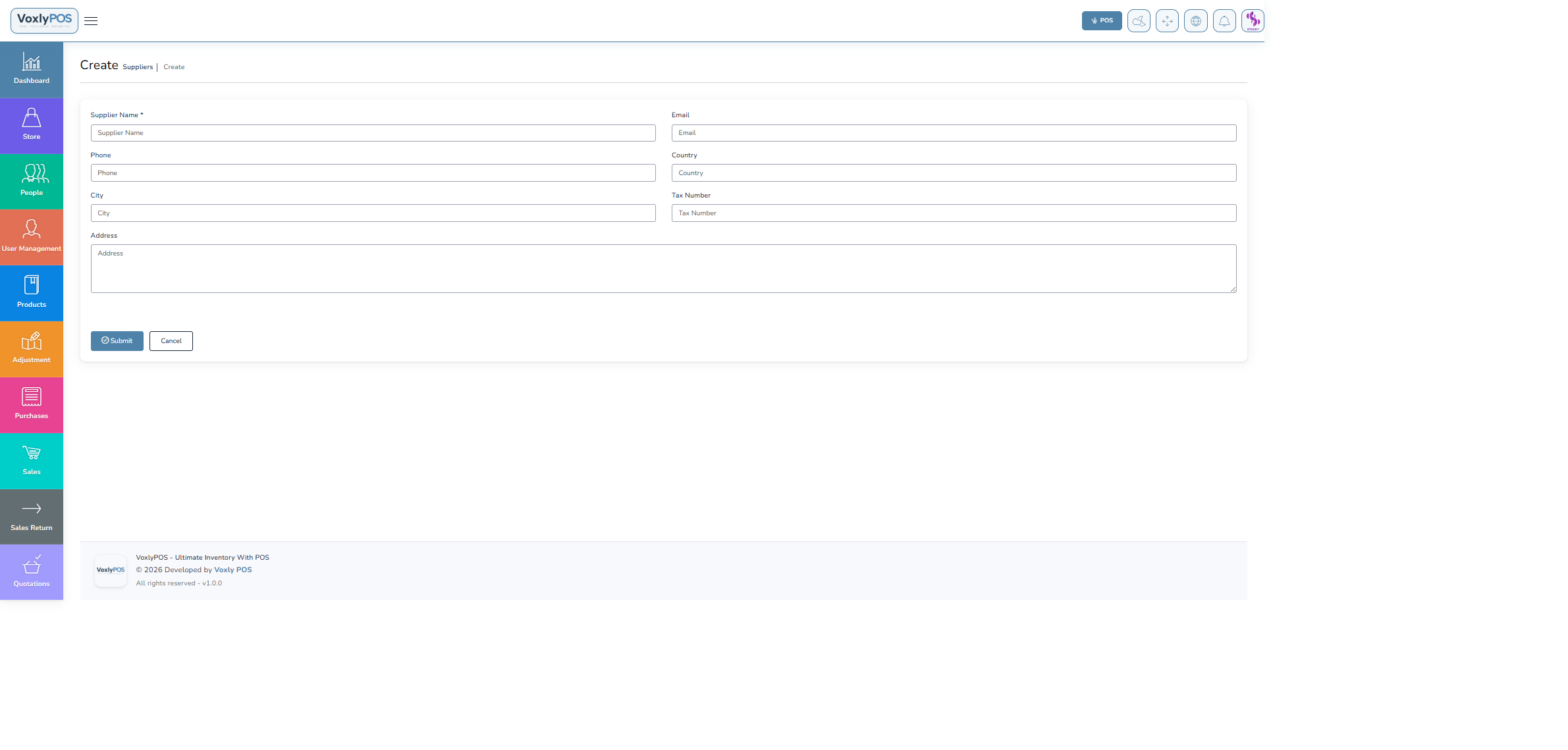
Supplier creation form with company and contact fields. 🔍 Click image to enlarge
1
Click Create Supplier
Use the button at the top of the Suppliers list.
2
Enter Company Details
Fill in Company Name, Contact Person, Email, and Phone.
3
Add Address
Enter the supplier physical or billing address.
4
Submit
Click Submit to create the supplier record.
👤
User Management
Create user accounts, assign roles, and configure module-level permissions. Control exactly what each staff member can access.
Navigation: User Management
User Management
User accounts list with roles and access status. 🔍 Click image to enlarge
1
Click Add User
Use the Add User button at the top of the user list.
2
Enter User Details
Provide Name, Email address, and a secure Password.
3
Assign a Role
Select the appropriate role: Admin, Manager, Cashier, or Warehouse Staff.
4
Set Permissions
Fine-tune access to specific modules using the permissions toggles.
5
Submit
Click Submit. The user can now log in with their credentials.
⚠️Access ControlAlways apply the Principle of Least Privilege — only grant access to modules the user genuinely requires.
🏛️
Accounts & Money Transfers
Manage your business bank accounts, cash accounts, and move funds between them to keep balances reconciled.
Navigation: Accounts
Accounts List
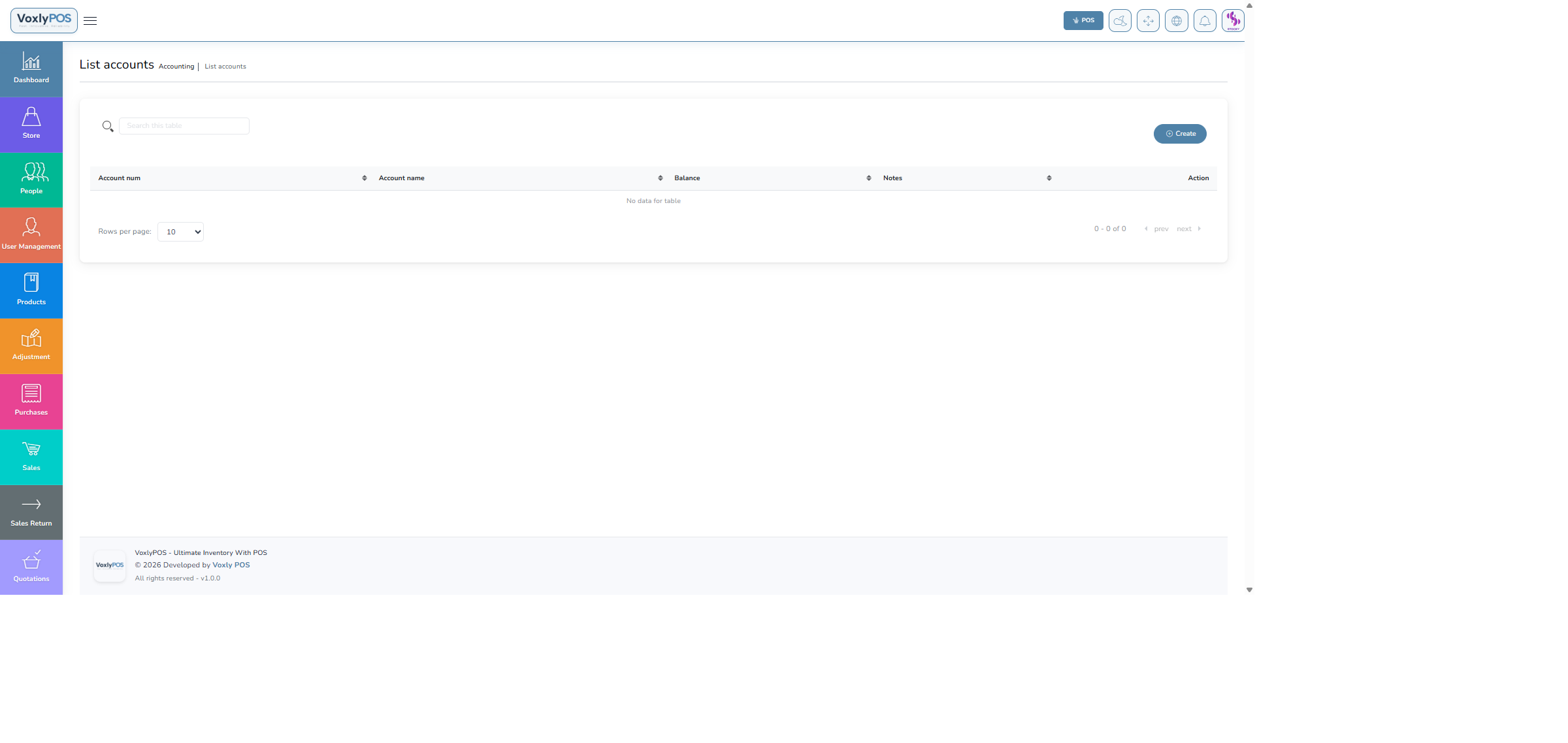
Business accounts showing balance, type, and transaction history link. 🔍 Click image to enlarge
Navigation: Transfer Money
Transfer Money
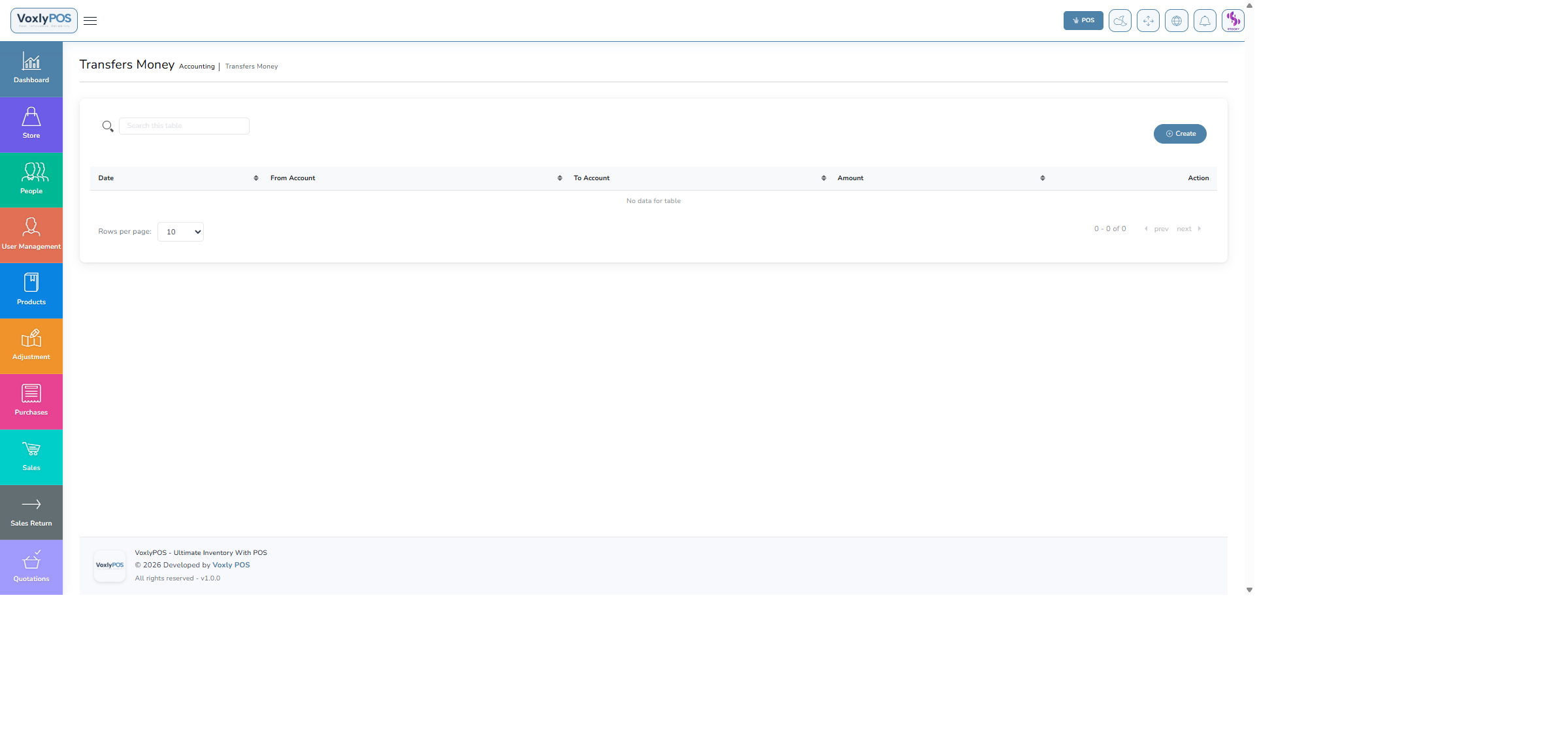
Transfer funds form with source, destination, and amount fields. 🔍 Click image to enlarge
1
Go to Transfer Money
Click Transfer Money in the Finance section of the sidebar.
2
Select Accounts
Choose the From Account (source) and To Account (destination).
3
Enter Amount & Description
Type the amount and add a reference description.
4
Submit
Click Submit. Balances are updated immediately in both accounts.
💳
Expenses
Track all business running costs — rent, utilities, transport, packaging, and more. Categorise and report on expenses to control overheads.
Navigation: Expenses › Expense List
Expenses List
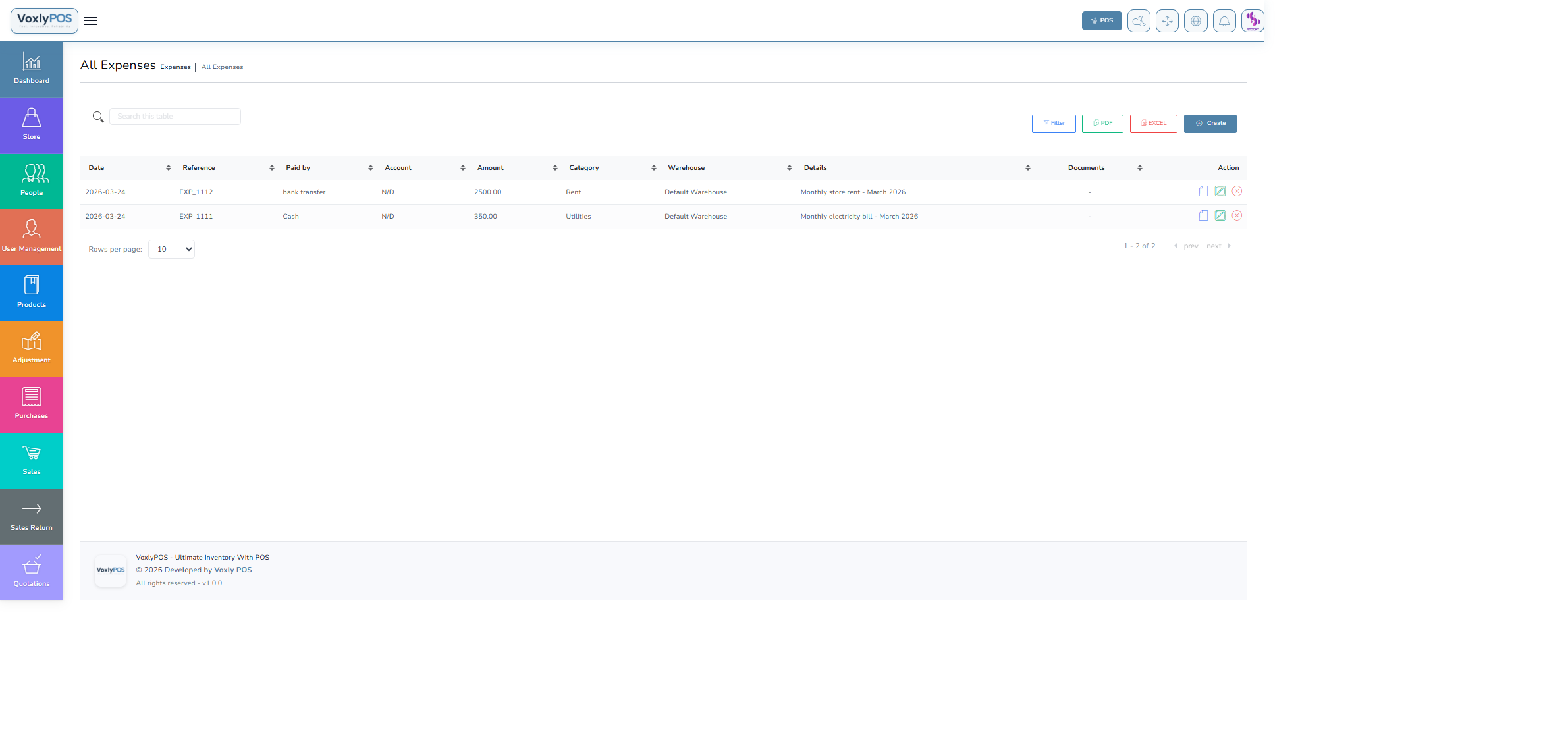
All expenses with category, amount, date, and payment method. 🔍 Click image to enlarge
Navigation: Expenses › Expense Categories
Expense Categories
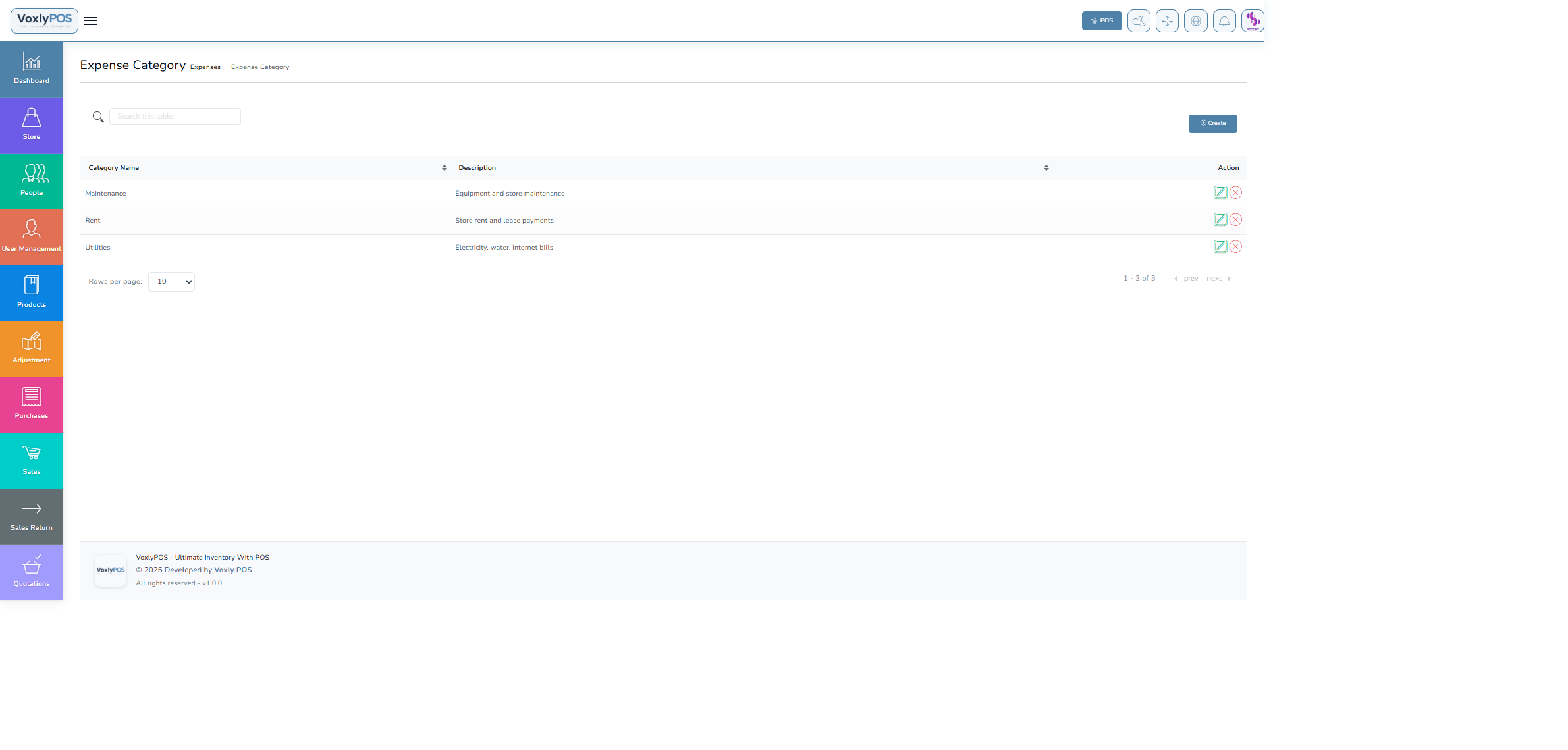
Categories for classifying business expenses. 🔍 Click image to enlarge
Navigation: Expenses › Create Expense
Create Expense Form
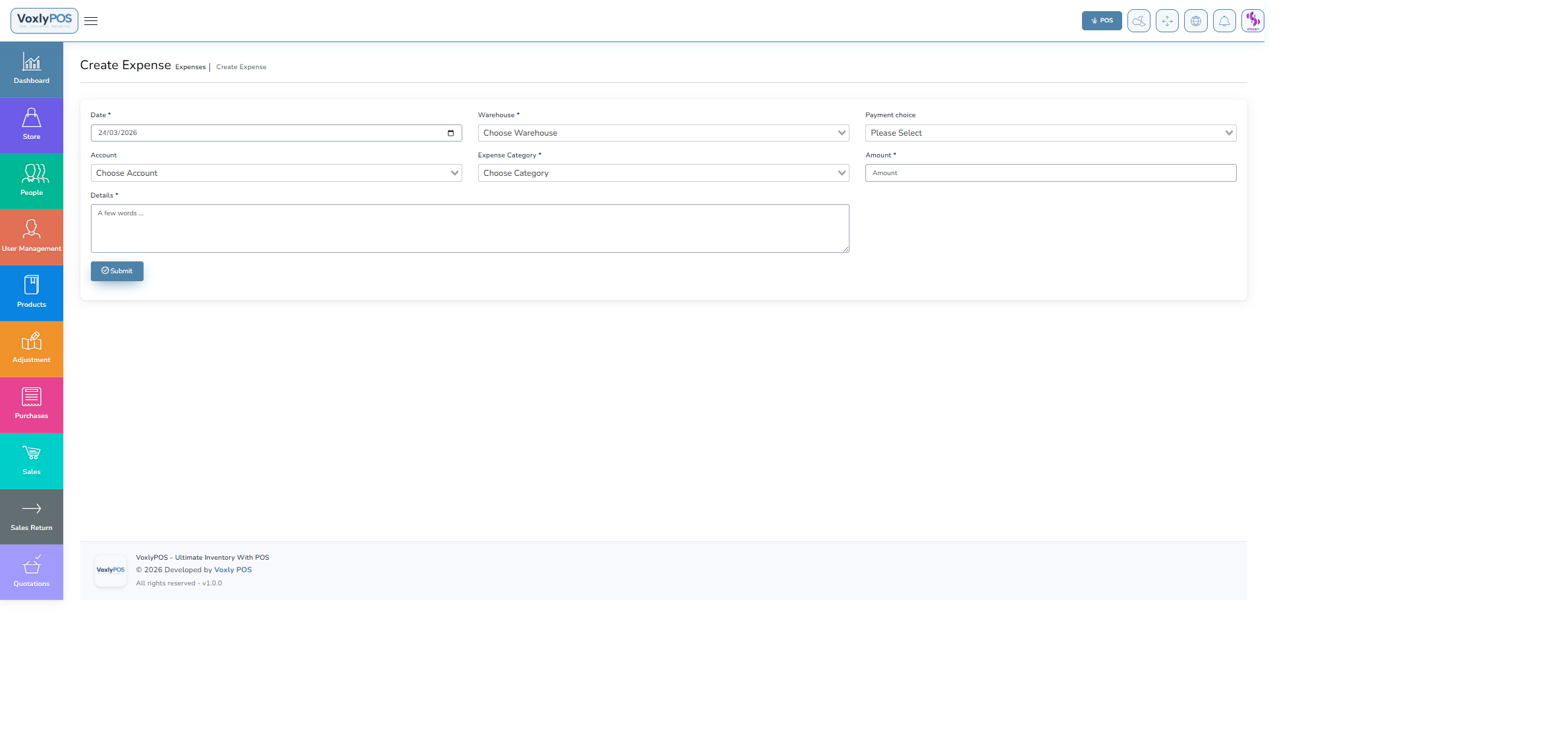
Expense creation form with category, amount, and warehouse fields. 🔍 Click image to enlarge
1
Select Expense Category
Choose from existing categories (e.g., Rent, Utilities, Wages).
2
Enter Amount
Input the expense amount.
3
Set Warehouse & Date
Associate with a warehouse and pick the date incurred.
4
Add Notes & Submit
Add a description for reference, then click Submit.
🏦
Deposits
Manage customer advance payments and supplier deposits. Useful for pre-orders, bulk order down-payments, and layaway.
Navigation: Deposits › Deposit List
Deposits List
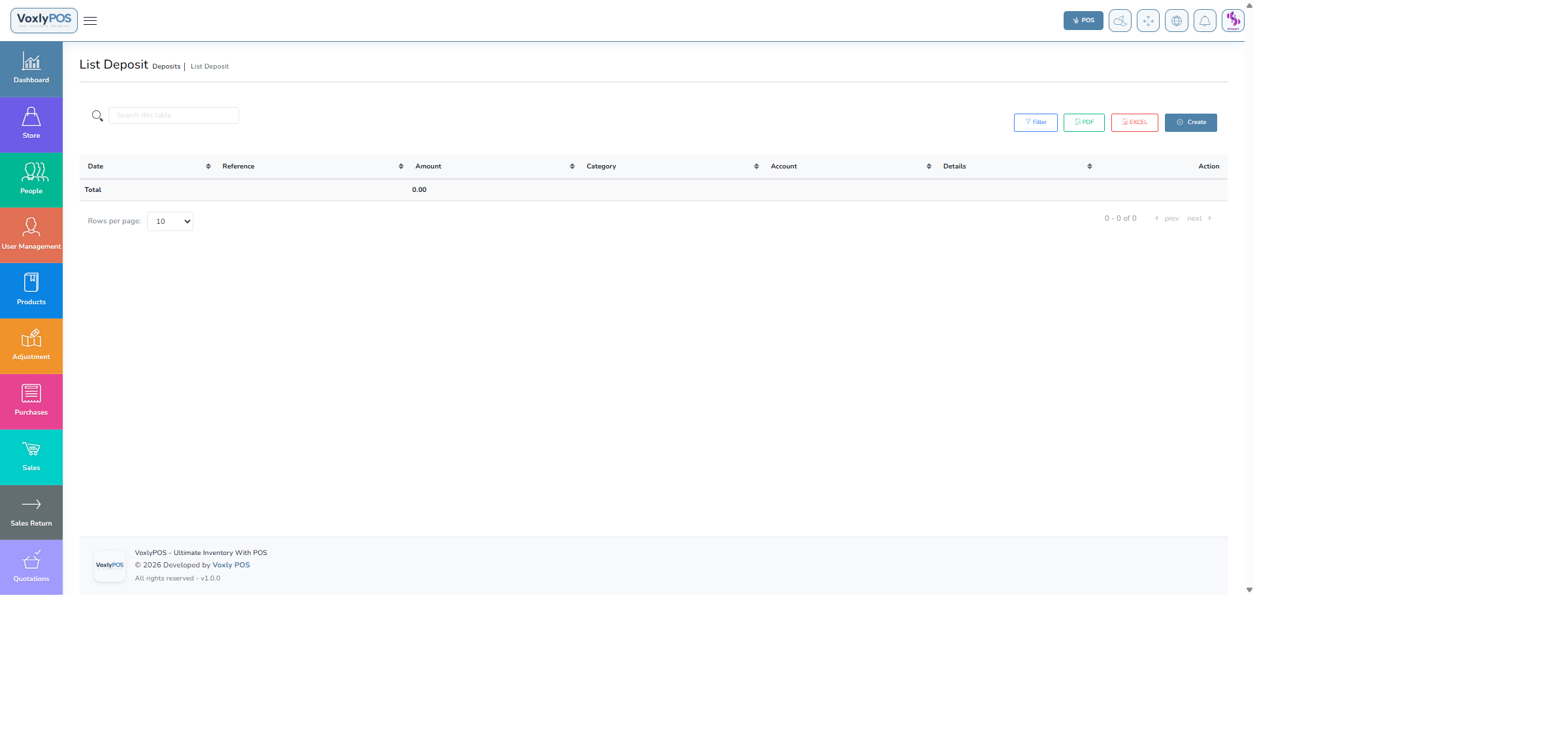
All deposits showing customer/supplier, amount, and category. 🔍 Click image to enlarge
Navigation: Deposits › Deposit Category
Deposit Categories
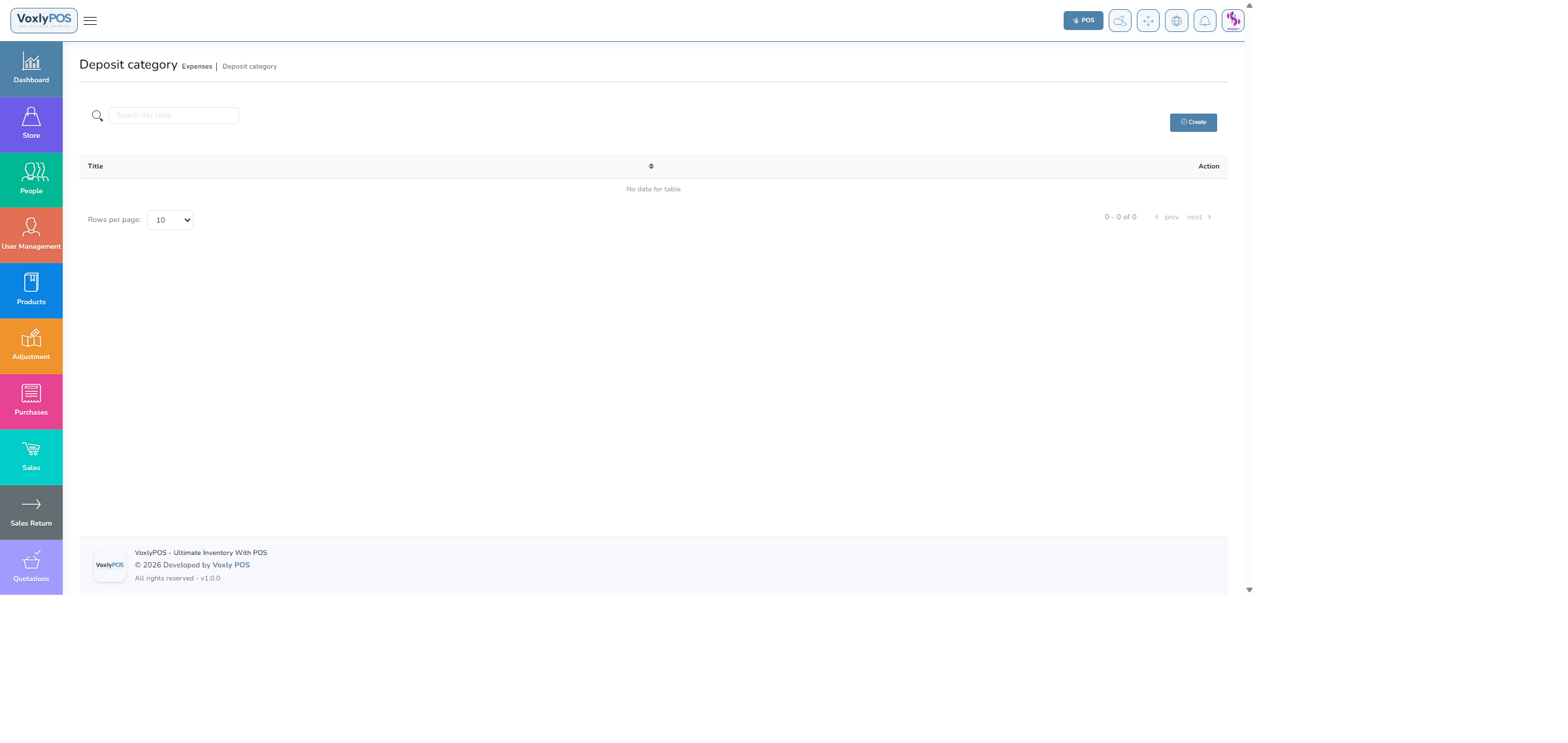
Categories for classifying deposit transactions. 🔍 Click image to enlarge
Navigation: Deposits › Create Deposit
Create Deposit Form
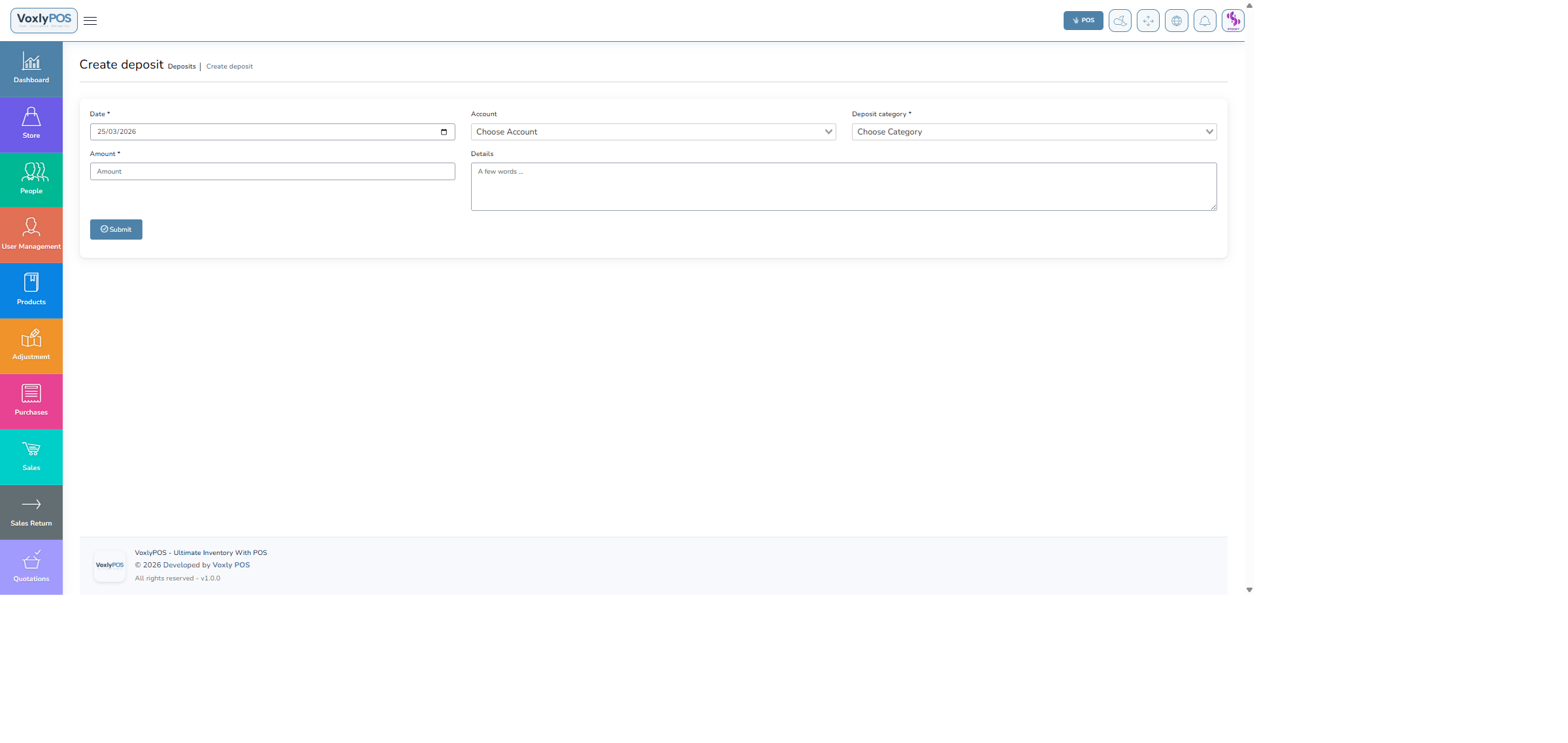
Deposit creation form with customer selection and payment fields. 🔍 Click image to enlarge
1
Select Customer or Supplier
Choose who is making or receiving the deposit.
2
Choose Deposit Category
Select the appropriate deposit type/category.
3
Enter Amount & Method
Input the deposit amount and select the payment method.
4
Submit
Click Submit to record the deposit.
📄
Cheque Management
Track cheques received from customers and issued to suppliers. Monitor due dates and update statuses as cheques clear or bounce.
Navigation: Cheque Management
Cheques List
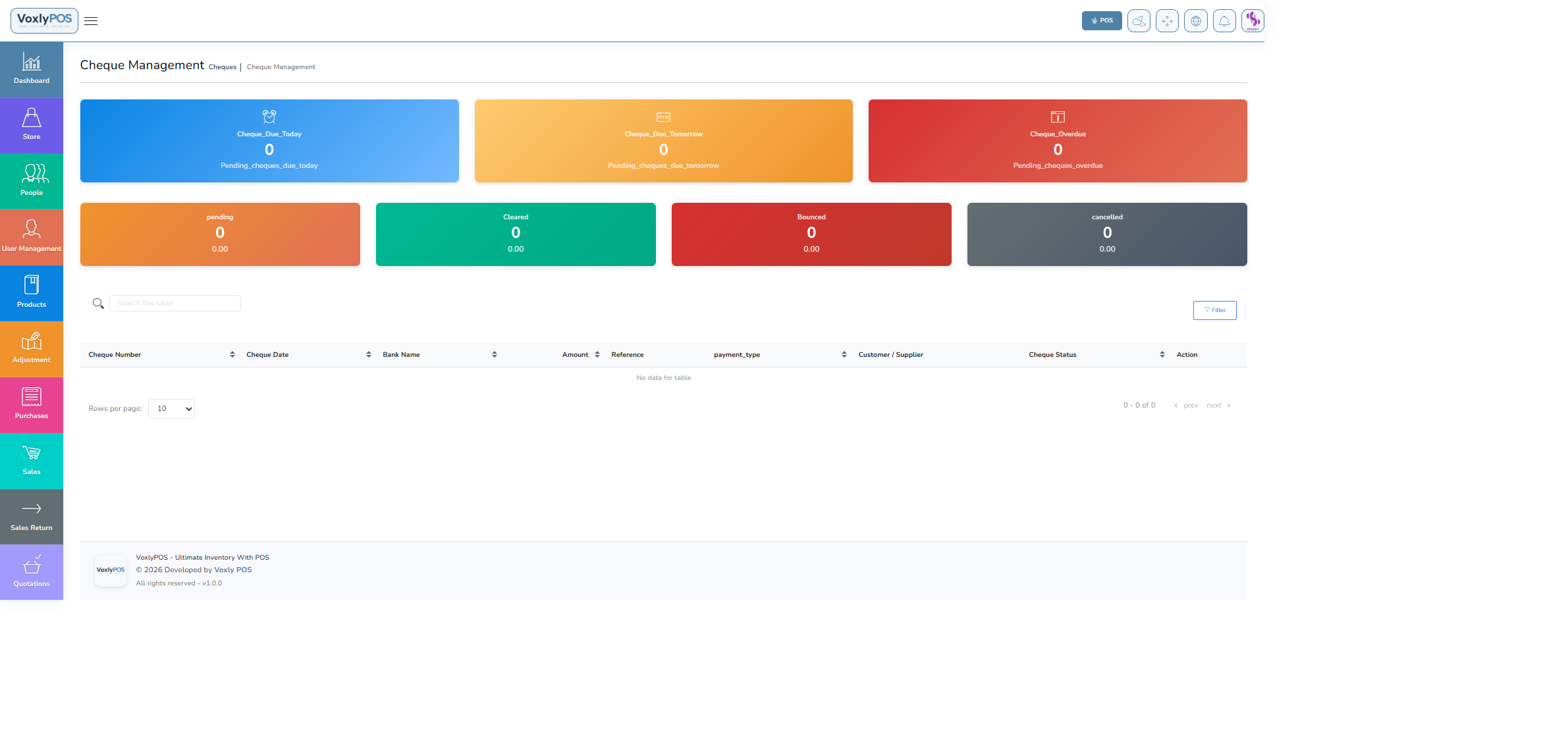
All cheques with number, party, amount, due date, and status. 🔍 Click image to enlarge
Cheque Management Overview
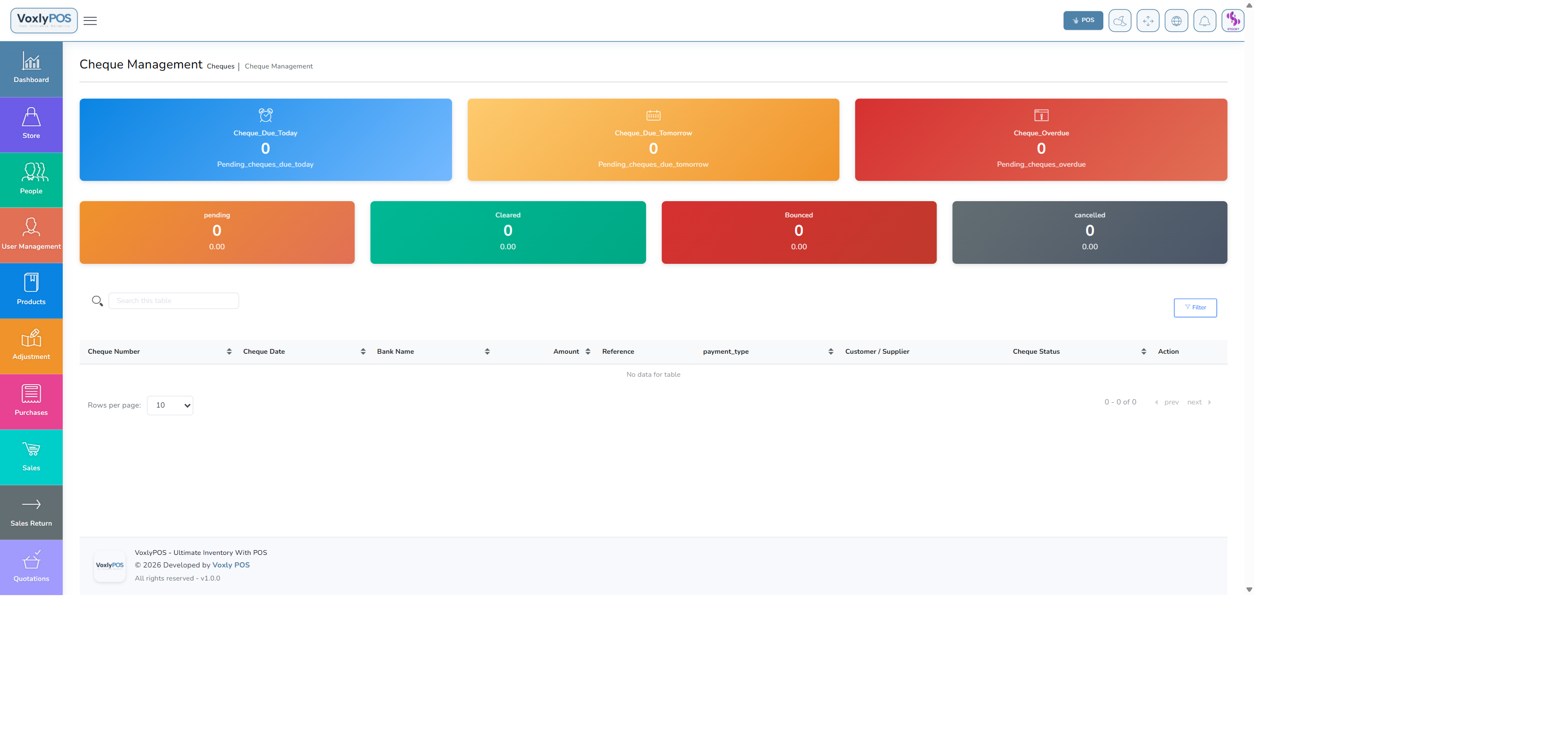
Detailed cheque management dashboard with status filters. 🔍 Click image to enlarge
1
Navigate to Cheque Management
Click Cheque Management in the Finance section.
2
View Cheque Status
Filter cheques by Pending, Cleared, or Bounced status.
3
Update Status
Click on a cheque and update its status as it clears or bounces.
4
Track Due Dates
Use filters to see upcoming cheque due dates and avoid missed deposits.
ℹ️Cheque TypesCheques can be received from customers (sales payments) or issued to suppliers (purchase payments). Both are tracked in the same view.
📊
Accounting Module
Full double-entry accounting — chart of accounts, journal entries, trial balance, profit & loss, balance sheet, and tax reporting.
Navigation: Accounting › Dashboard
Accounting Dashboard
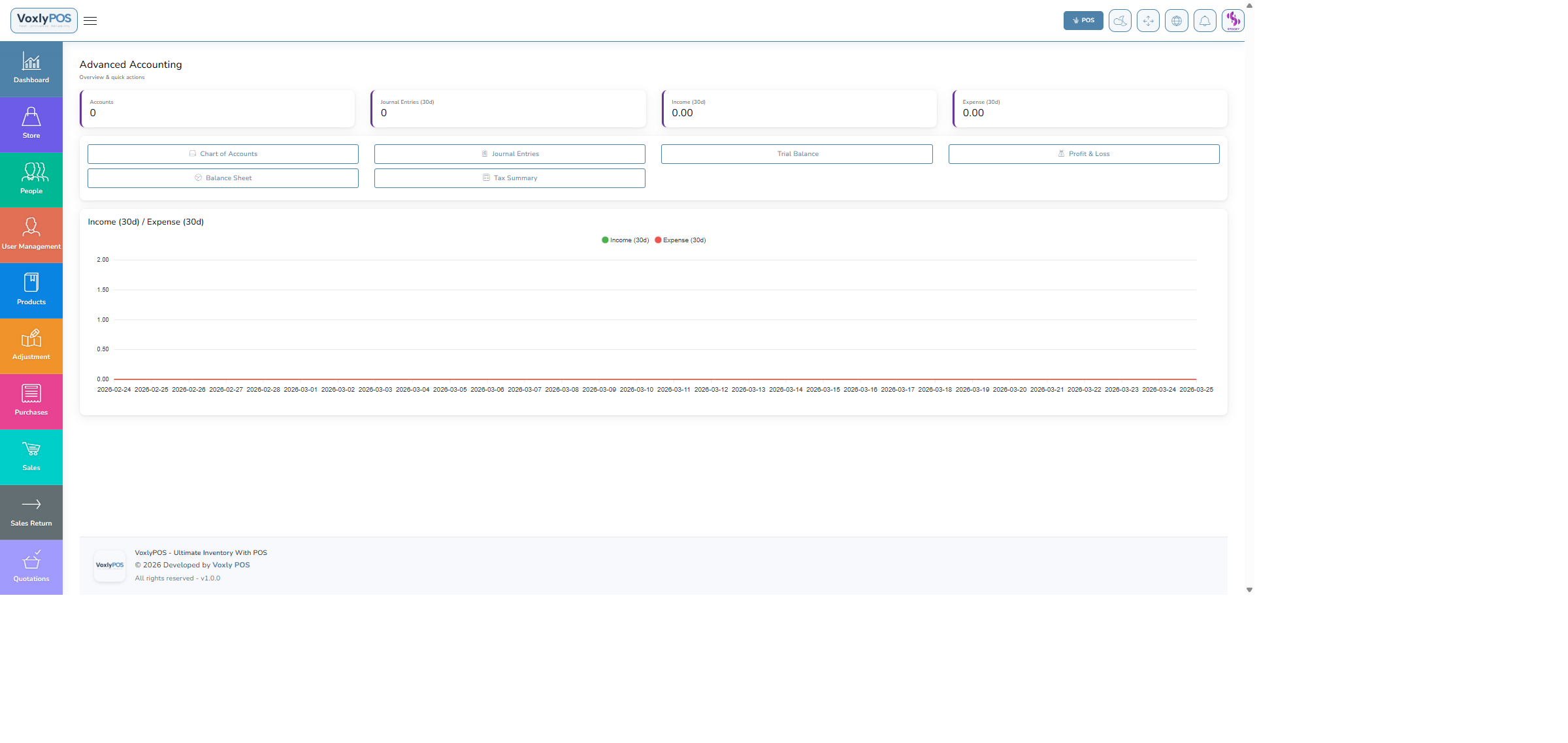
Advanced accounting dashboard showing income, expenses, assets, and equity totals. 🔍 Click image to enlarge
Navigation: Accounting › Chart of Accounts
The chart of accounts organises all financial ledgers by type: Assets, Liabilities, Equity, Income, and Expenses.
Chart of Accounts
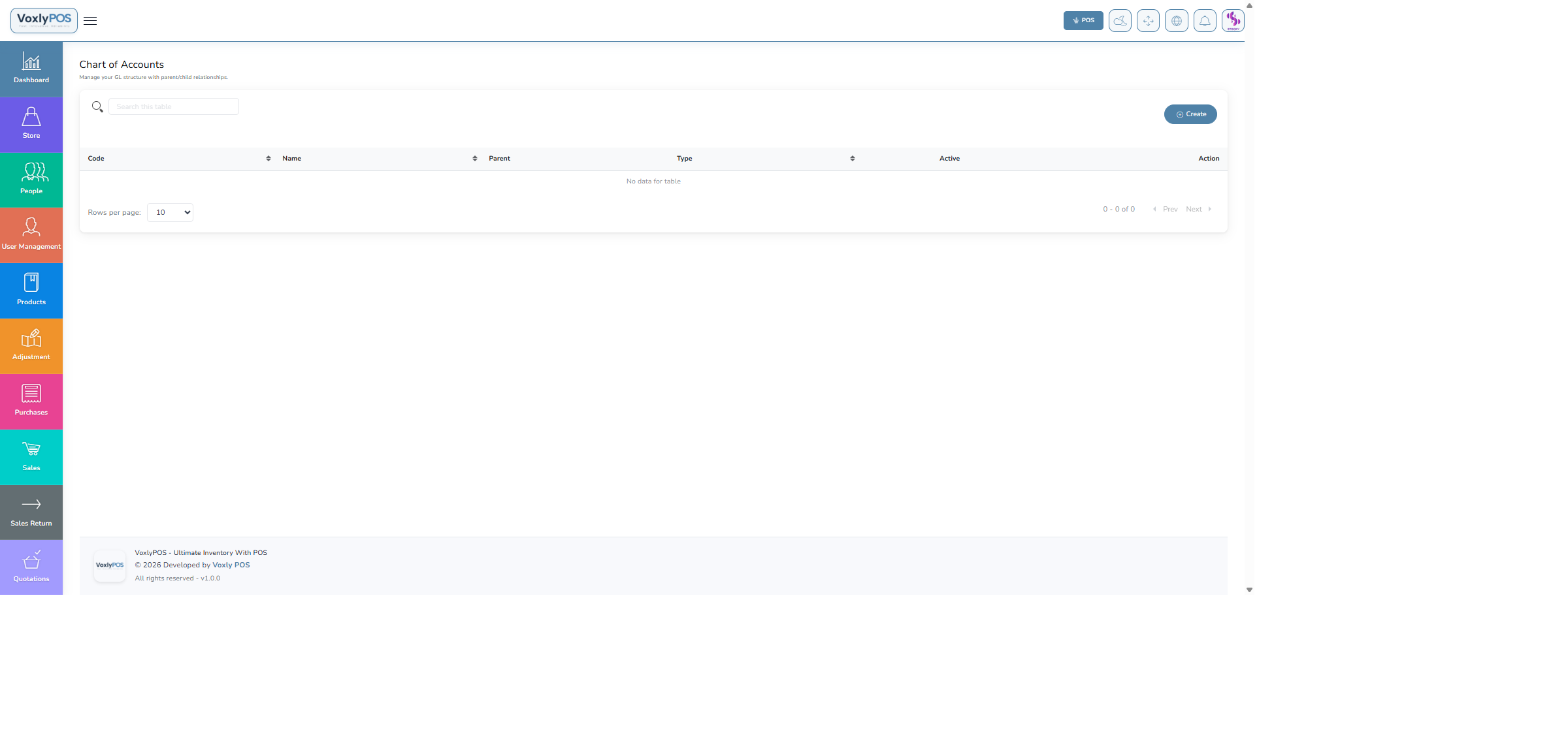
Hierarchical chart of accounts with debit/credit balances. 🔍 Click image to enlarge
Navigation: Accounting › Journal Entries
Create manual journal entries for adjustments, corrections, and non-automated transactions.
Journal Entries
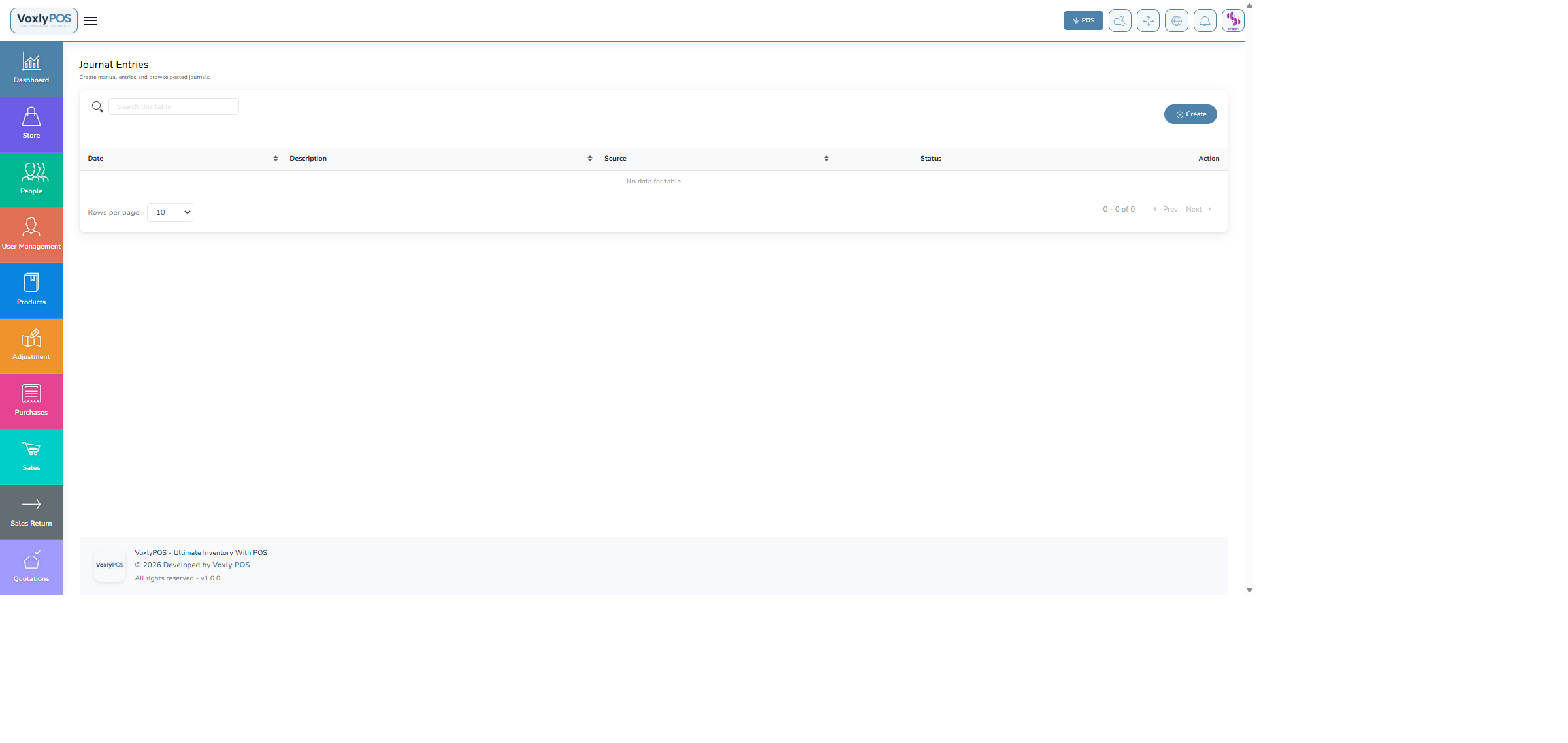
Journal entries list with debit, credit, and narrative columns. 🔍 Click image to enlarge
Access all standard financial reports from the Accounting Reports menu:
⚖️
Trial Balance
Summary of all account debit and credit balances
📈
Profit & Loss
Income statement for any period
🏛️
Balance Sheet
Assets, liabilities, and equity snapshot
🧾
Tax Summary
Tax collected vs tax paid overview
Trial Balance
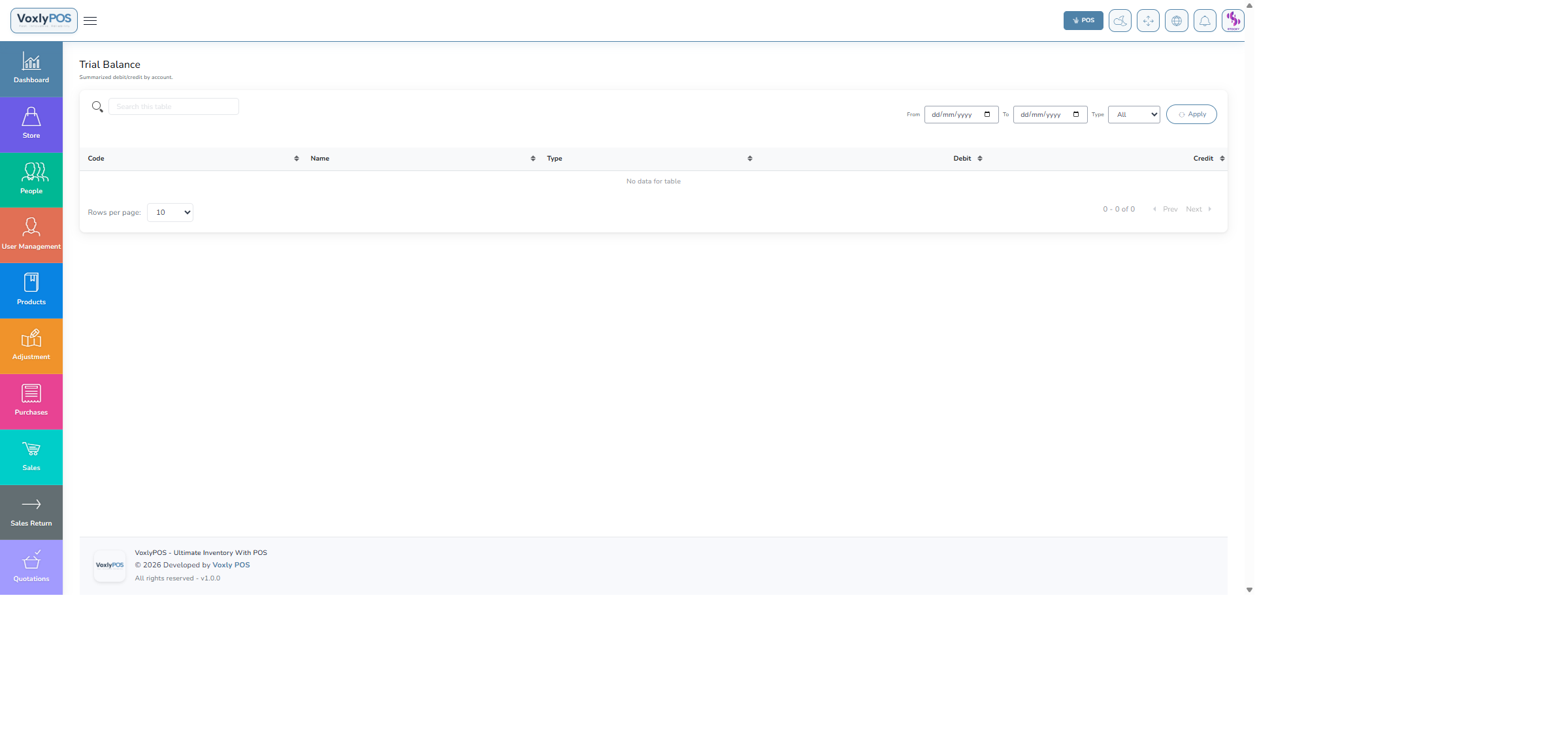
Trial balance report showing debits and credits for all accounts. 🔍 Click image to enlarge
Profit & Loss Report
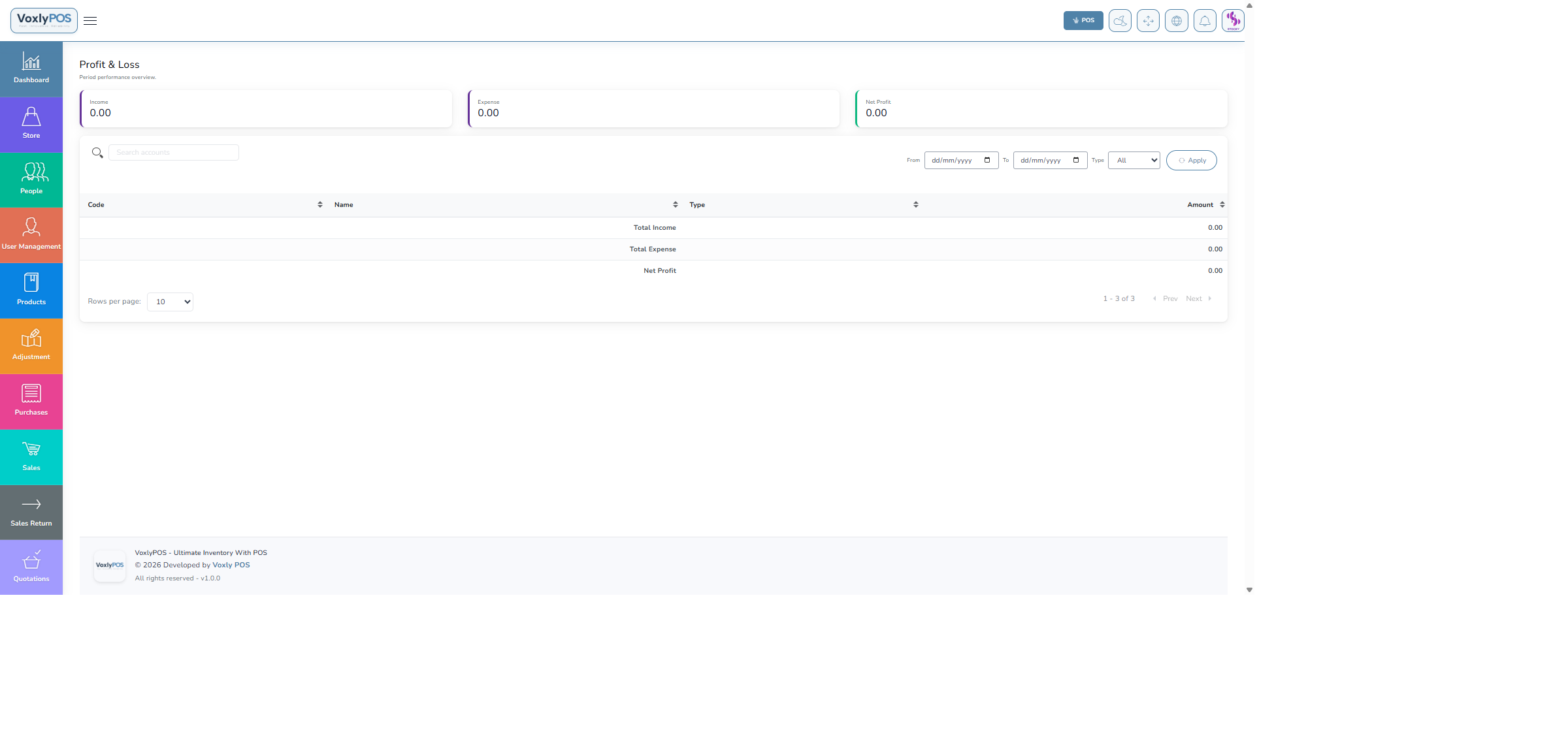
Income statement showing revenue, cost of goods, and net profit. 🔍 Click image to enlarge
Balance Sheet
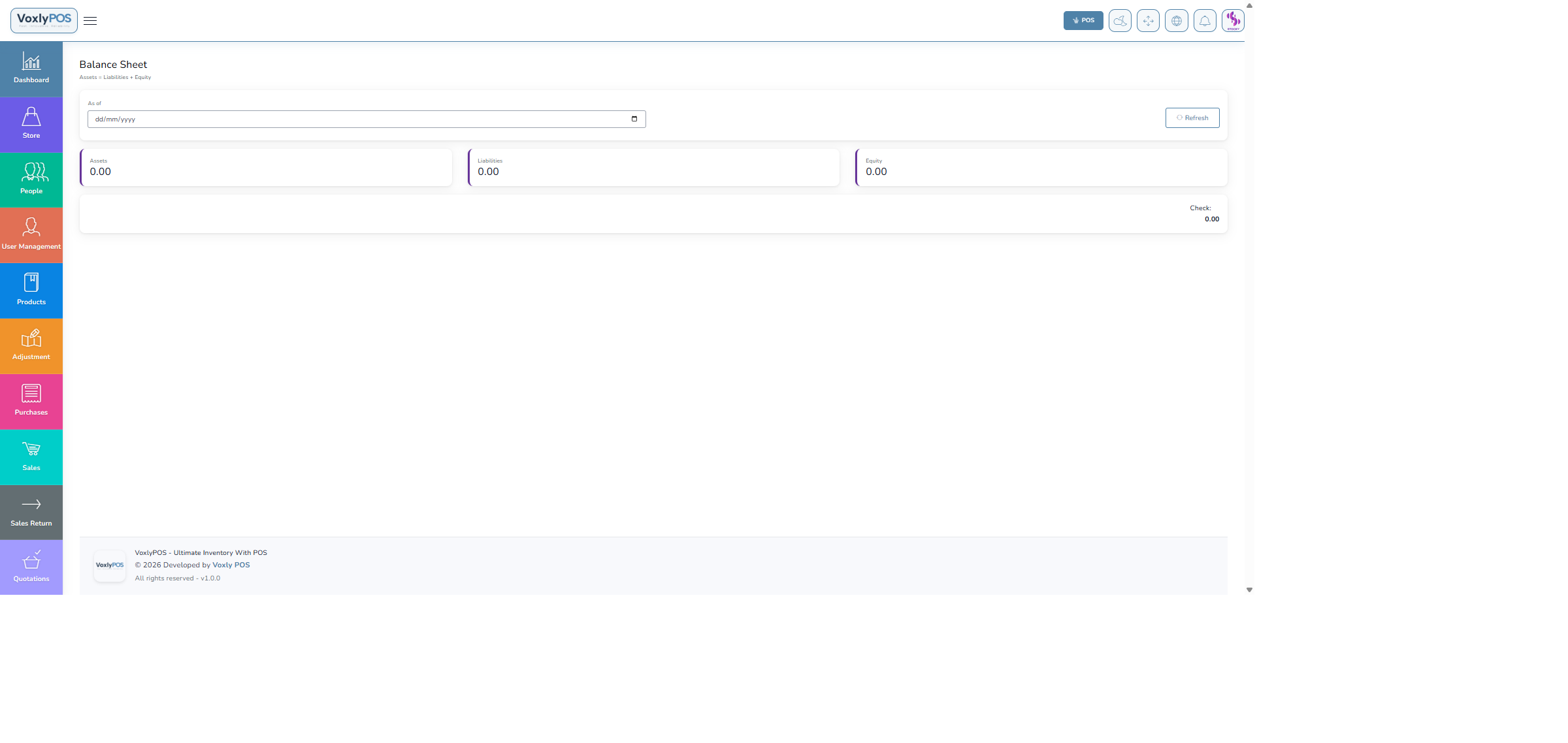
Balance sheet showing assets, liabilities and equity positions. 🔍 Click image to enlarge
👔
HRM — Human Resource Management
Manage your entire workforce — employee profiles, departments, designations, attendance, leave management, payroll, and holidays.
1
Company Setup
Go to HRM › Company — set your company name, address, and HR policy documents.
2
Create Departments
Go to HRM › Departments — add departments such as Cashiers, Warehouse, Delivery, Management.
3
Add Designations
Go to HRM › Designations — define job titles within each department.
HRM Company
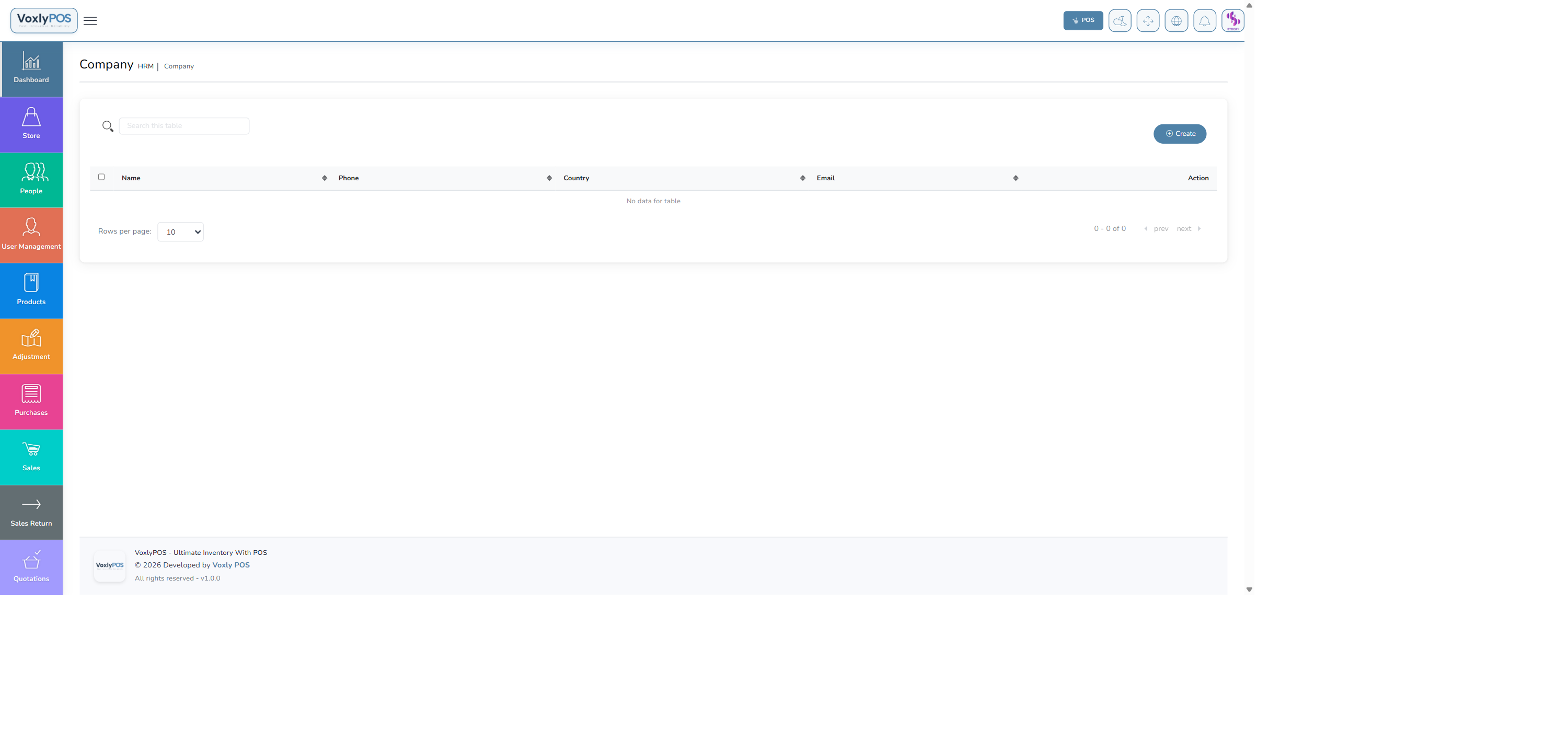
Company details configuration in HRM module. 🔍 Click image to enlarge
Departments
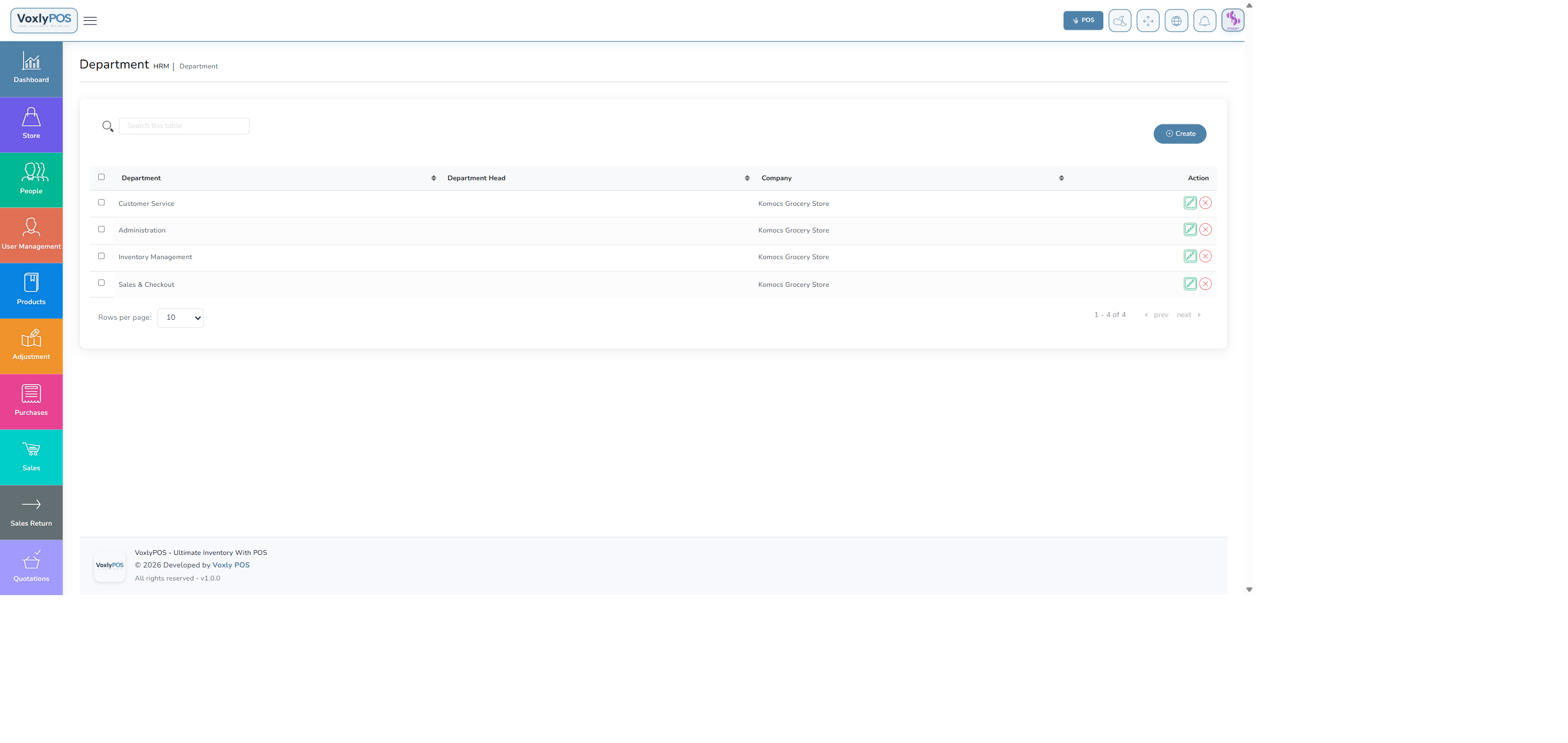
Department list with staff count and department head. 🔍 Click image to enlarge
Designations
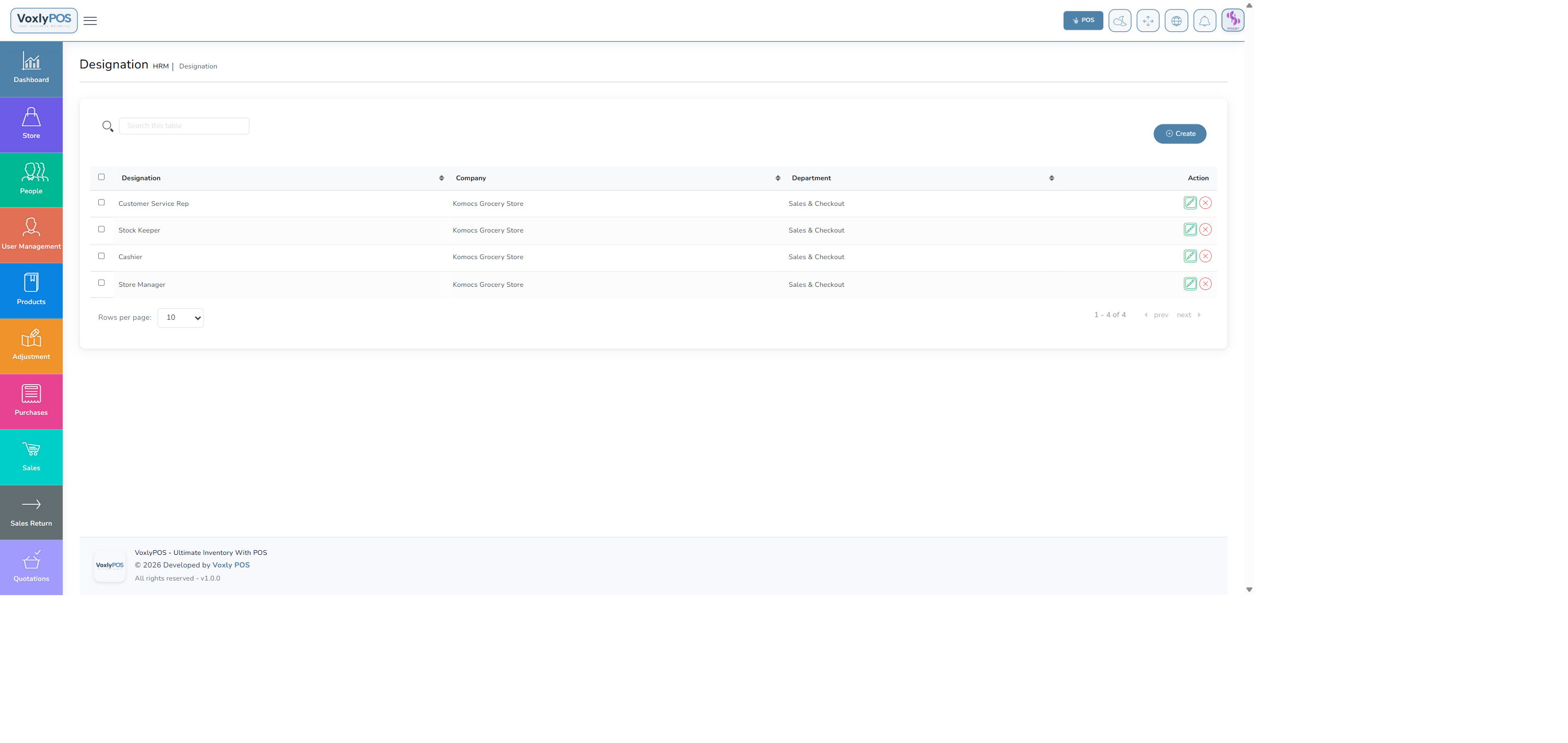
Job title/designation list linked to departments. 🔍 Click image to enlarge
Navigation: HRM › Employees
Maintain full employee profiles including personal details, employment information, salary, and assigned department.
Employees

Employee list with status, department, designation, and contact details. 🔍 Click image to enlarge
Attendance
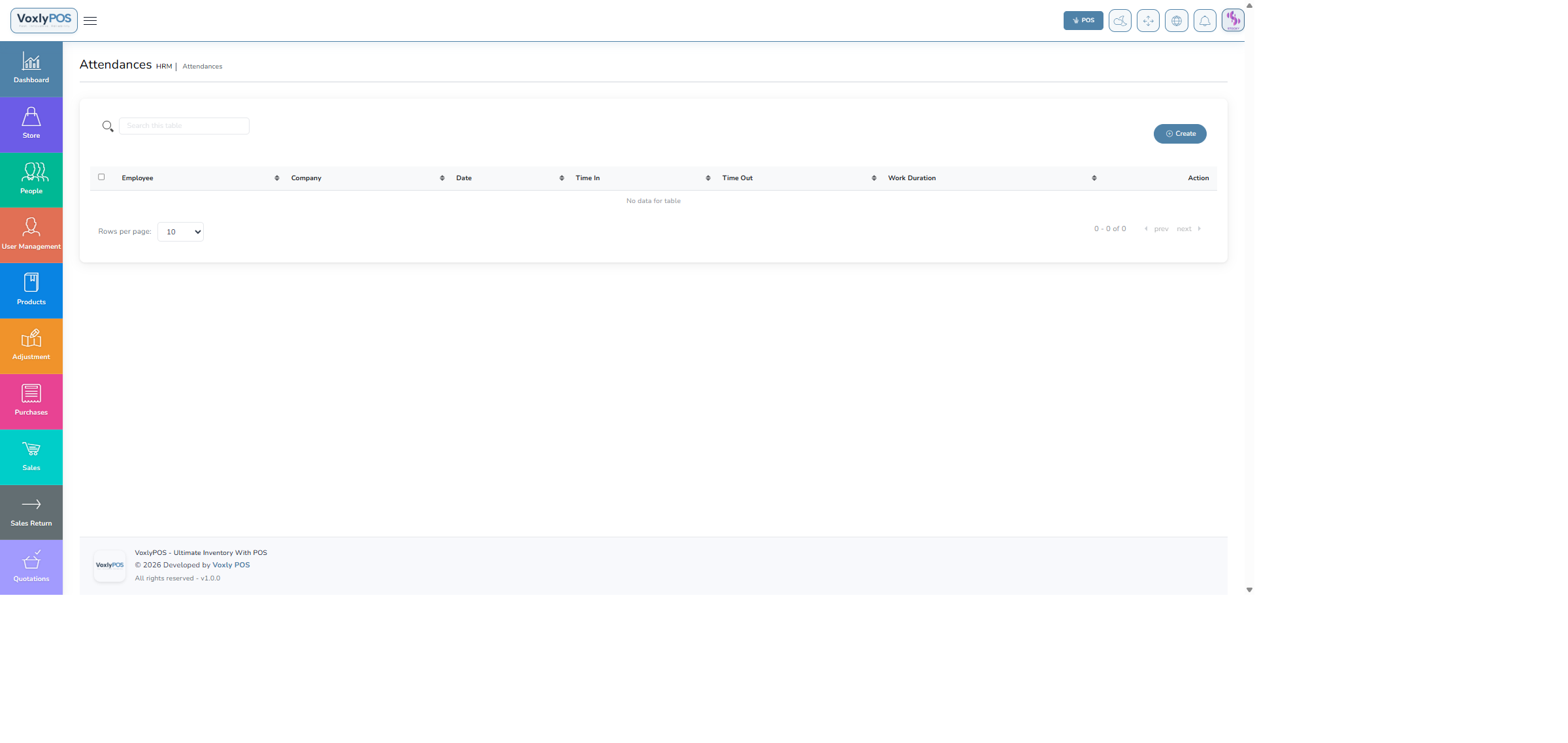
Monthly attendance calendar with present, absent, and leave statuses. 🔍 Click image to enlarge
Office Shifts
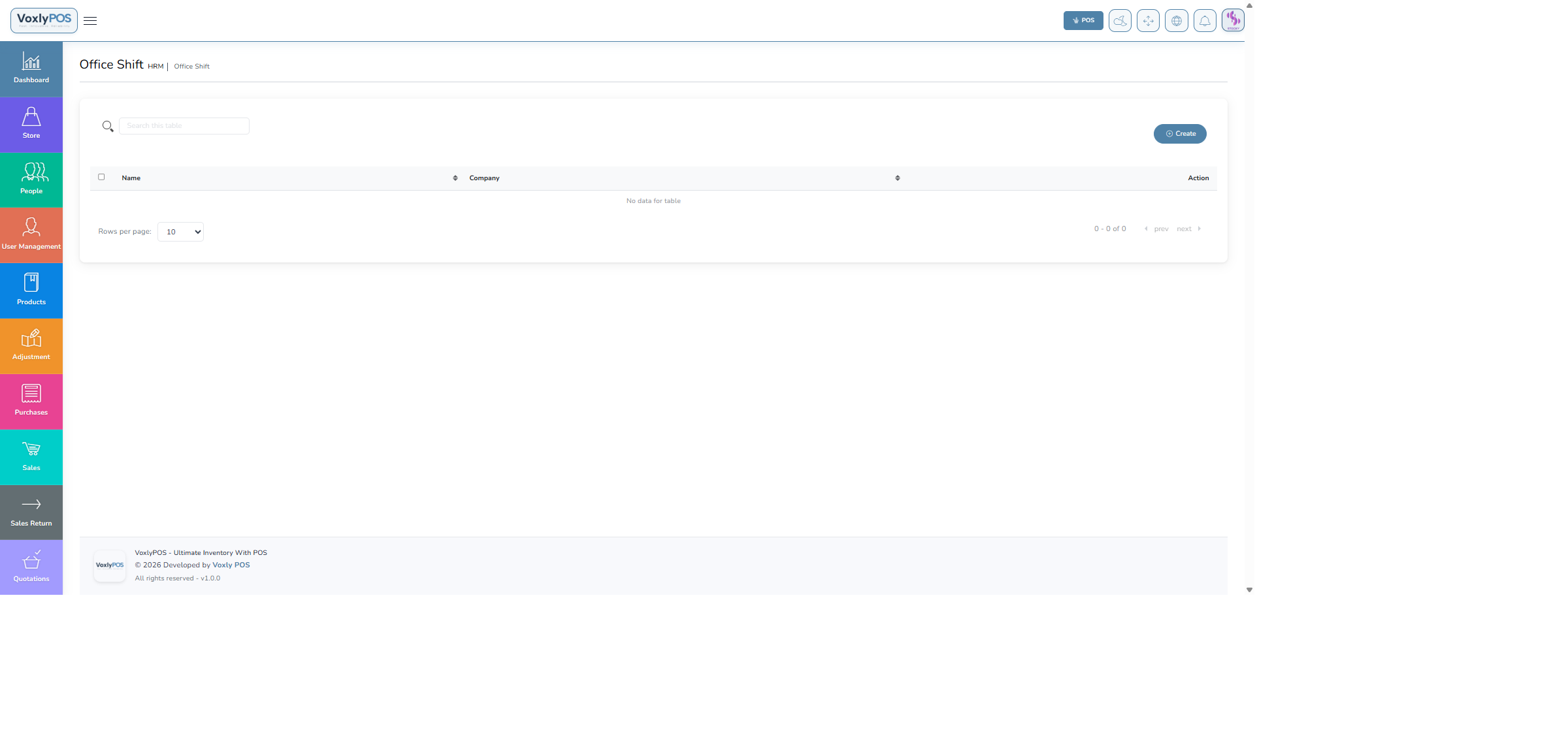
Office shift configurations with start/end times and break details. 🔍 Click image to enlarge
Leave Types
Configured leave types (Annual, Sick, Emergency, Unpaid). 🔍 Click image to enlarge
Leave Requests
Pending and processed leave requests with approve/reject actions. 🔍 Click image to enlarge
Payroll
Payroll management showing salary calculation and payment status. 🔍 Click image to enlarge
Holidays
Company holiday calendar with dates and descriptions. 🔍 Click image to enlarge
🔧
Service & Maintenance
Manage equipment service jobs, assign technicians, track maintenance history, and use checklists for quality control.
Navigation: Service & Maintenance › Service Jobs
Service Jobs
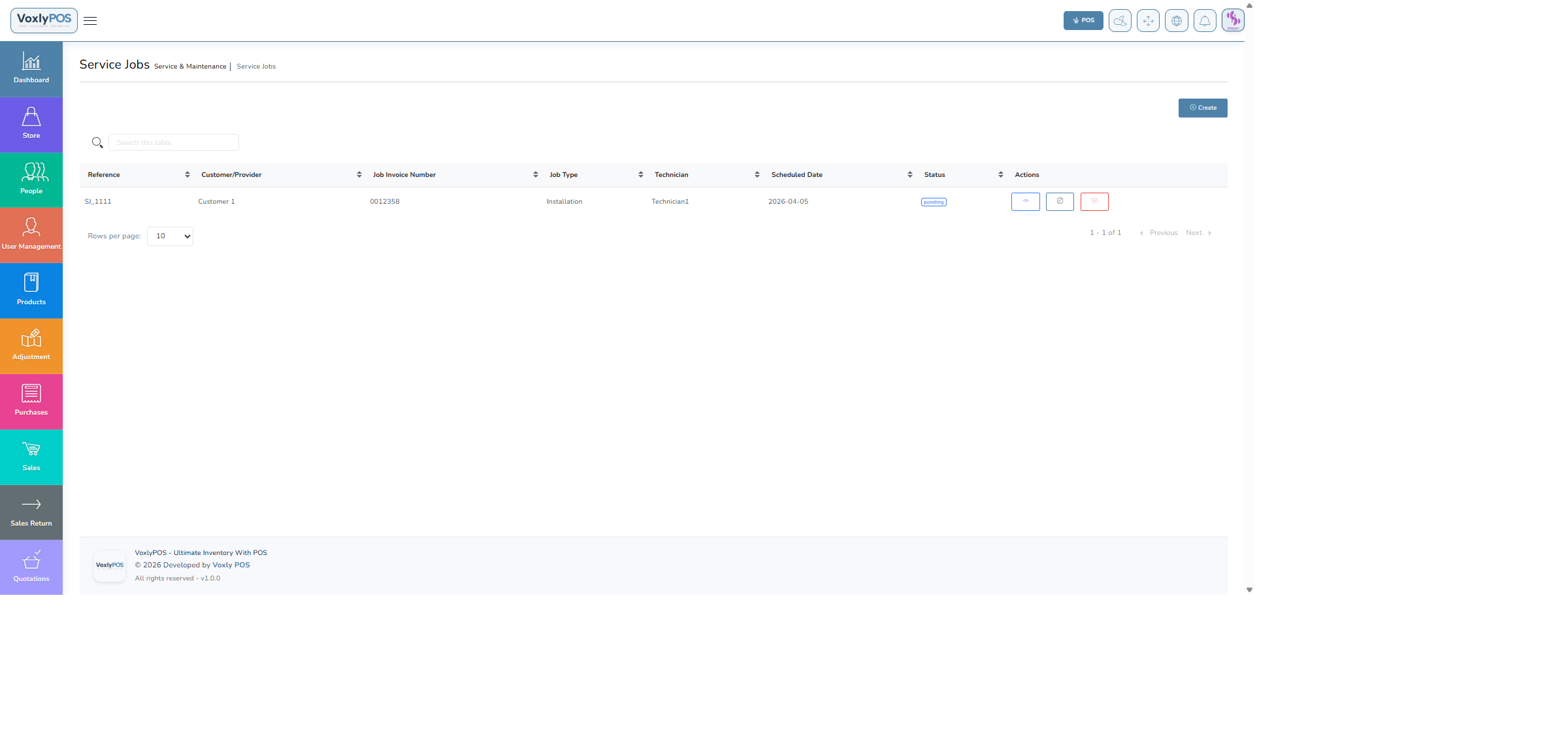
Active service jobs with priority, technician assignment, and due date. 🔍 Click image to enlarge
Navigation: Service & Maintenance › Technicians
Technicians
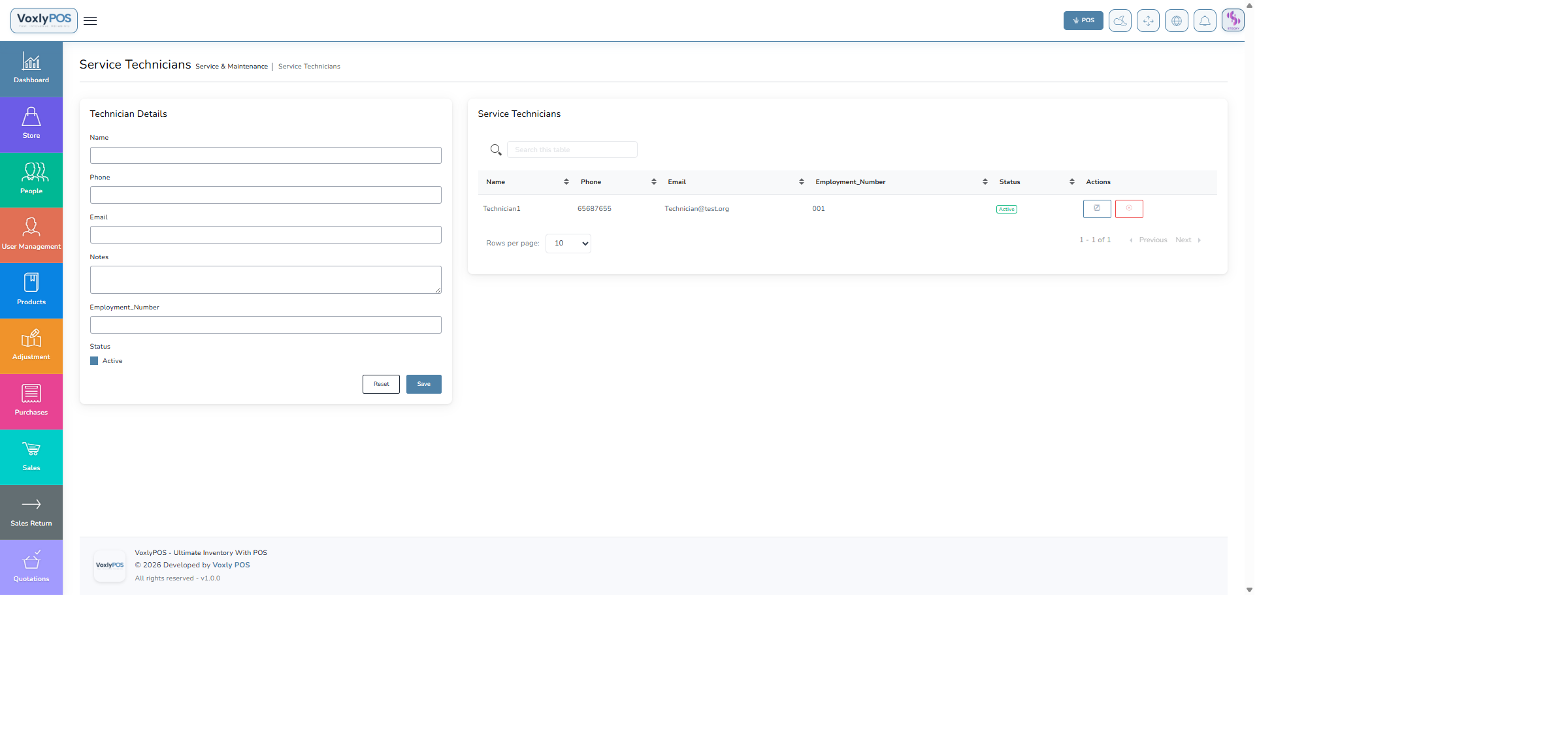
Registered technicians with specialisations and contact details. 🔍 Click image to enlarge
Service History
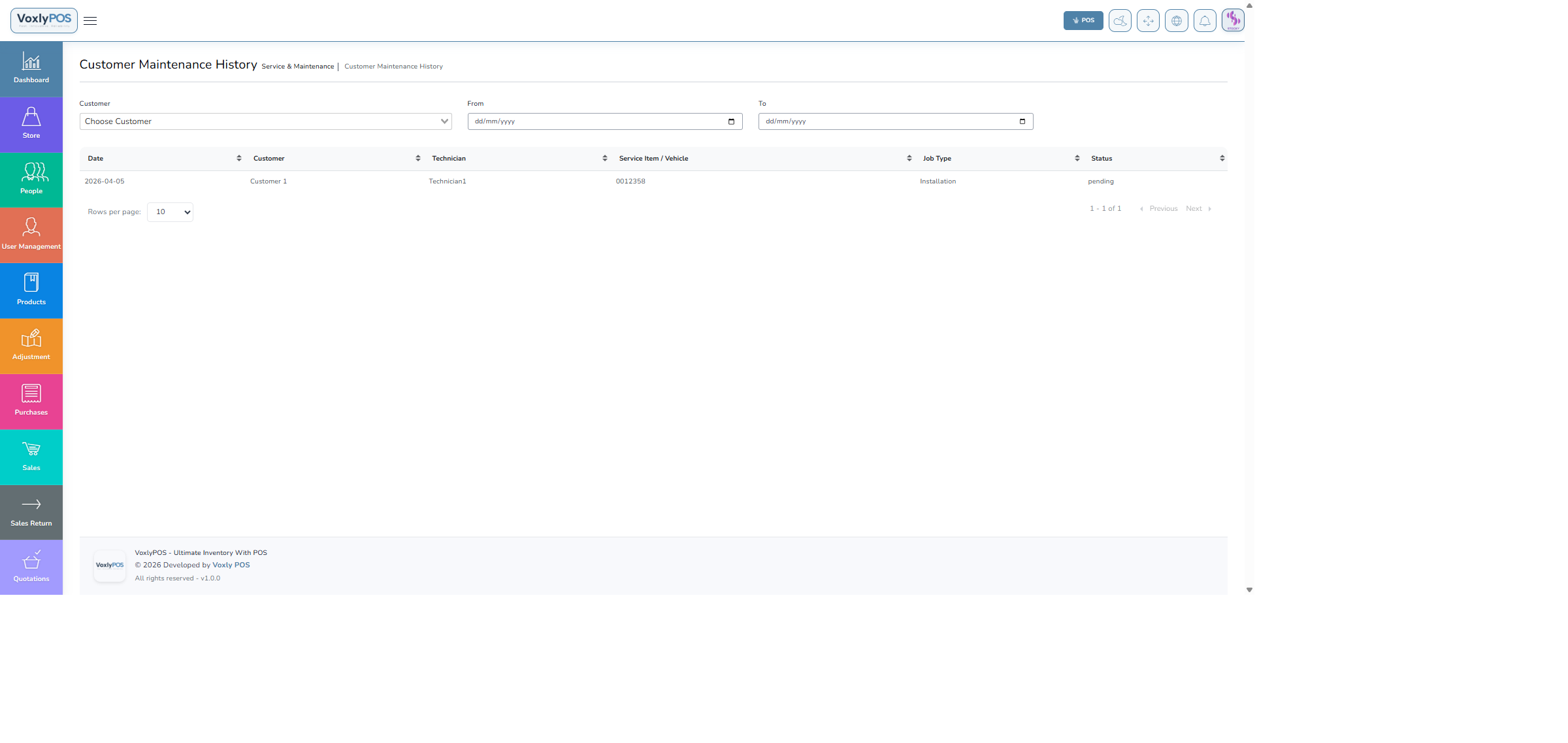
Completed service records with resolution notes. 🔍 Click image to enlarge
Service Checklists
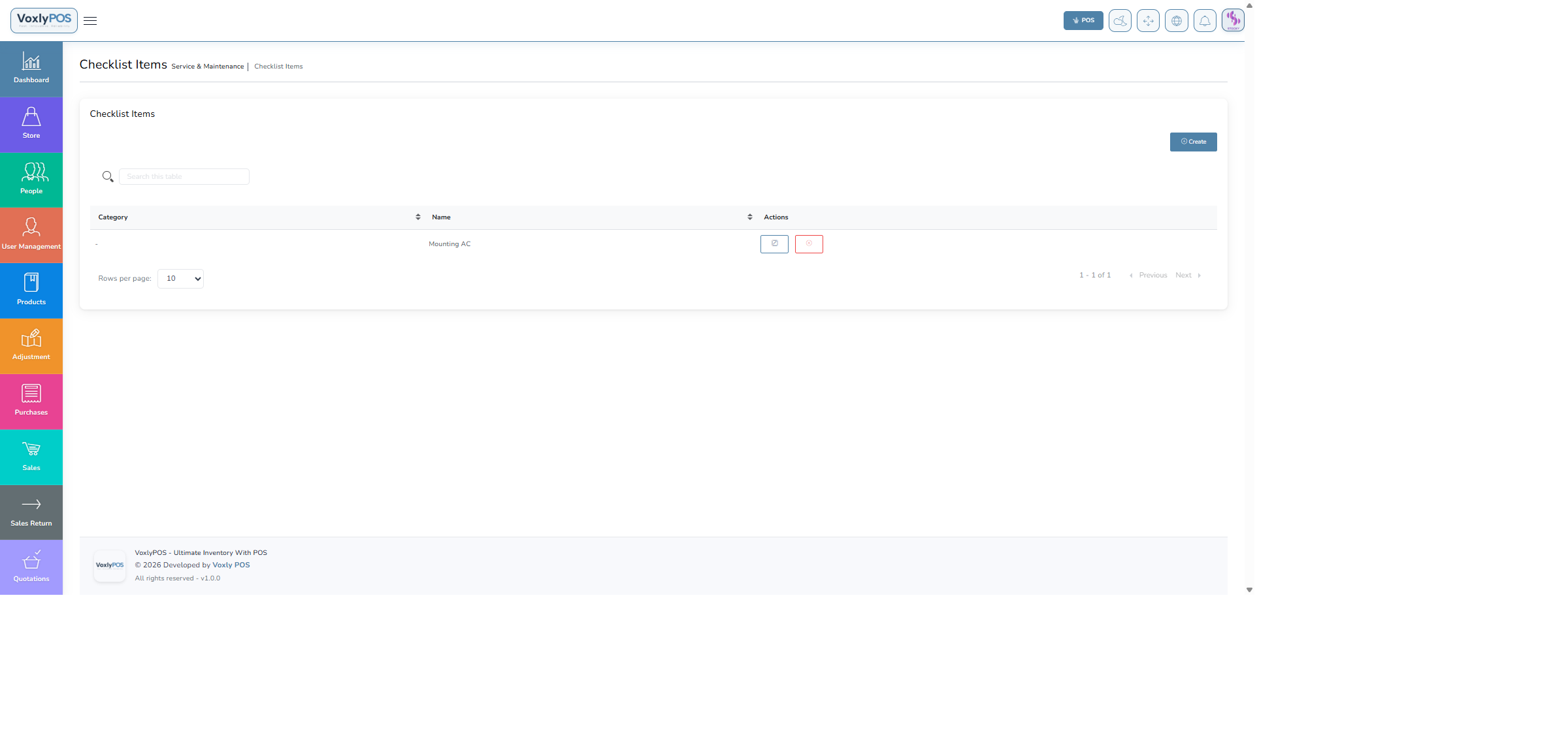
Checklist templates for standard service procedures. 🔍 Click image to enlarge
Checklist Categories
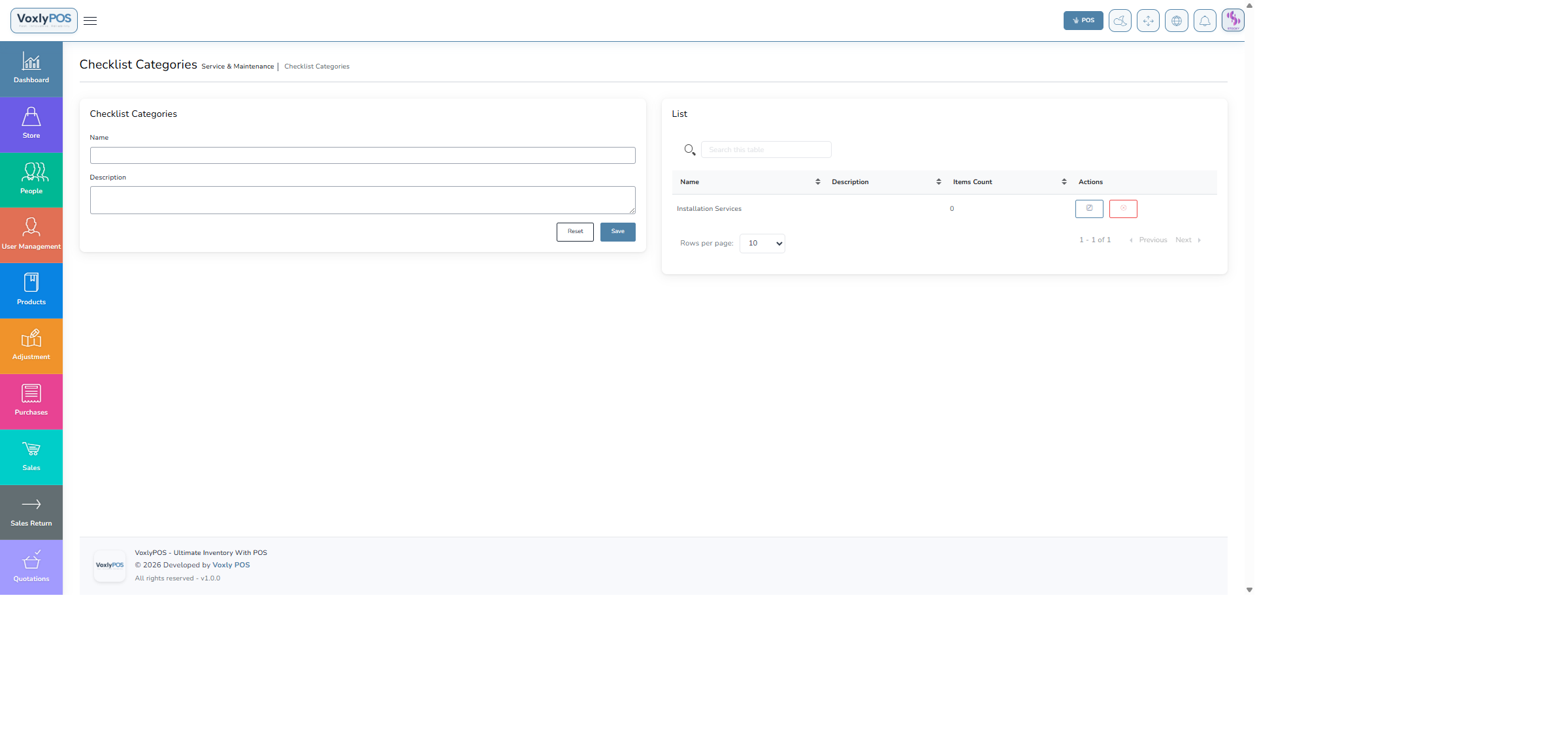
Categories for organising service checklists. 🔍 Click image to enlarge
🏗️
Asset Management
Track all business assets — refrigerators, vehicles, display units, machinery — with depreciation schedules and category organisation.
Navigation: Assets
Assets List
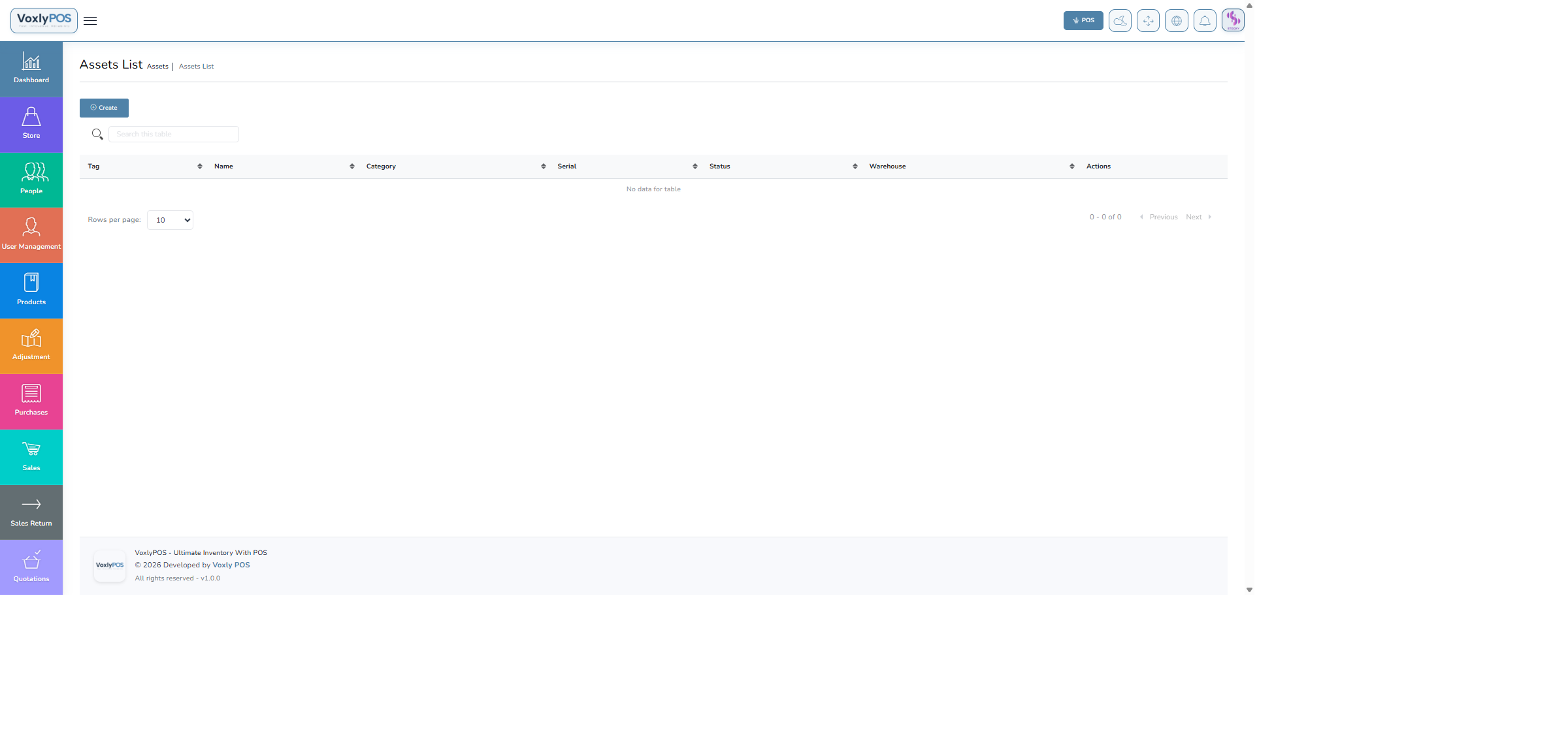
All assets with current value, category, and depreciation status. 🔍 Click image to enlarge
Navigation: Assets › Add Asset
Create Asset Form
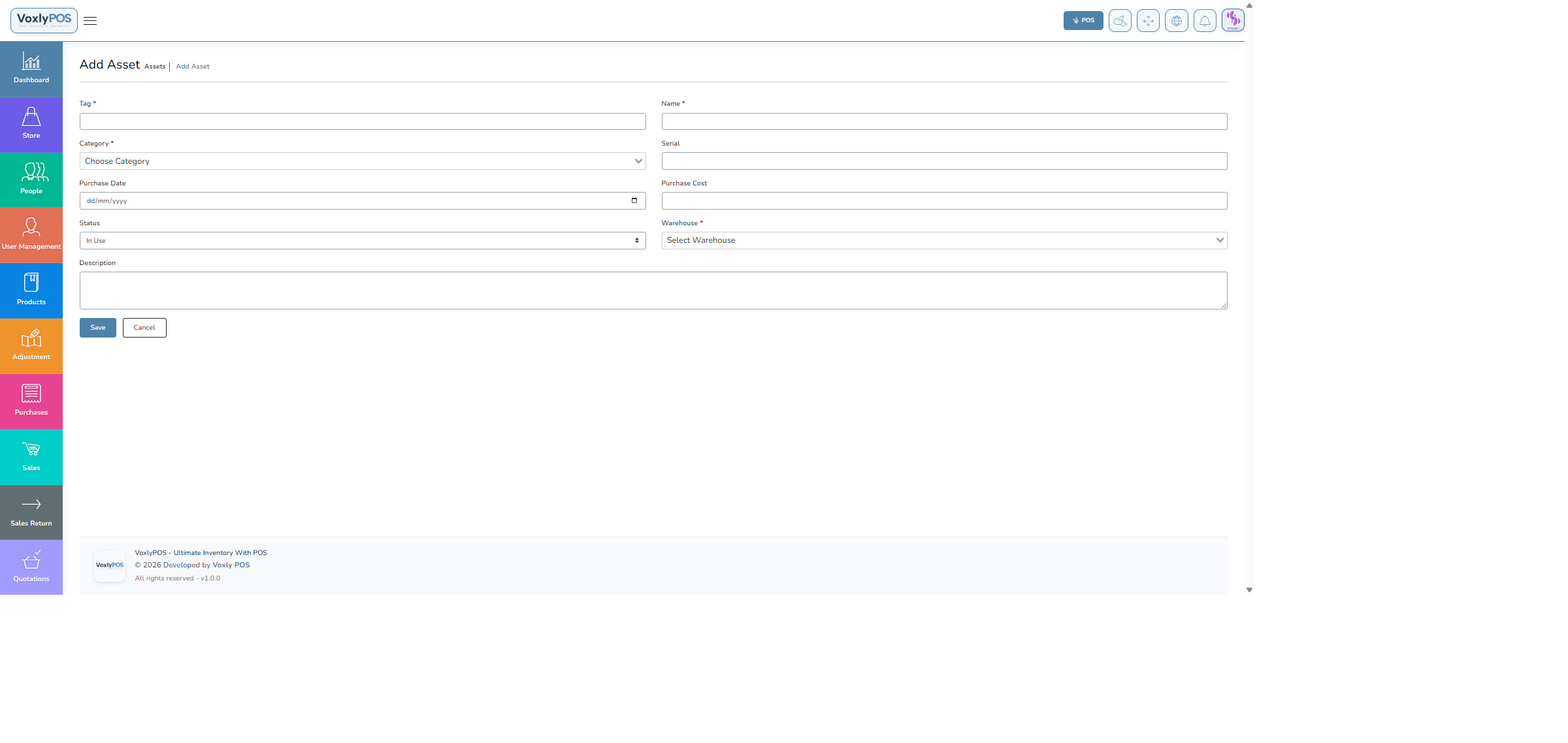
Asset creation form with name, value, category, and depreciation fields. 🔍 Click image to enlarge
1
Go to Assets › Add Asset
Navigate from the sidebar.
2
Enter Asset Details
Provide the Asset Name, Category, and Purchase Date.
3
Set Value & Depreciation
Enter the purchase value and select the Depreciation Method (Straight Line or Declining Balance).
4
Submit
Save the asset record.
Navigation: Assets › Categories
Asset Categories
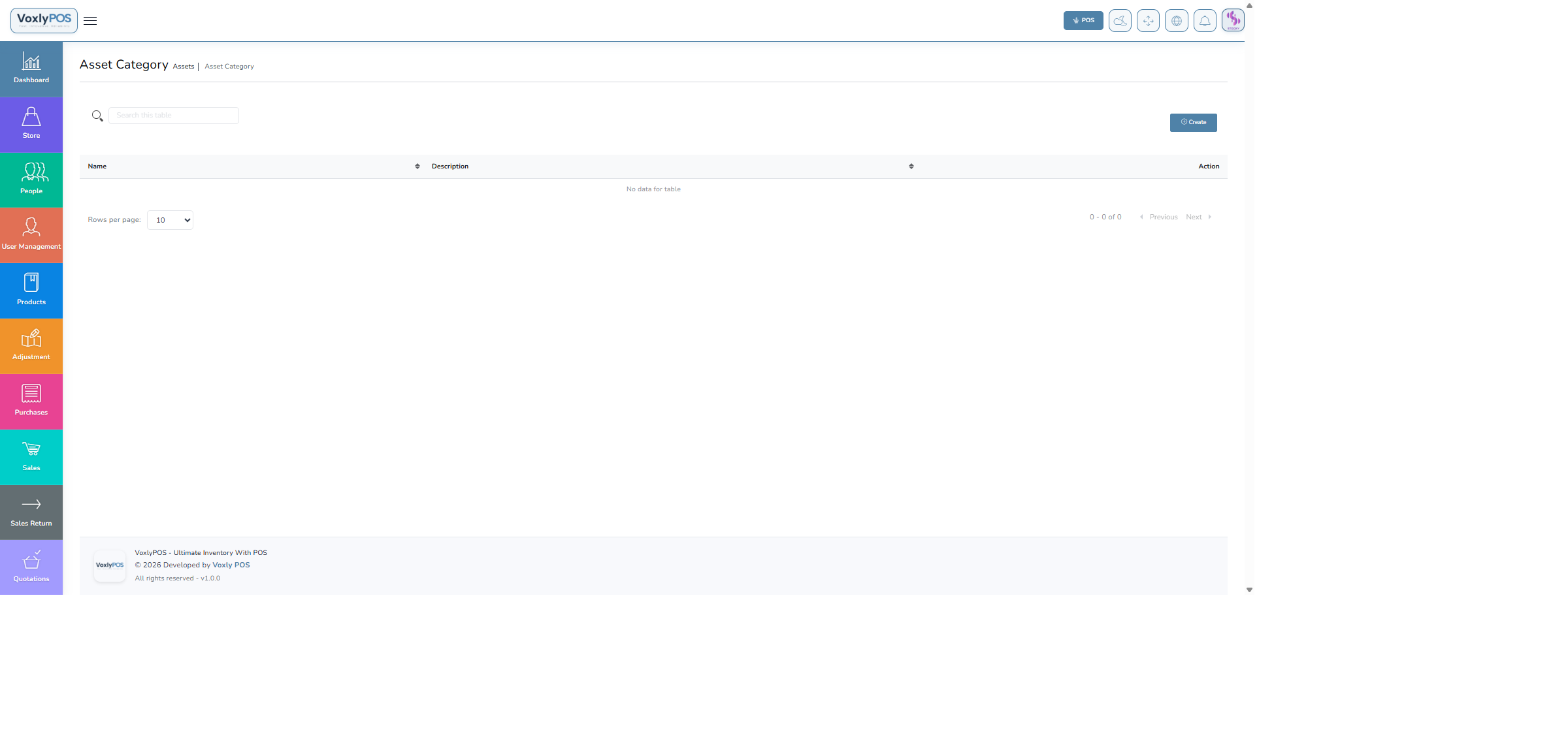
Asset categories for organising fixed assets. 🔍 Click image to enlarge
📅
Bookings
Manage appointments and customer reservations using both a calendar view and a detailed list view.
Navigation: Bookings › Calendar
Bookings Calendar
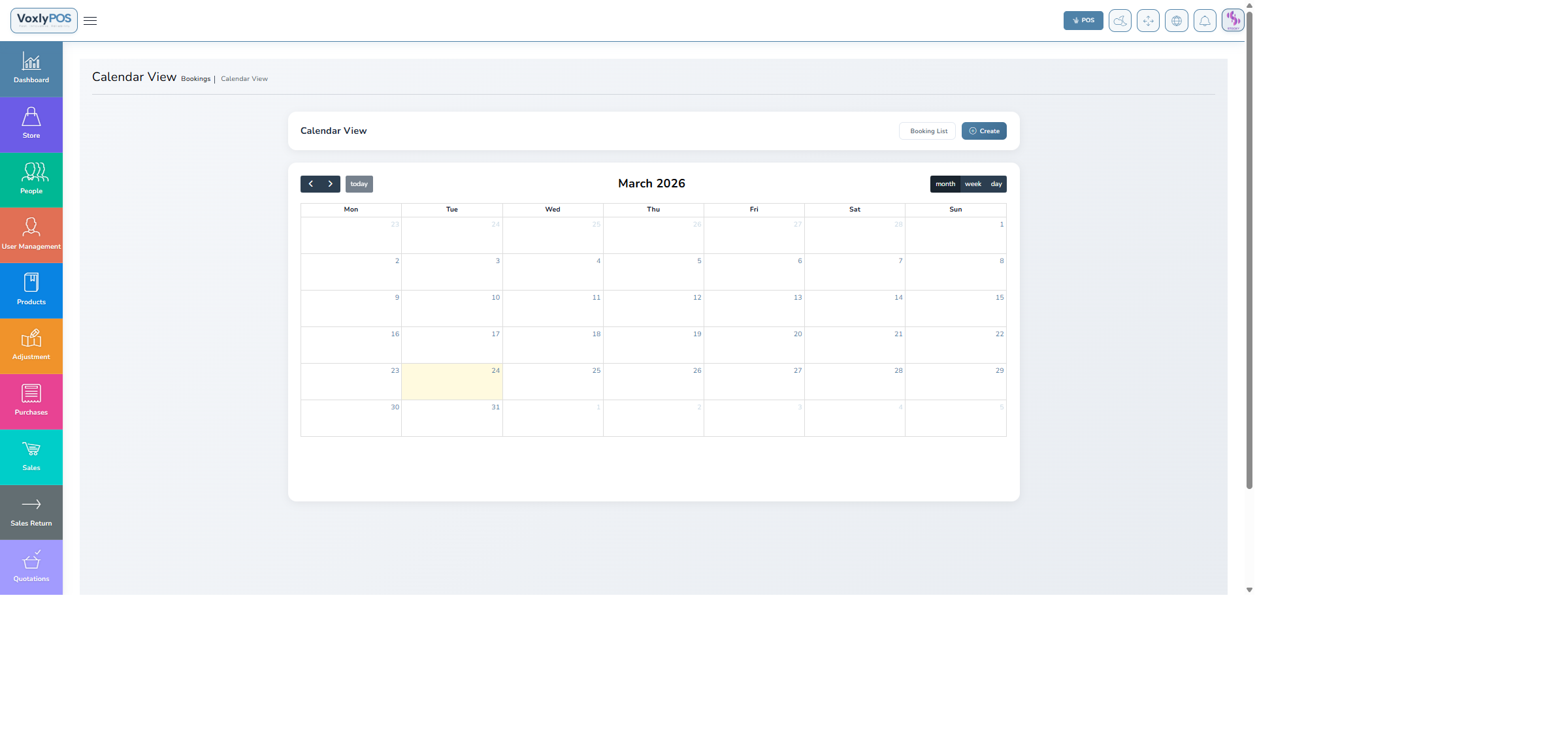
Interactive calendar showing all bookings with colour-coded status. 🔍 Click image to enlarge
Navigation: Bookings › Booking List
Bookings List
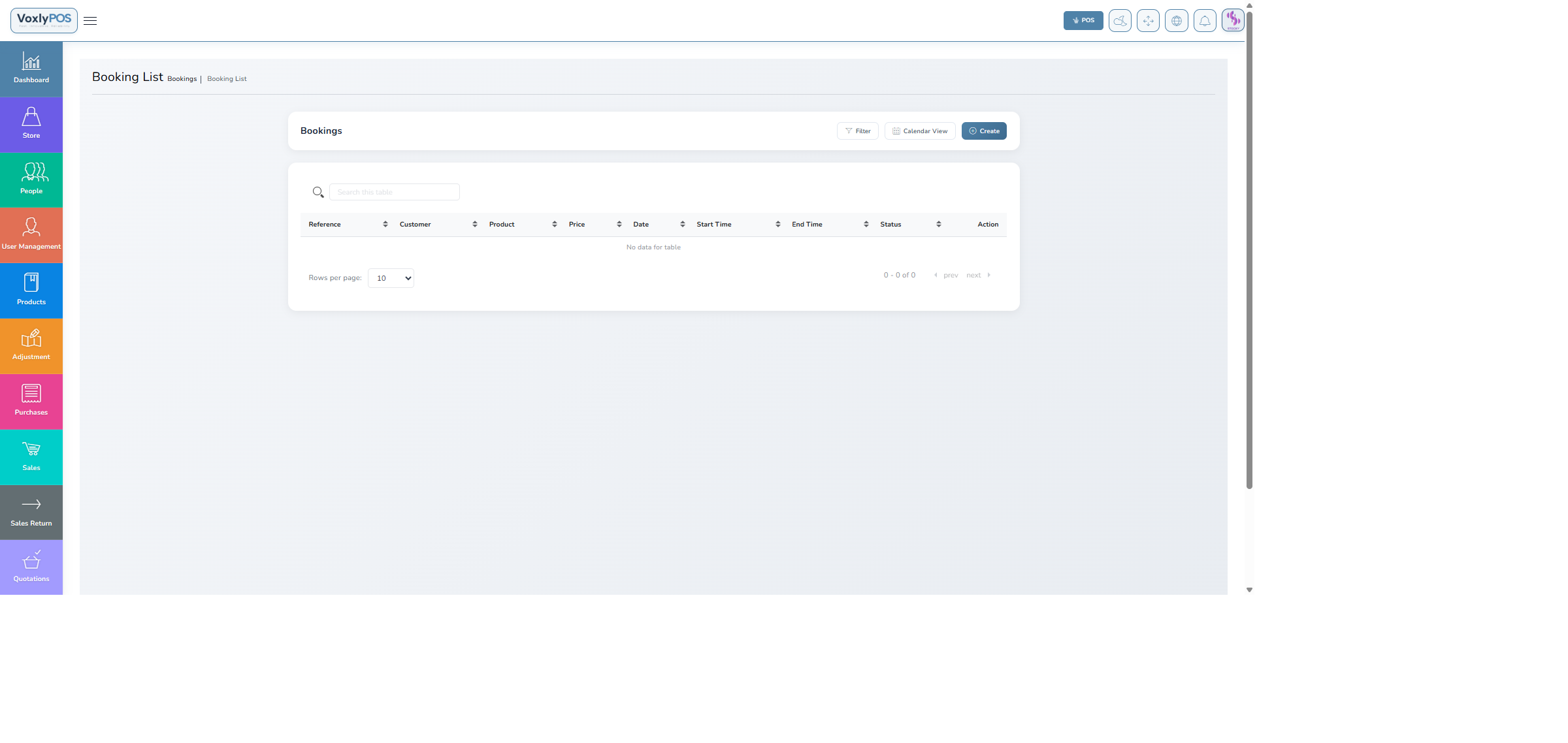
Tabular view of all bookings with customer, date, time, and status. 🔍 Click image to enlarge
📂
Projects
Track business projects from initiation to completion. Assign team members, set milestones, and monitor progress.
Navigation: Projects
Projects List
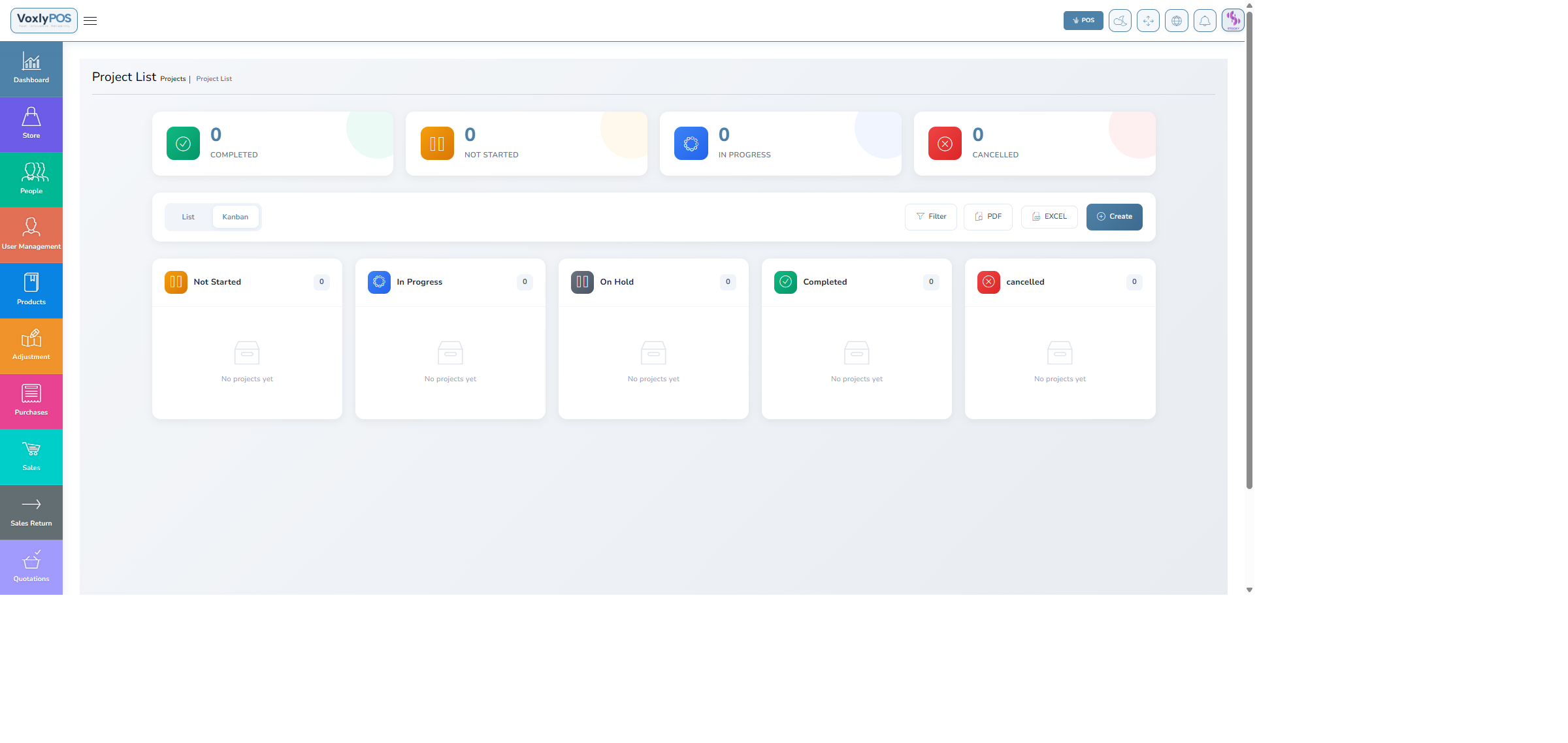
All projects with status, assigned members, deadlines, and progress bars. 🔍 Click image to enlarge
✅
Tasks
Create, assign, and track tasks with a Kanban-style board. Keep your team organised and on track with due dates and priorities.
Navigation: Tasks
Tasks Board
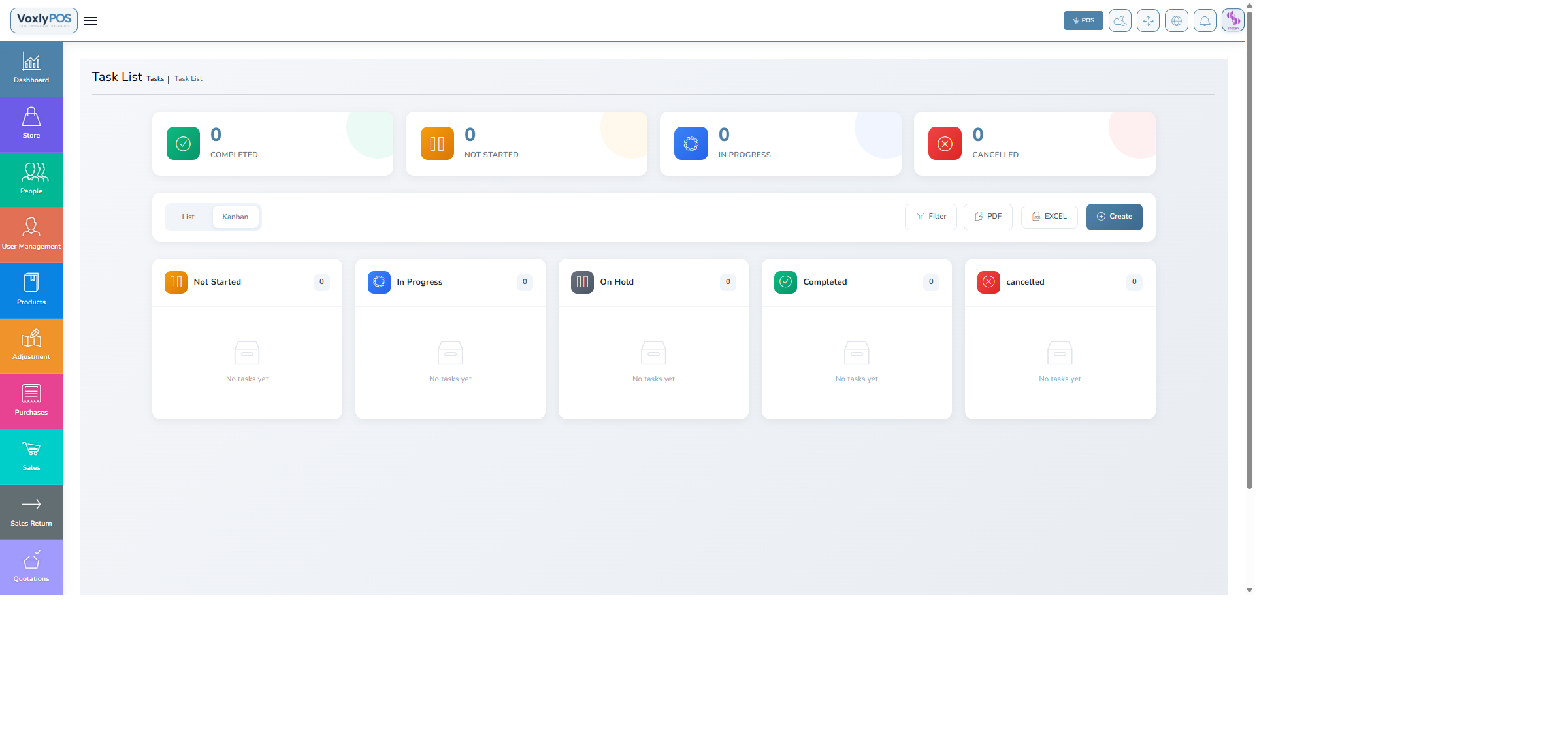
Kanban board showing tasks in Todo, In Progress, and Completed columns. 🔍 Click image to enlarge
💡Drag & DropDrag task cards between columns to update their status. Tasks can be assigned to specific team members with due dates and priority levels.
🔁
Subscription Products
Set up recurring subscription products and services for repeat customers. Automate re-ordering and billing cycles.
Navigation: Subscription Products
Subscription Products
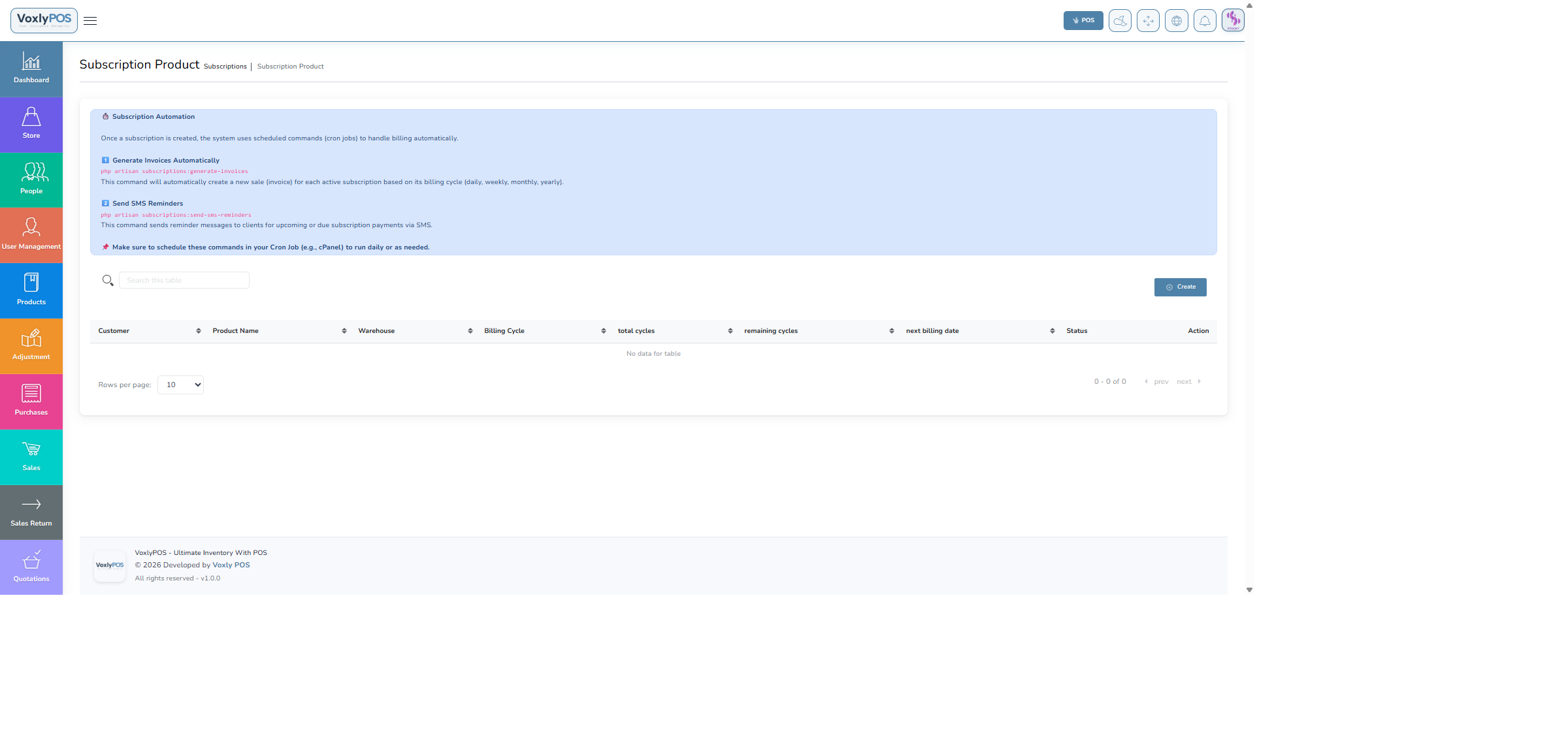
Subscription products list with billing cycles and pricing. 🔍 Click image to enlarge
🌐
Online Store
Manage your integrated e-commerce storefront — configure settings, process online orders, curate product collections, publish banners, and communicate with subscribers.
Navigation: Online Store › Settings
Online Store Settings
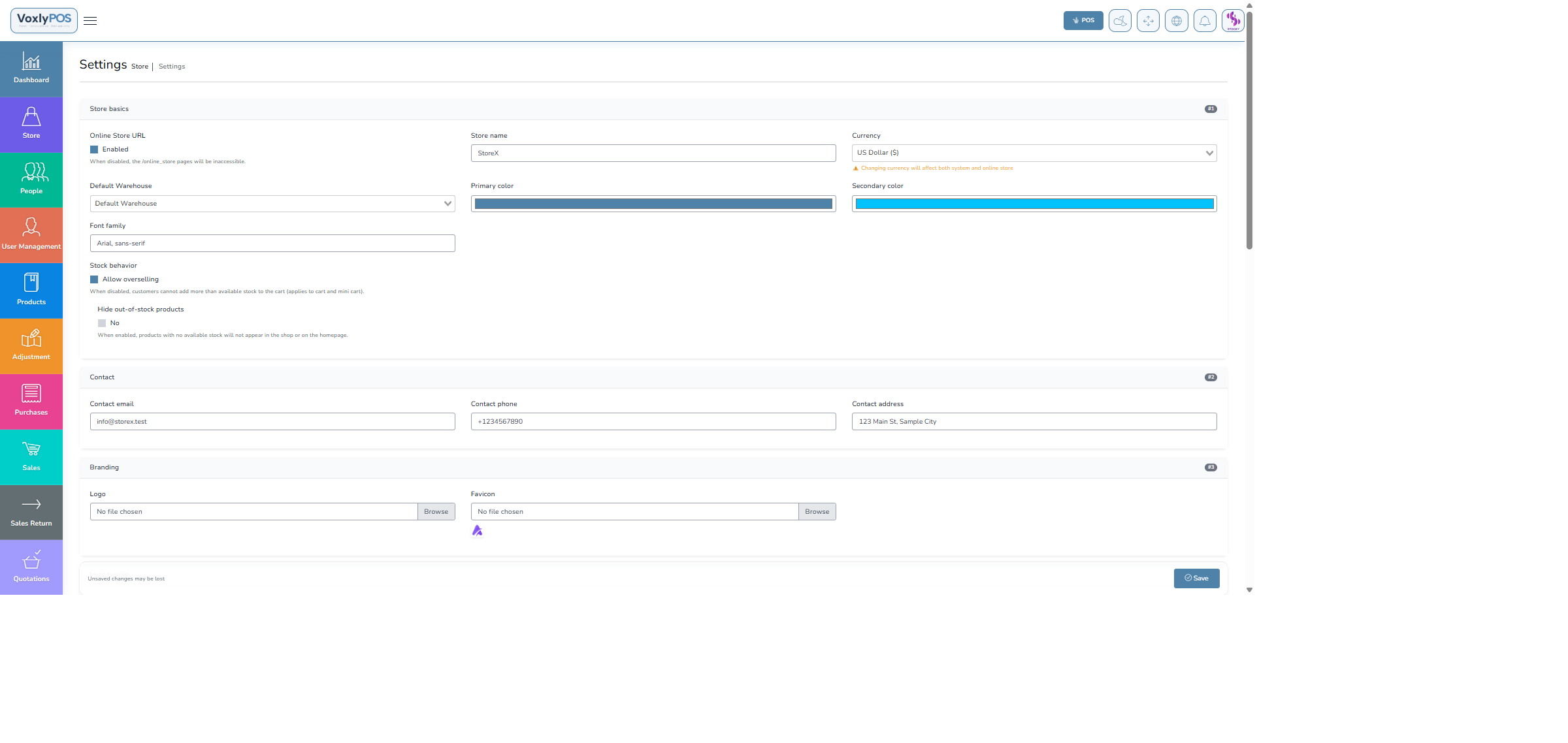
Store configuration including name, logo, theme, and contact details. 🔍 Click image to enlarge
Navigation: Online Store › Online Orders
Online Orders
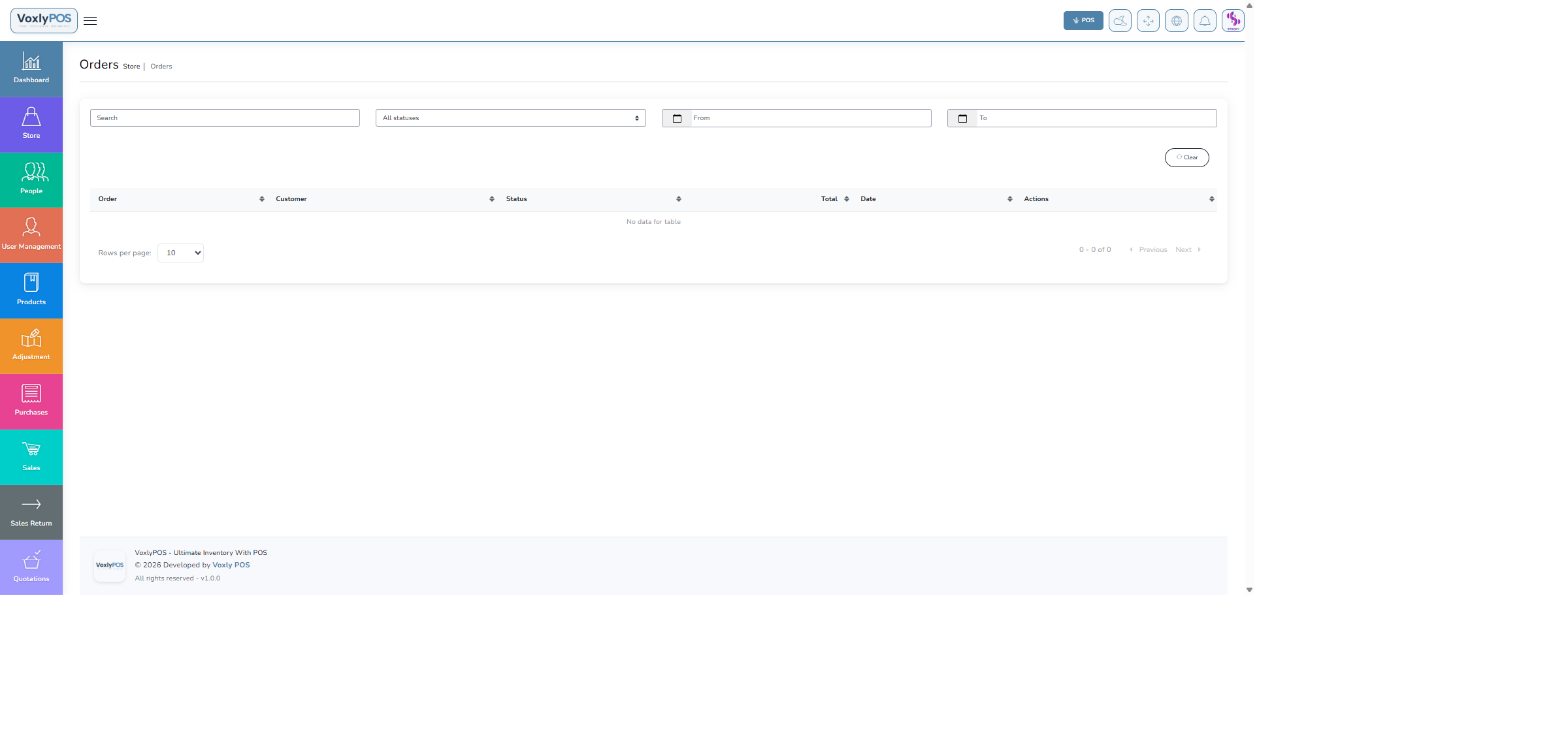
Customer orders placed through the online store with fulfilment status. 🔍 Click image to enlarge
Store Collections
Product collections curated for the online store homepage. 🔍 Click image to enlarge
Store Banners
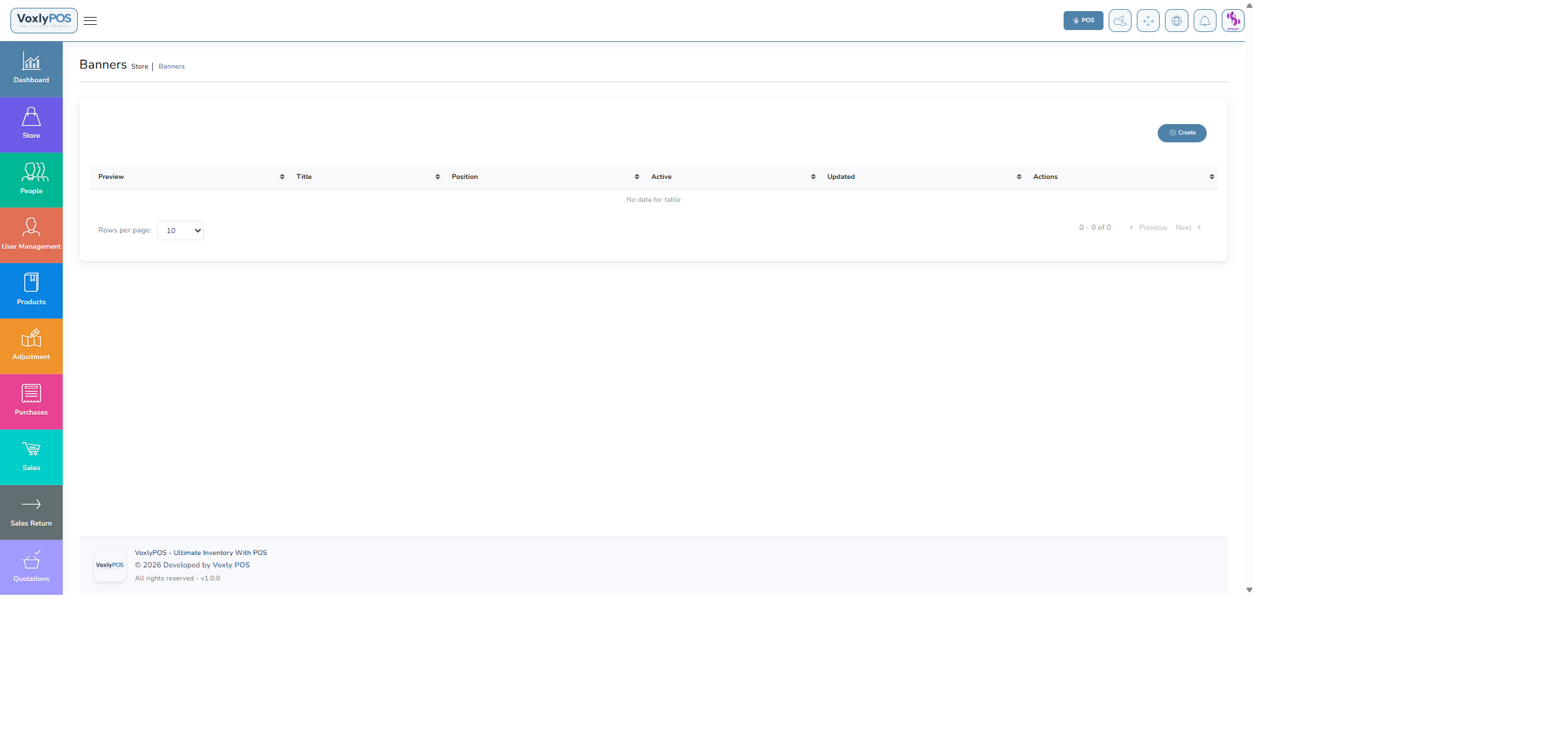
Promotional banners shown on the online store front page. 🔍 Click image to enlarge
Subscribers
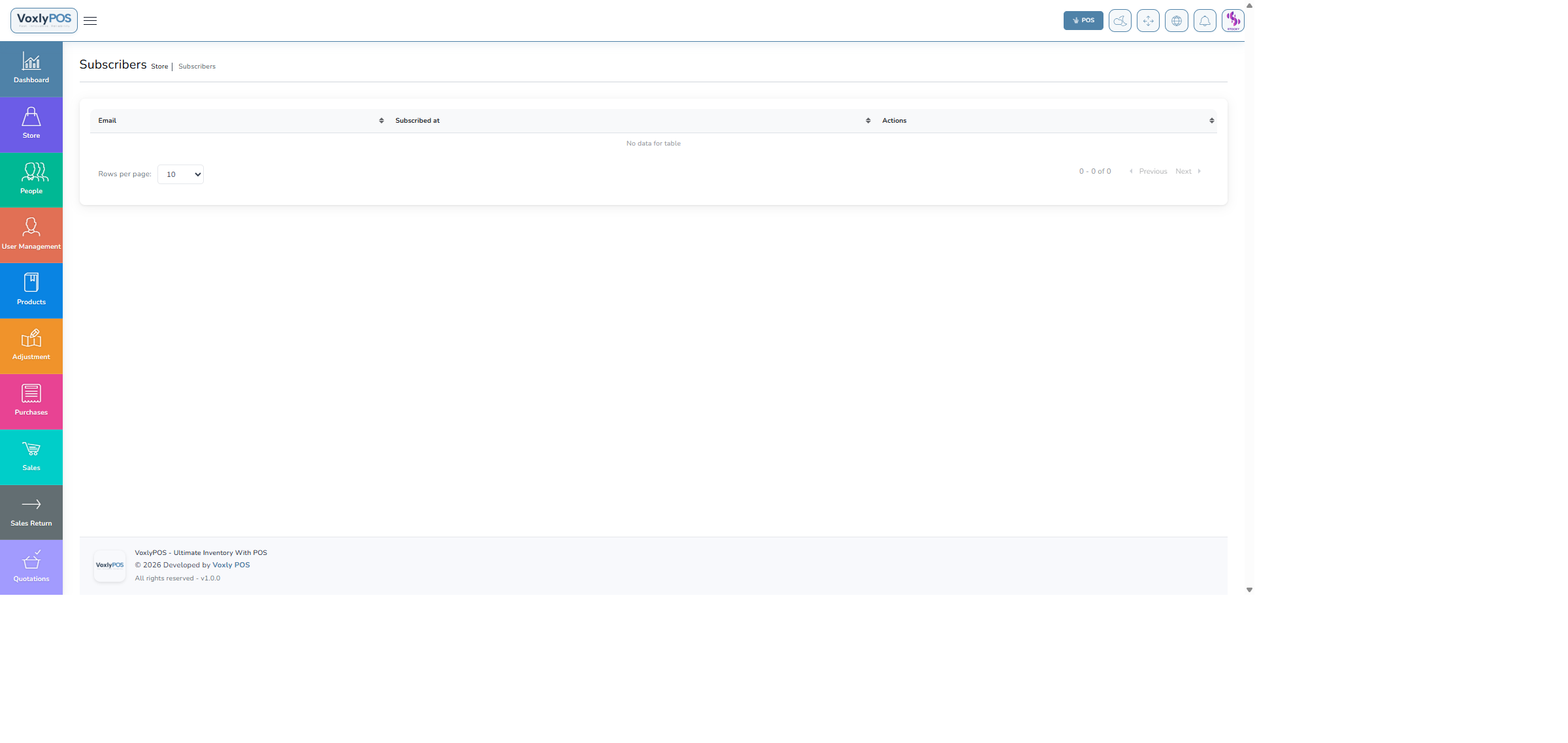
Newsletter subscribers collected from the online store. 🔍 Click image to enlarge
Messages
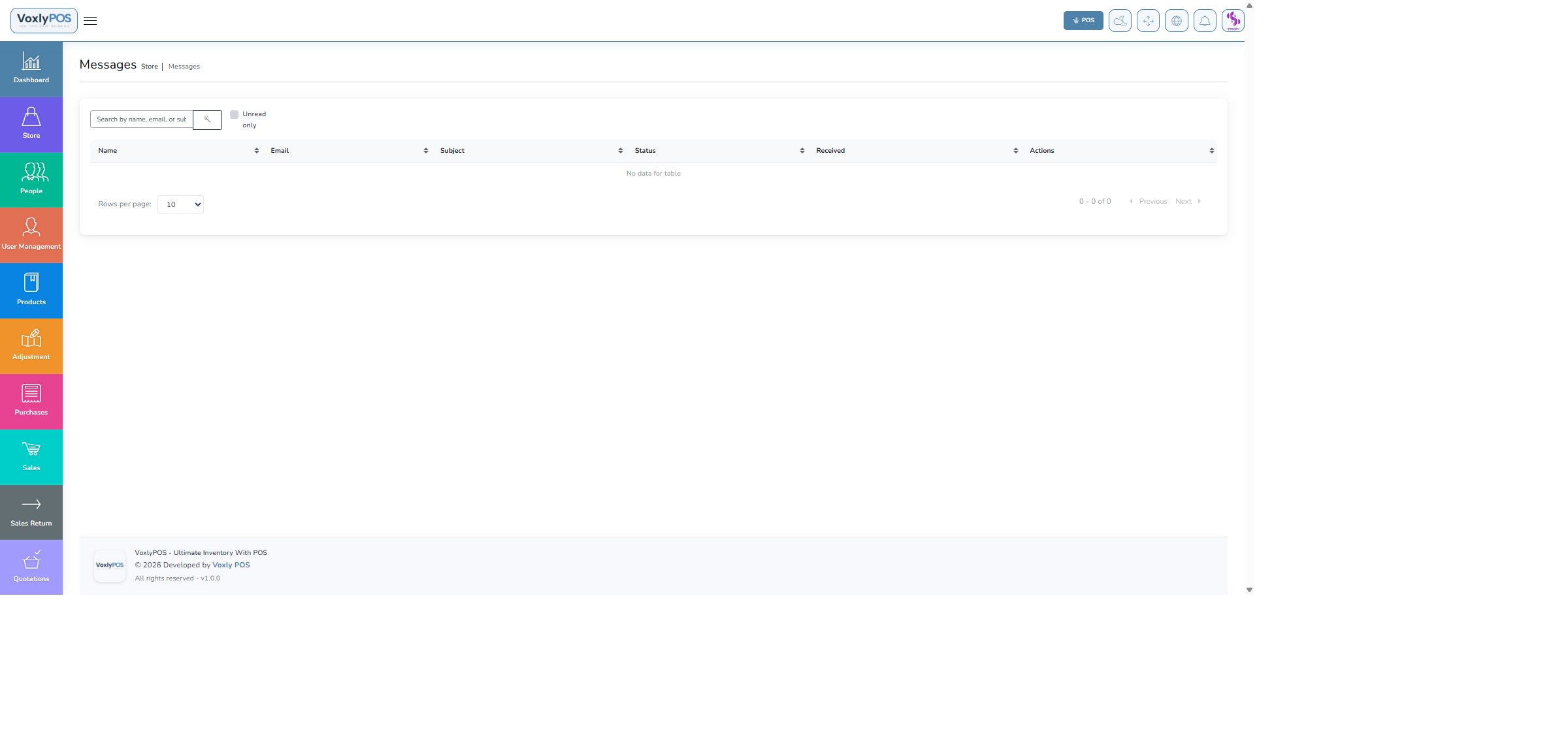
Customer enquiries and messages received via the store contact form. 🔍 Click image to enlarge
📈
Reports & Analytics
Access a comprehensive suite of business intelligence reports. Filter by date range, warehouse, category, or customer to get the exact data you need.
Sales Report
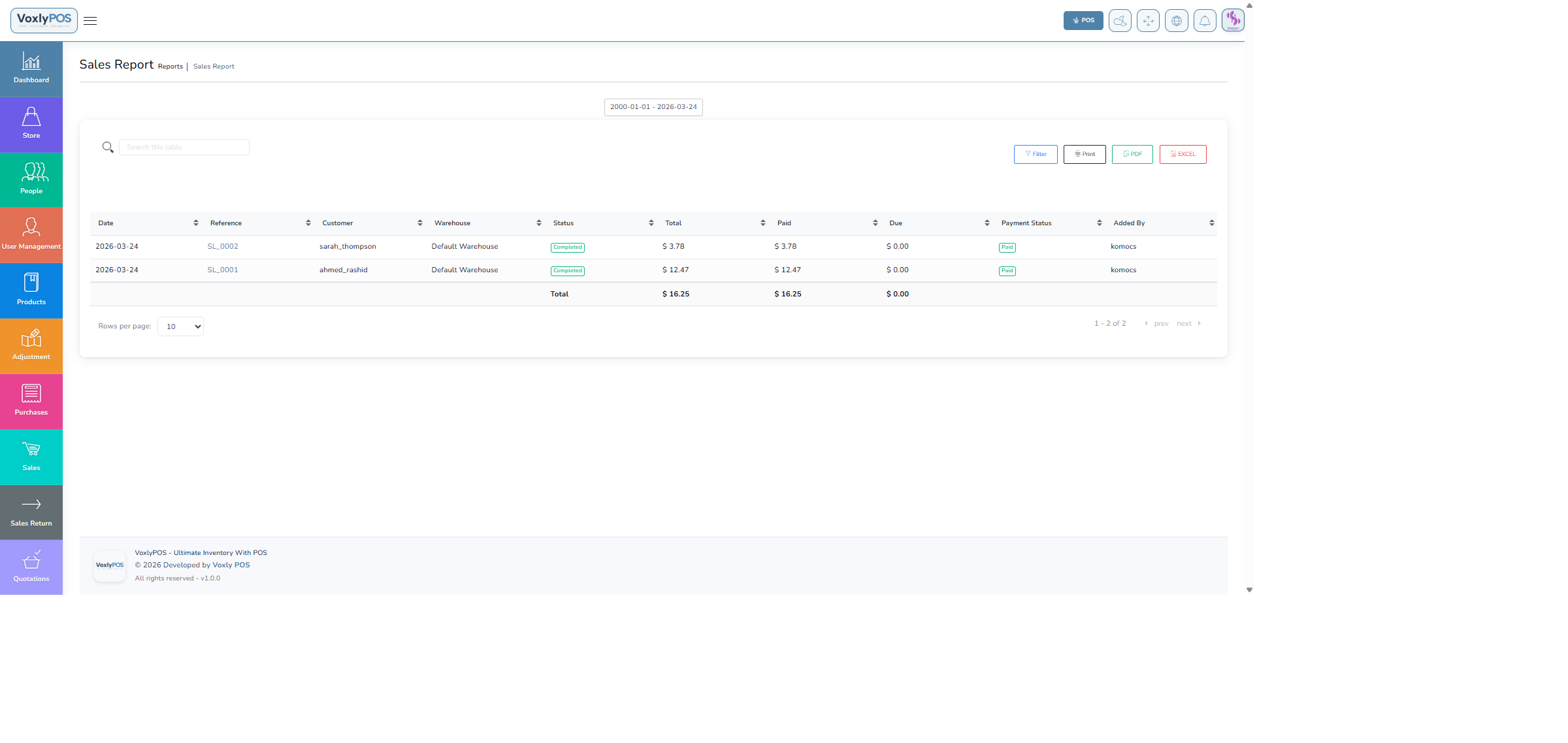
Detailed sales report with filters for date, customer, and product. 🔍 Click image to enlarge
Purchase Report
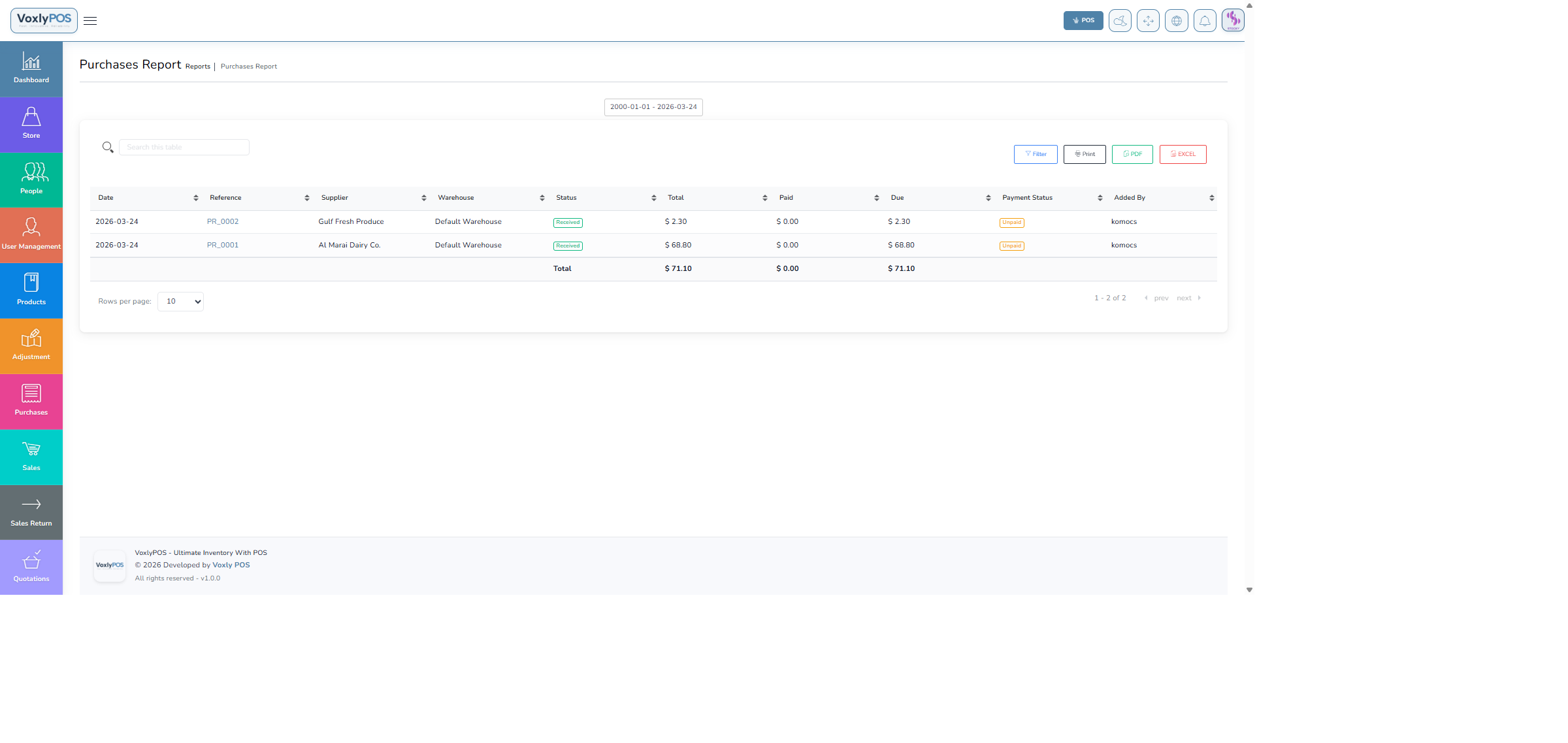
Purchase history report with supplier and product breakdown. 🔍 Click image to enlarge
Profit & Loss Report
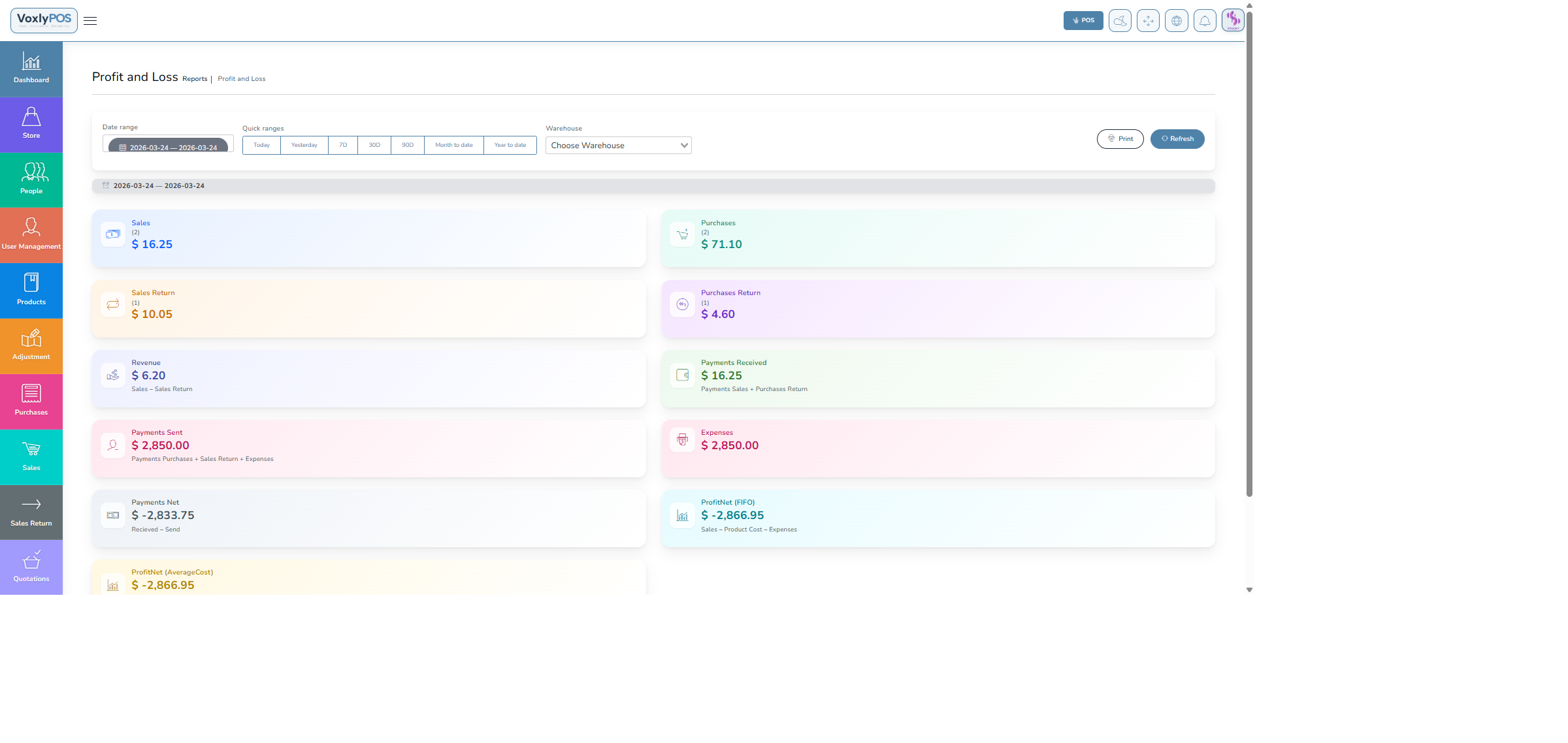
Profit and loss statement comparing revenue and costs period over period. 🔍 Click image to enlarge
Stock Report
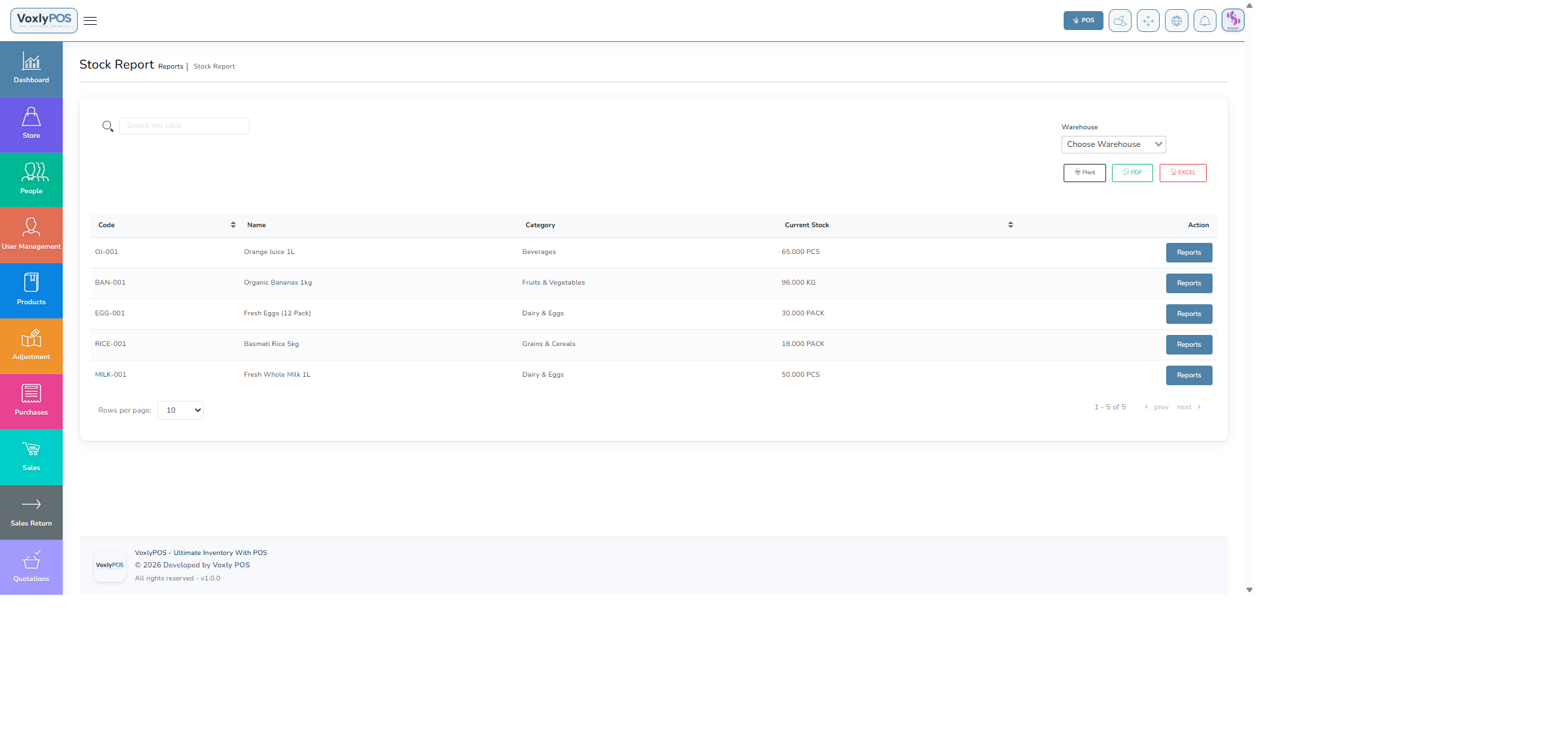
Current stock levels across all products and warehouses. 🔍 Click image to enlarge
Customer Report
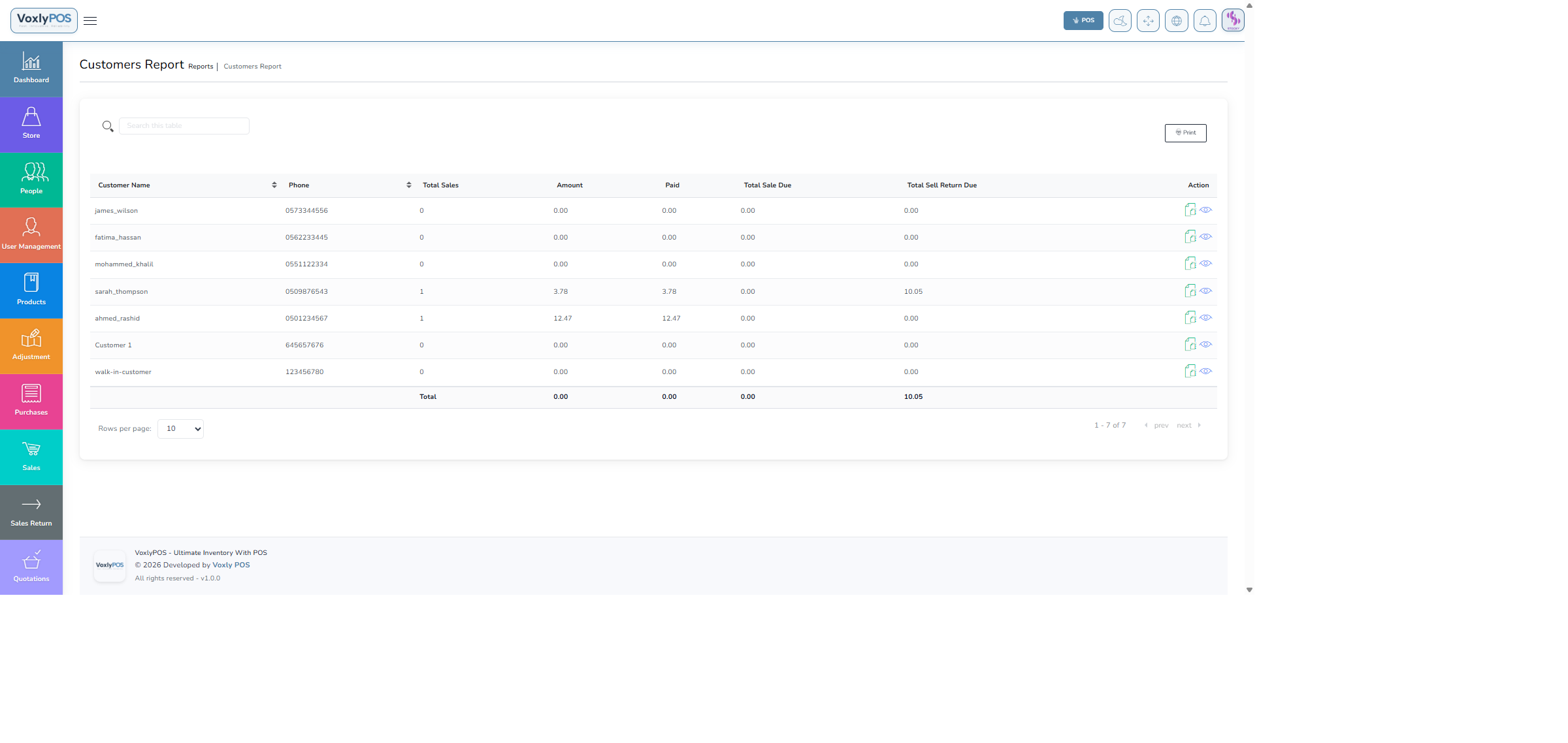
Customer purchase summaries with outstanding balances. 🔍 Click image to enlarge
Supplier Report
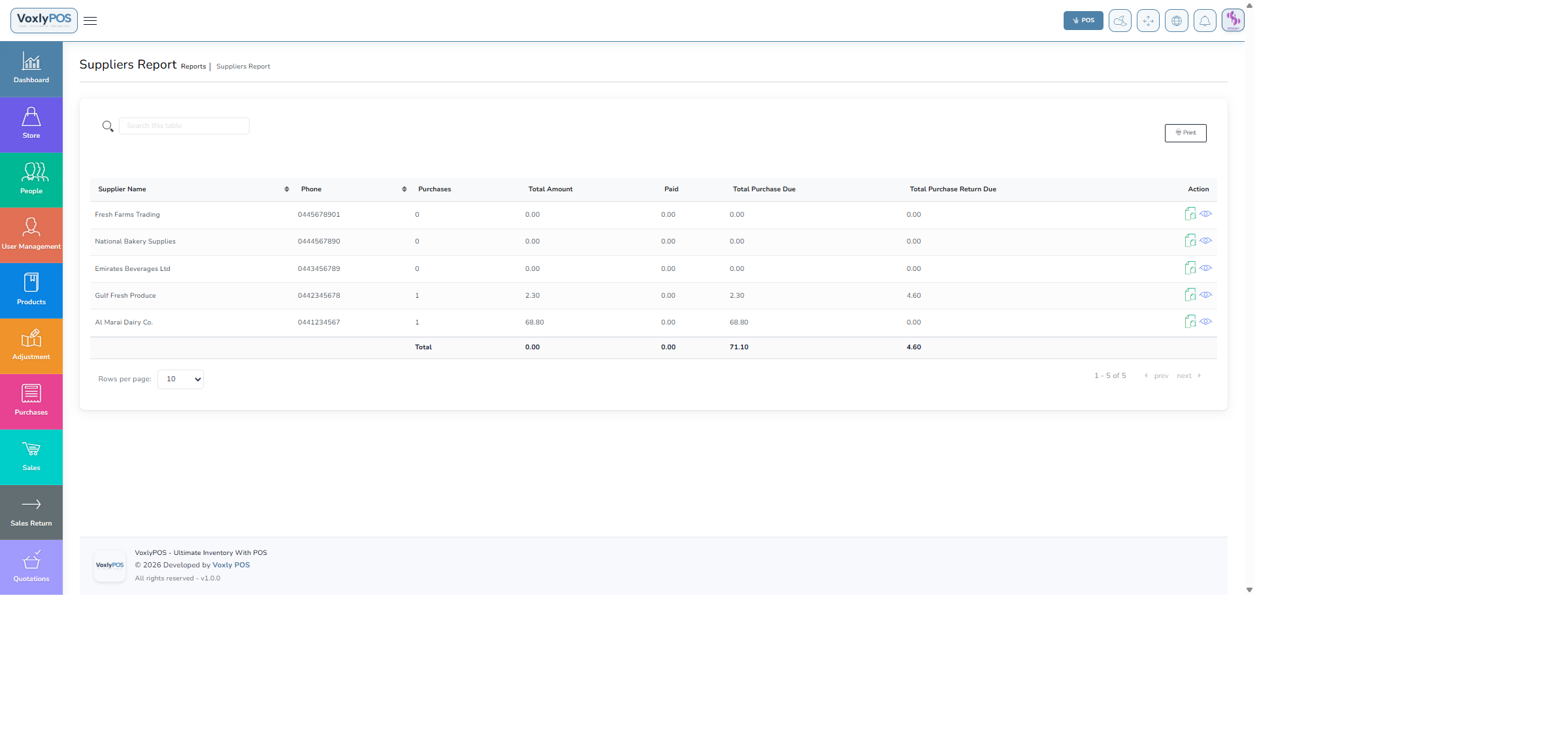
Supplier purchase history and payment records. 🔍 Click image to enlarge
Expense Report
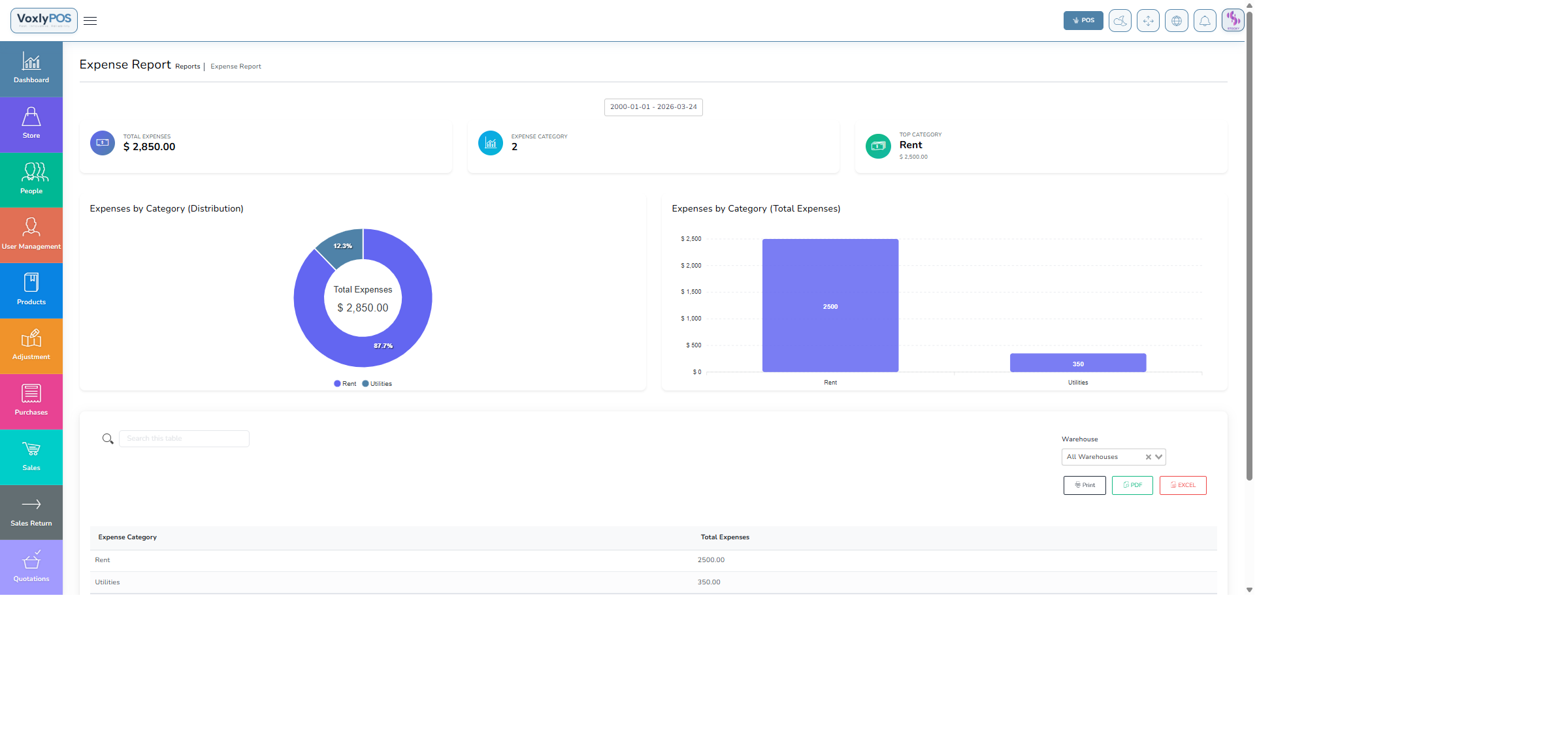
Expense breakdown by category and time period. 🔍 Click image to enlarge
AI Analytics
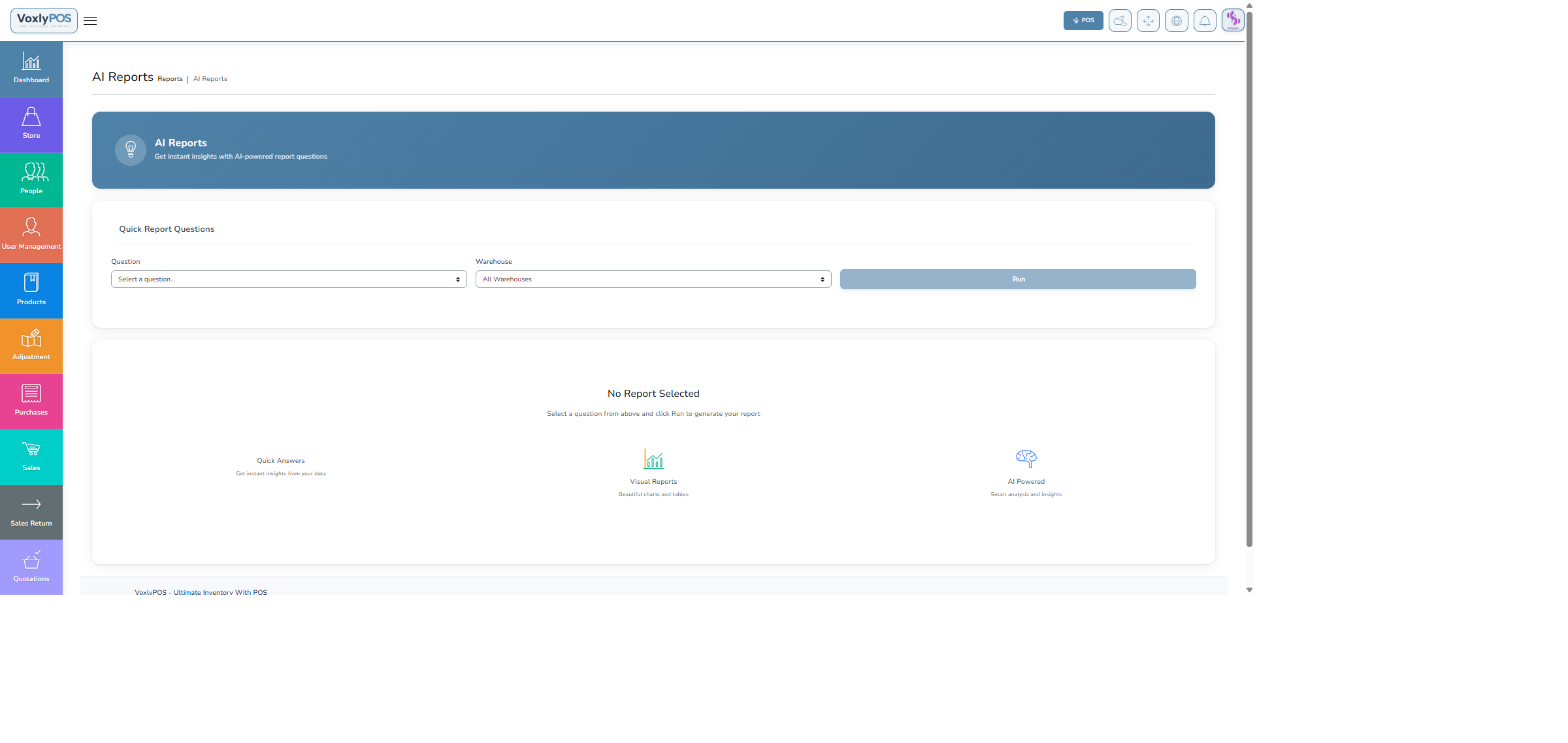
AI-powered analytics providing intelligent business insights and recommendations. 🔍 Click image to enlarge
💡Export ReportsAll reports can be exported to CSV or PDF for offline analysis or sharing with stakeholders.
⚙️
Settings
Configure every aspect of VoxlyPOS — company info, warehouses, currencies, payment methods, POS behaviour, notifications, and system modules.
Navigation: Settings › System Settings
System Settings
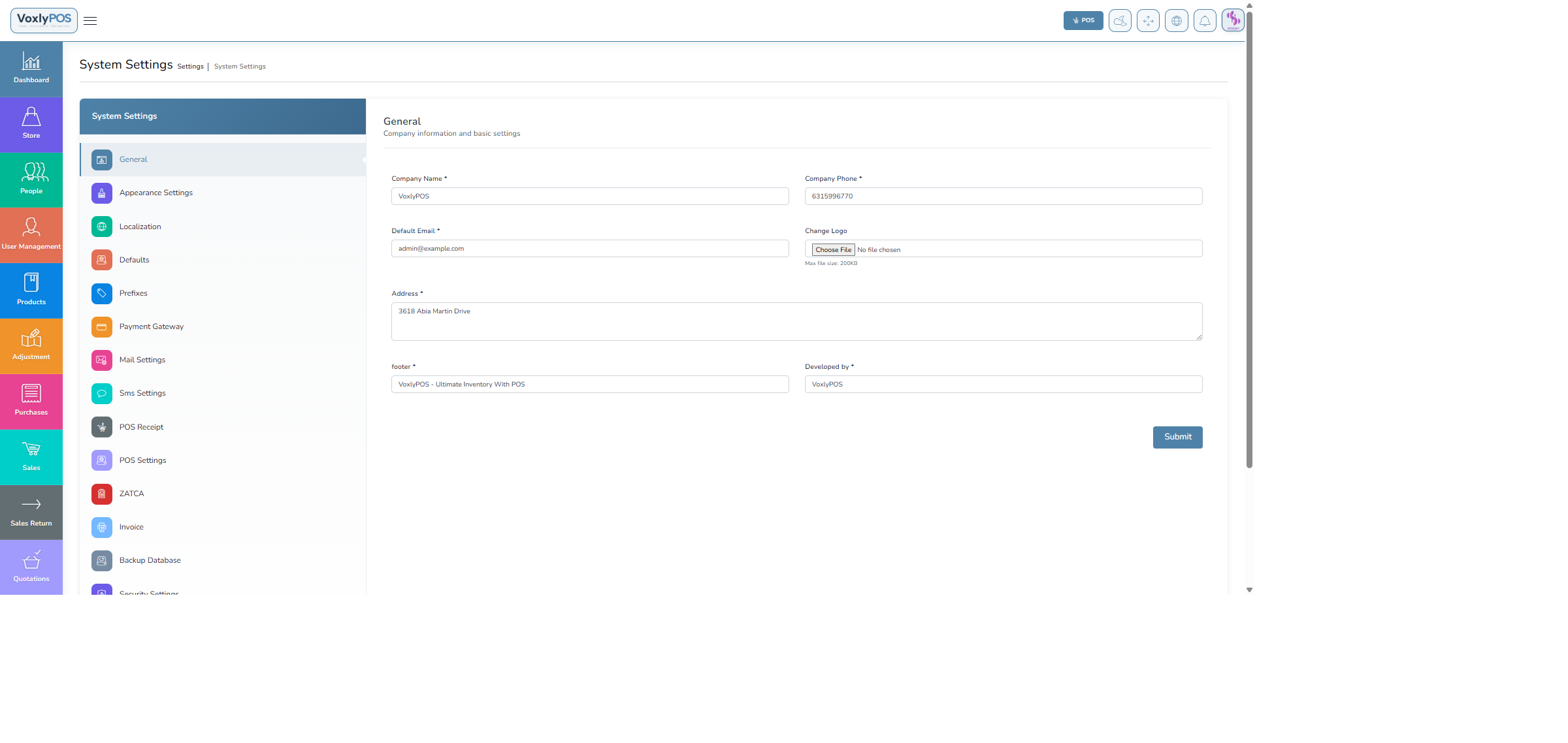
Core system settings including company name, address, currency, and date format. 🔍 Click image to enlarge
POS Settings
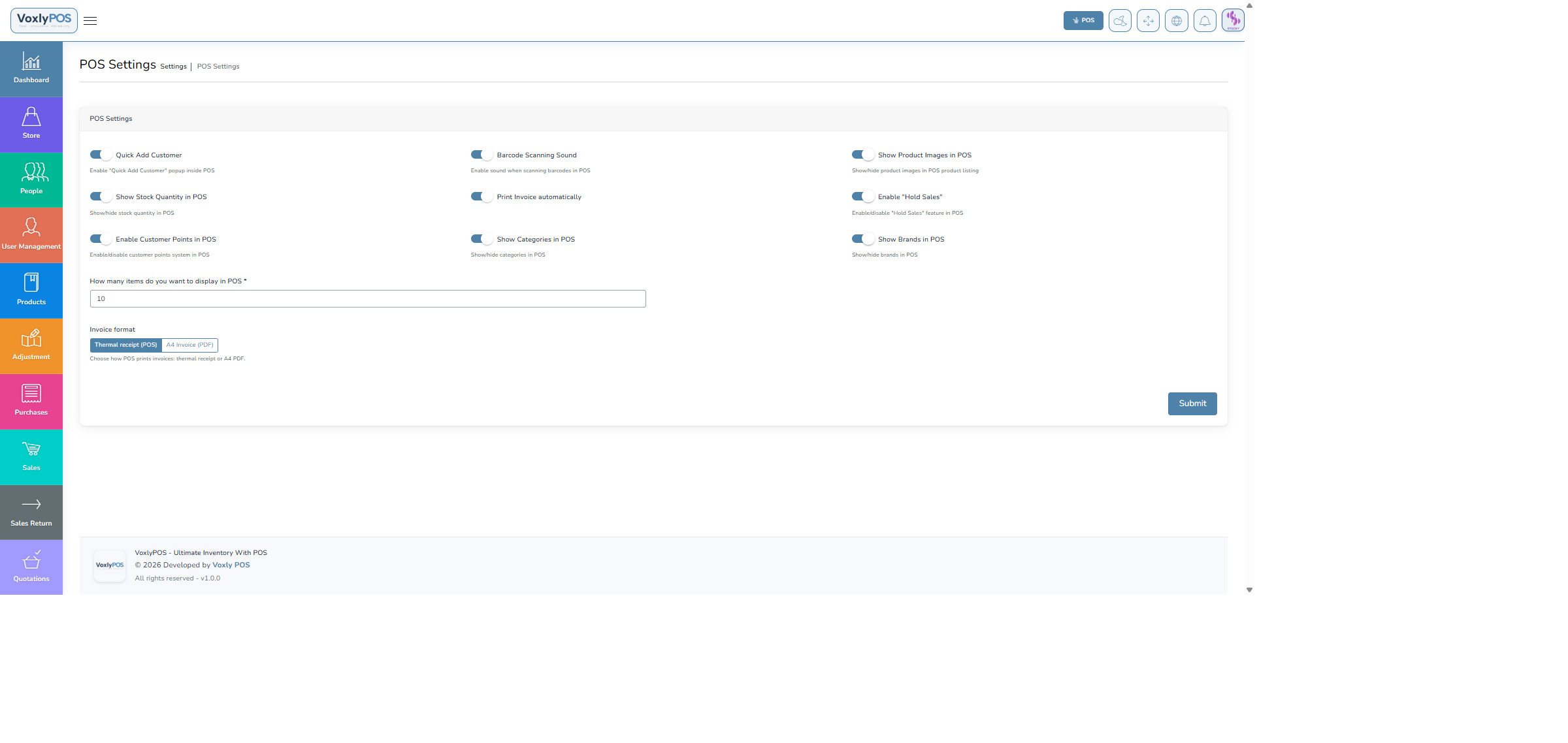
POS-specific settings controlling default warehouse, tax, and display options. 🔍 Click image to enlarge
POS Receipt
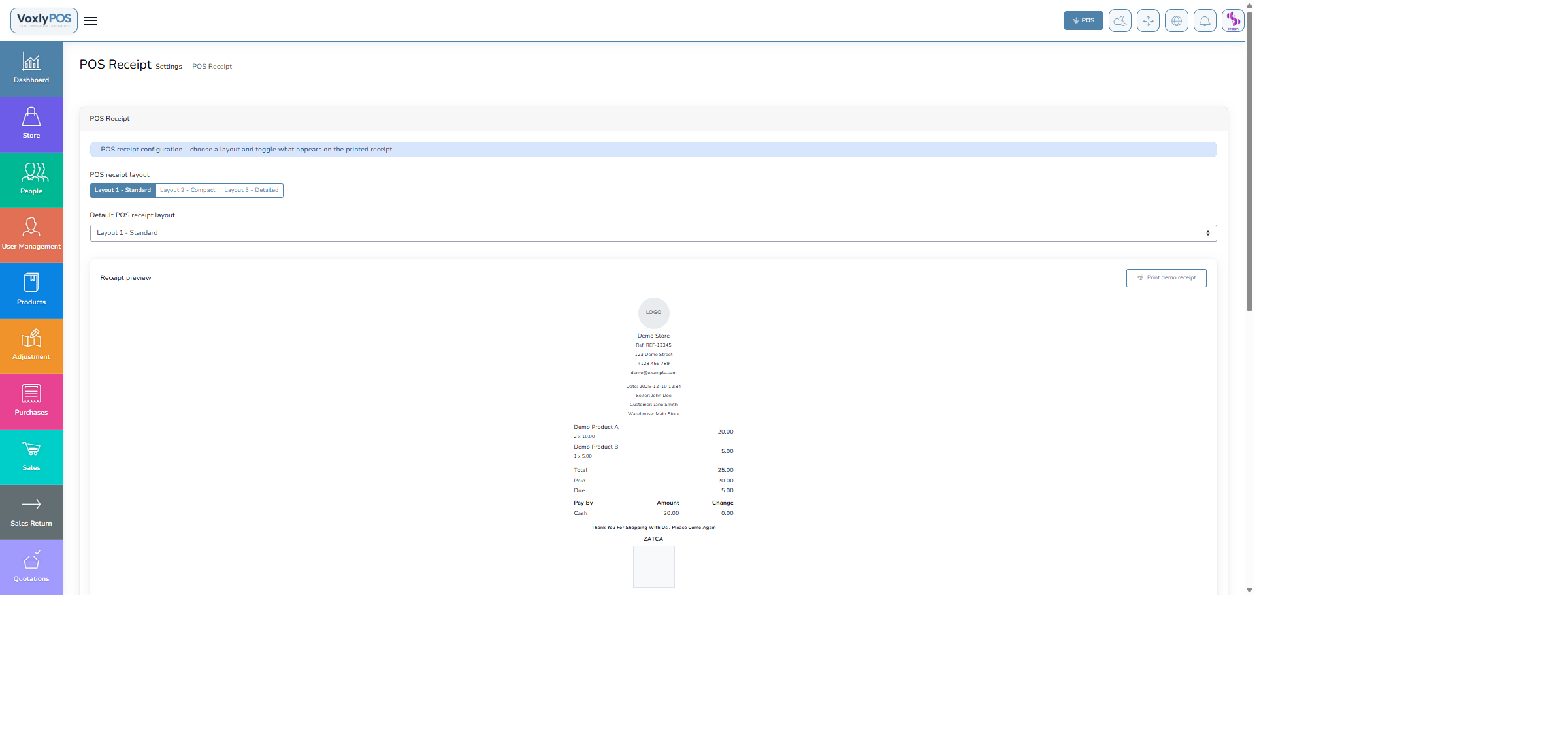
Customise the receipt layout, footer text, and printed information. 🔍 Click image to enlarge
Appearance Settings
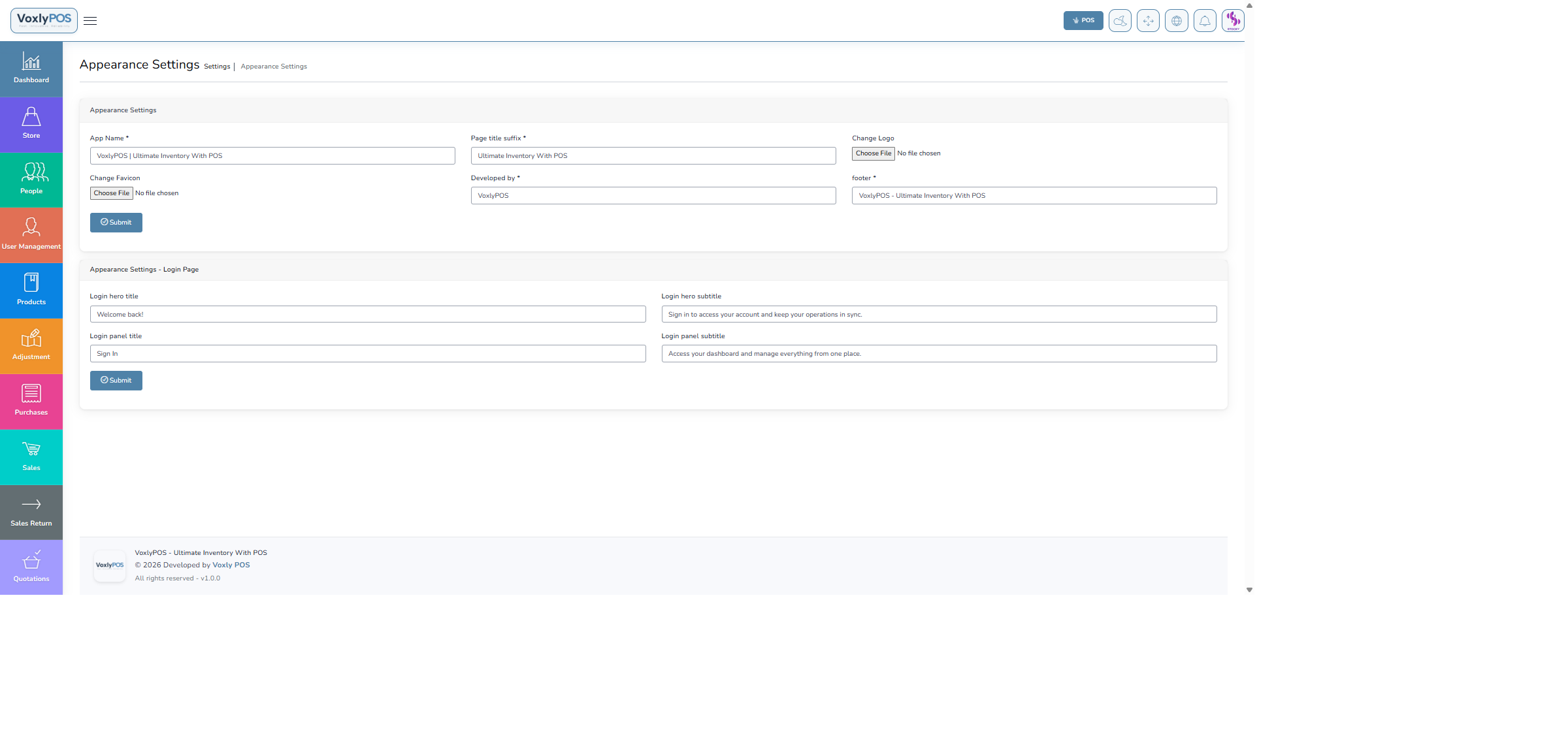
Brand customisation with colour scheme, logo upload, and UI preferences. 🔍 Click image to enlarge
Currencies
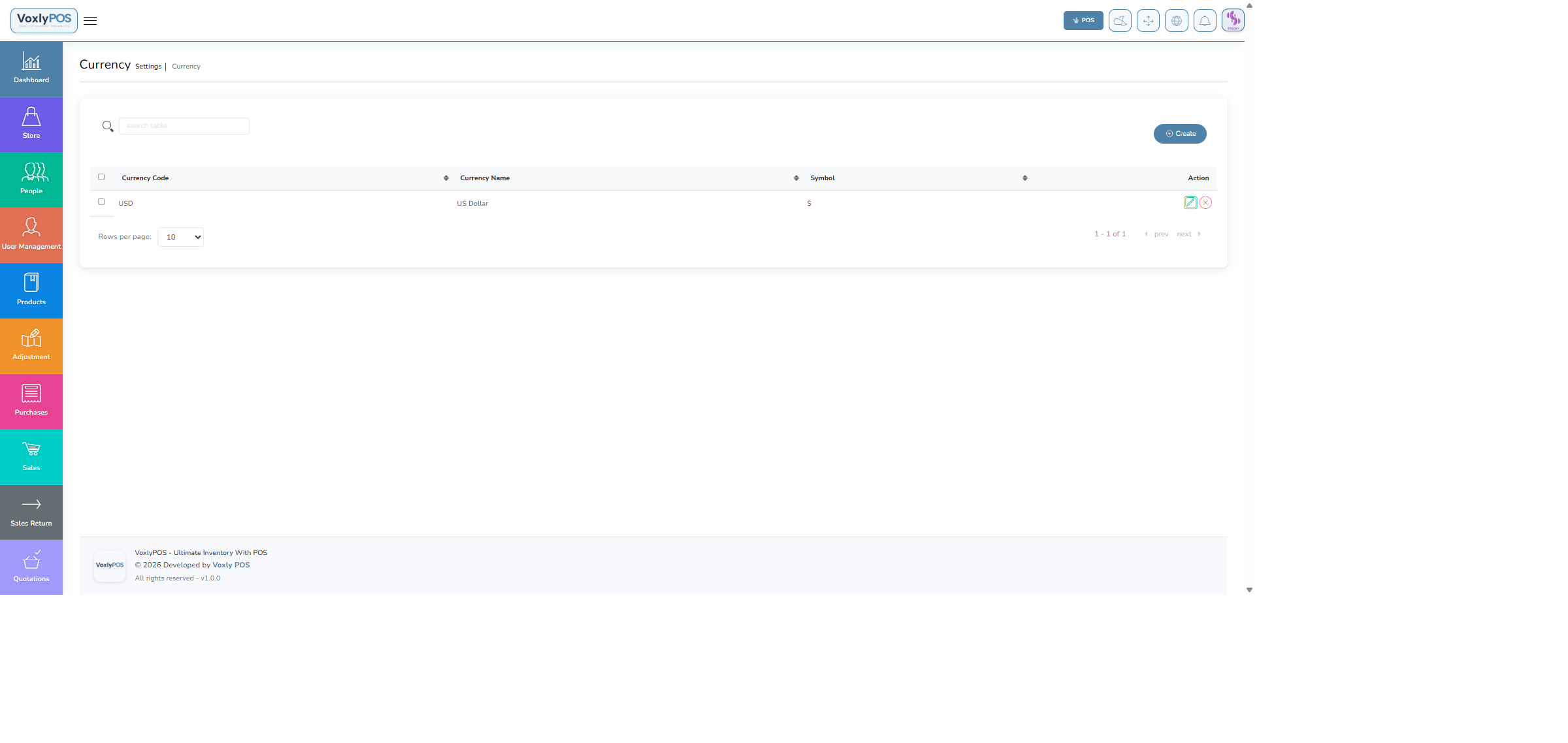
Configure currencies and exchange rates for multi-currency support. 🔍 Click image to enlarge
Payment Methods
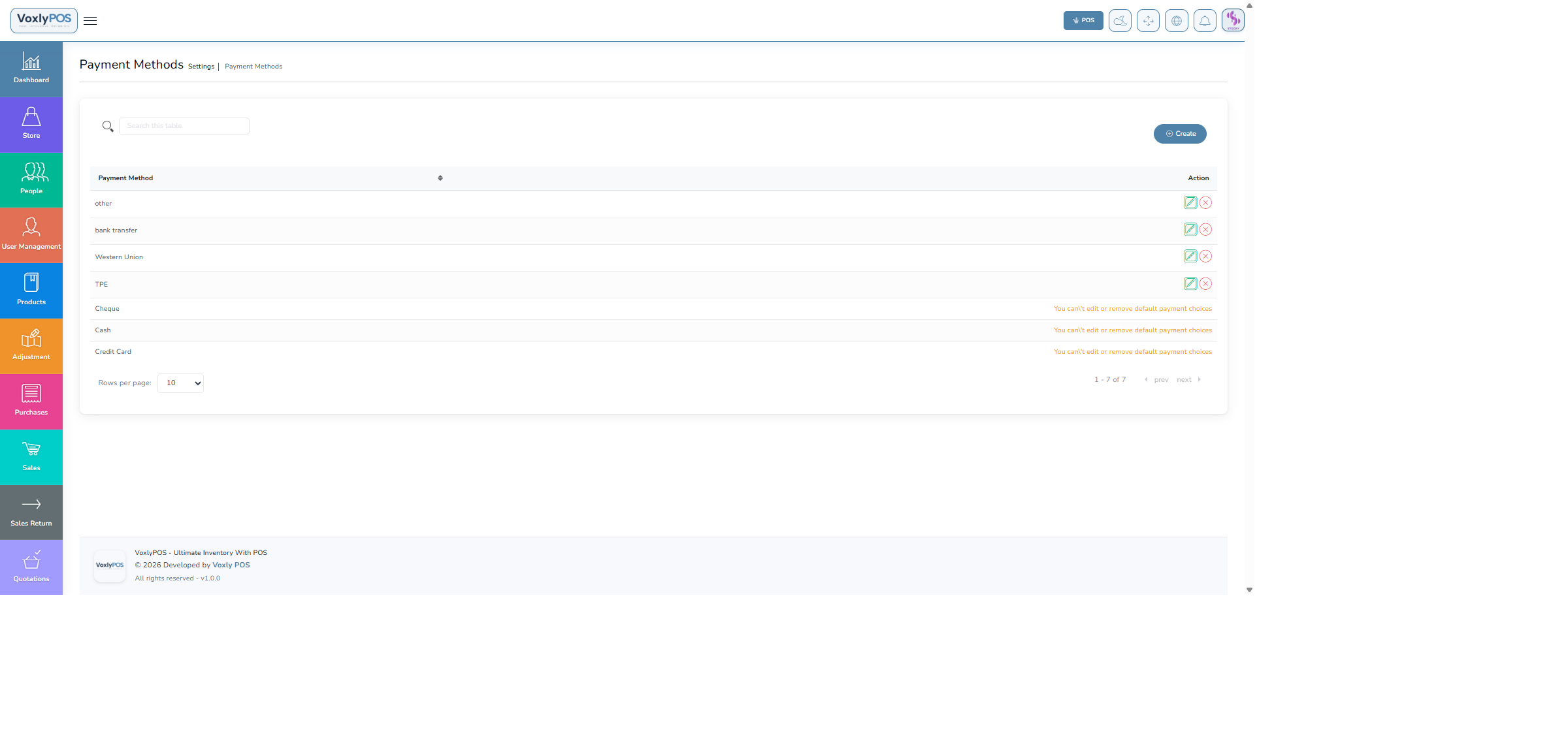
Enable and configure accepted payment methods (Cash, Card, Bank Transfer, Cheque). 🔍 Click image to enlarge
Payment Gateway
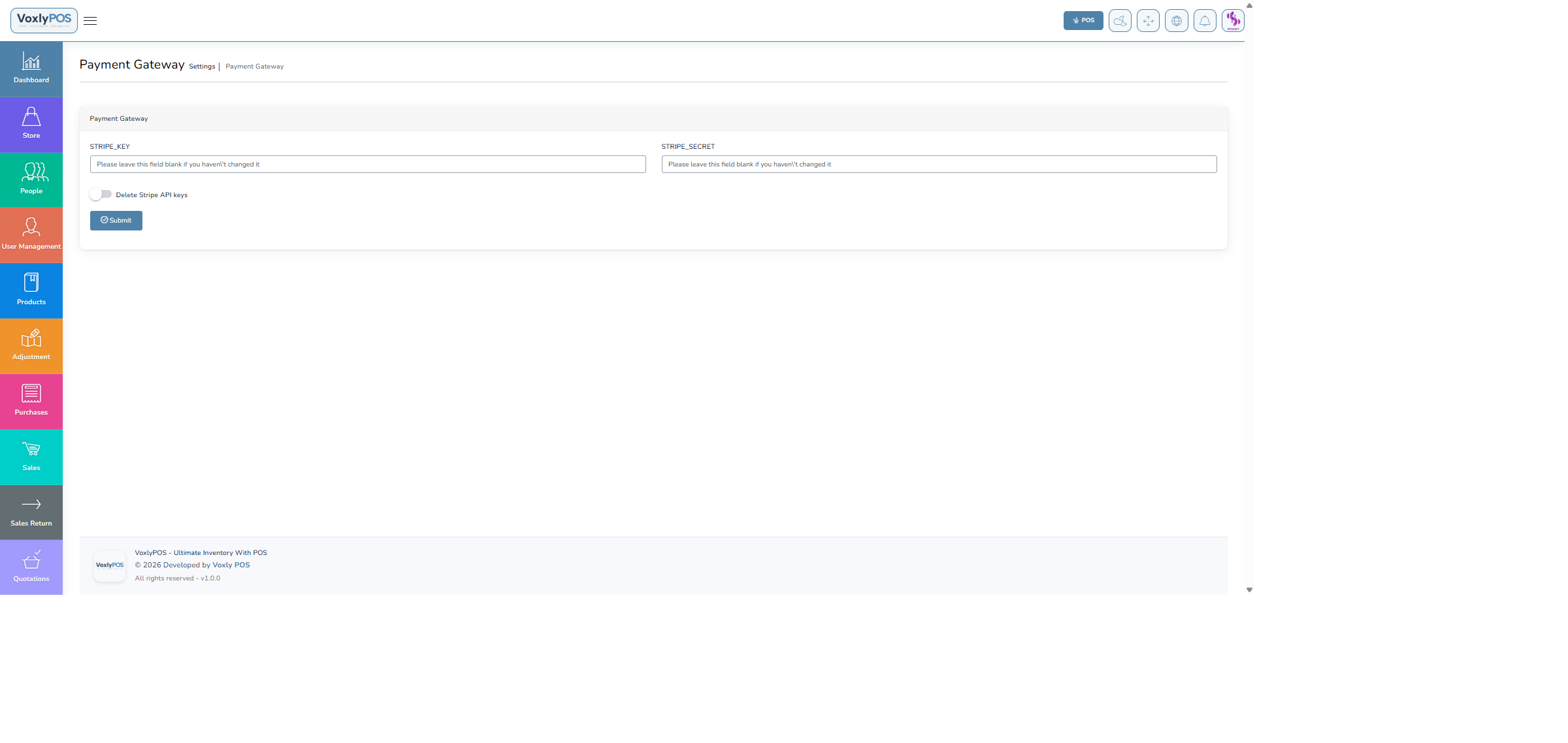
Online payment gateway integration (Stripe, PayPal, etc.). 🔍 Click image to enlarge
Warehouses
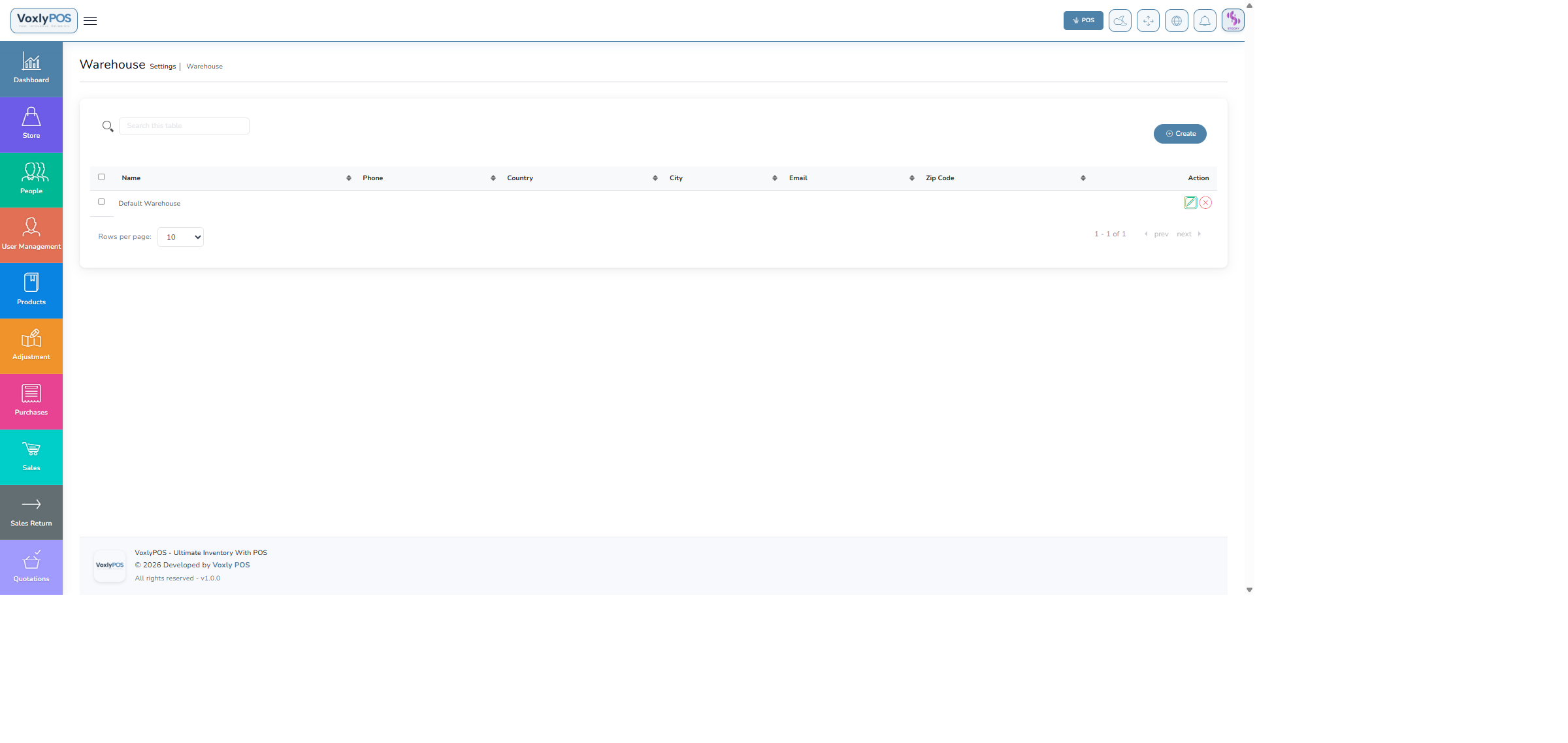
Add and manage warehouse locations with addresses and stock assignment. 🔍 Click image to enlarge
Mail Settings
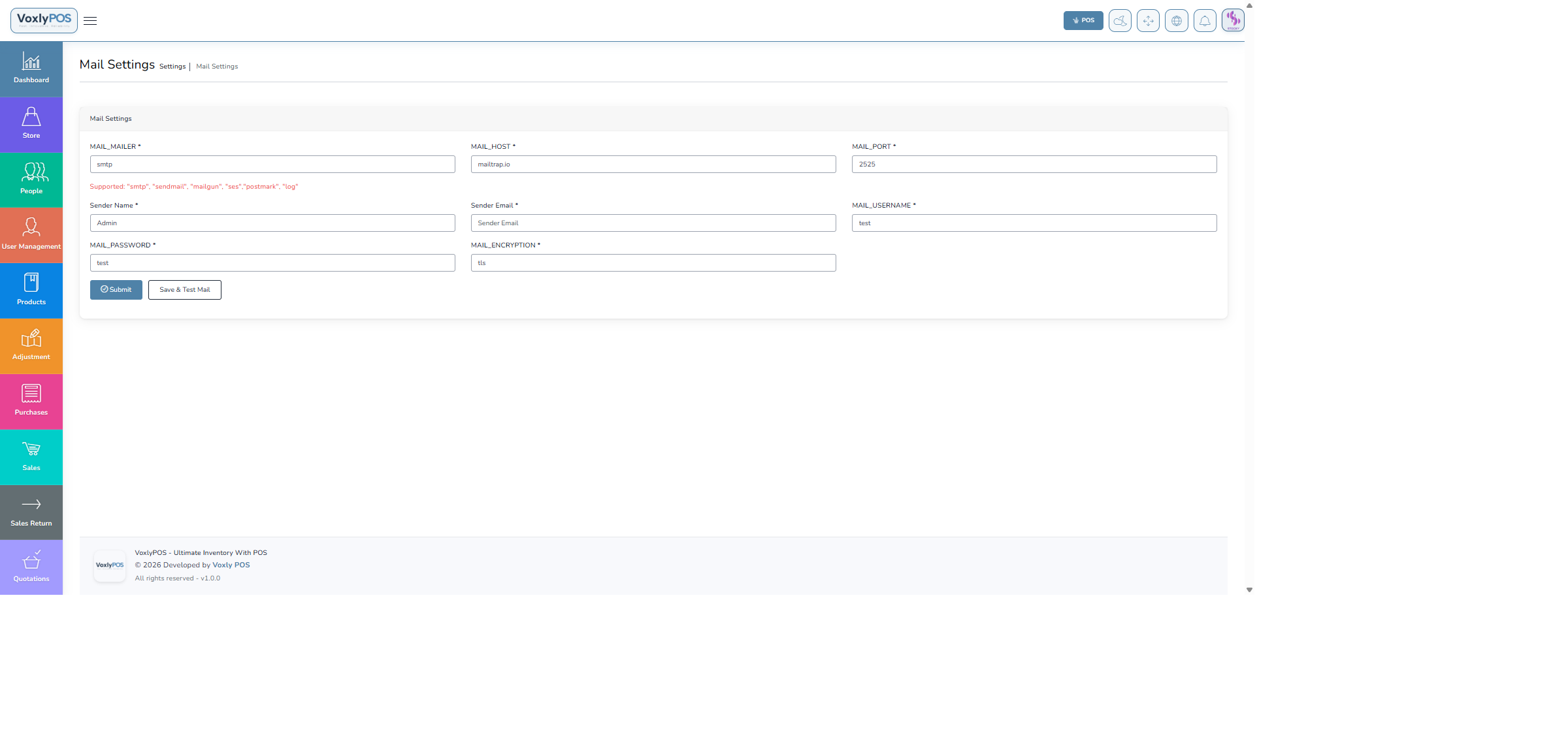
SMTP configuration for outbound emails (invoices, notifications). 🔍 Click image to enlarge
Email Templates
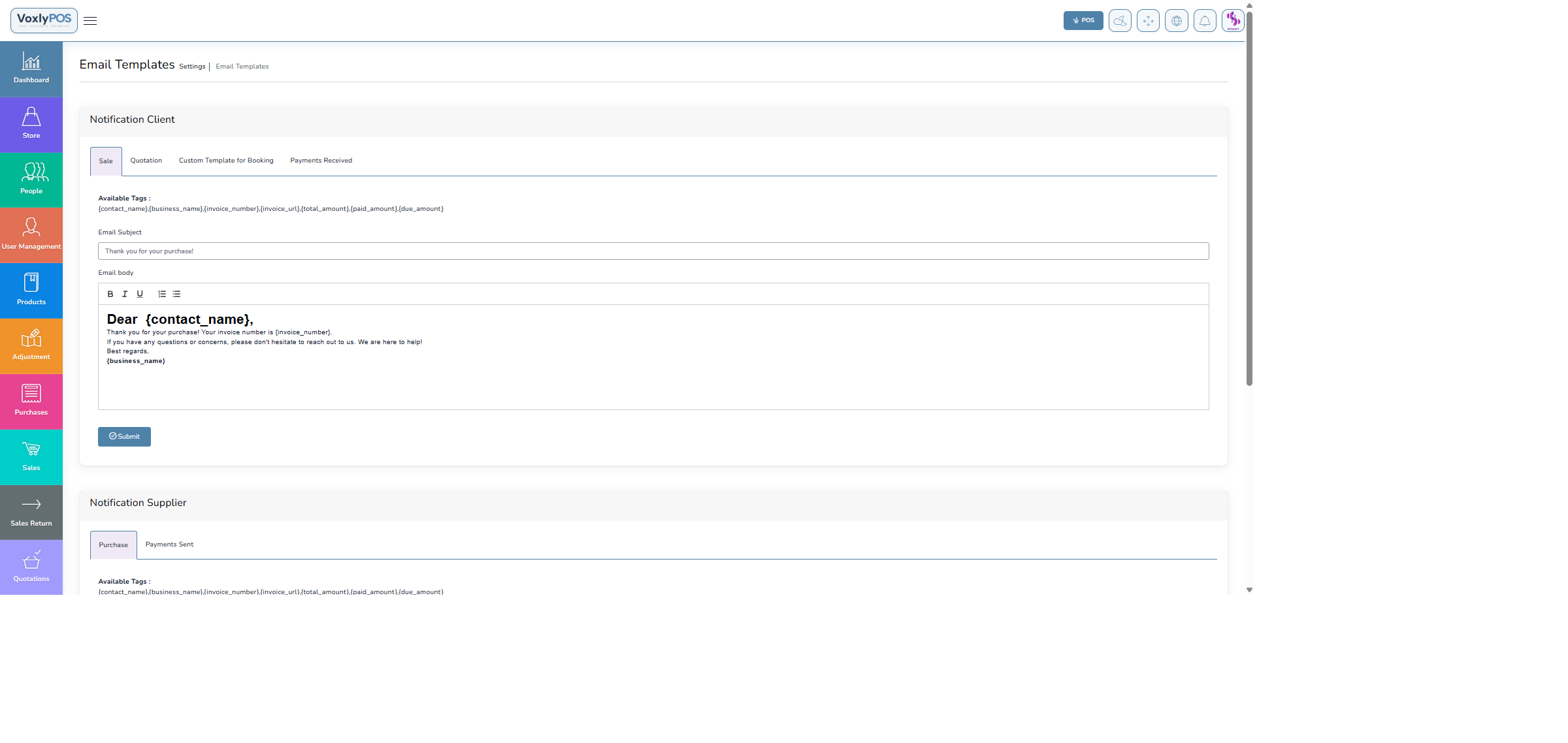
Customise automated email templates for invoices, customer reminders, etc. 🔍 Click image to enlarge
SMS Settings
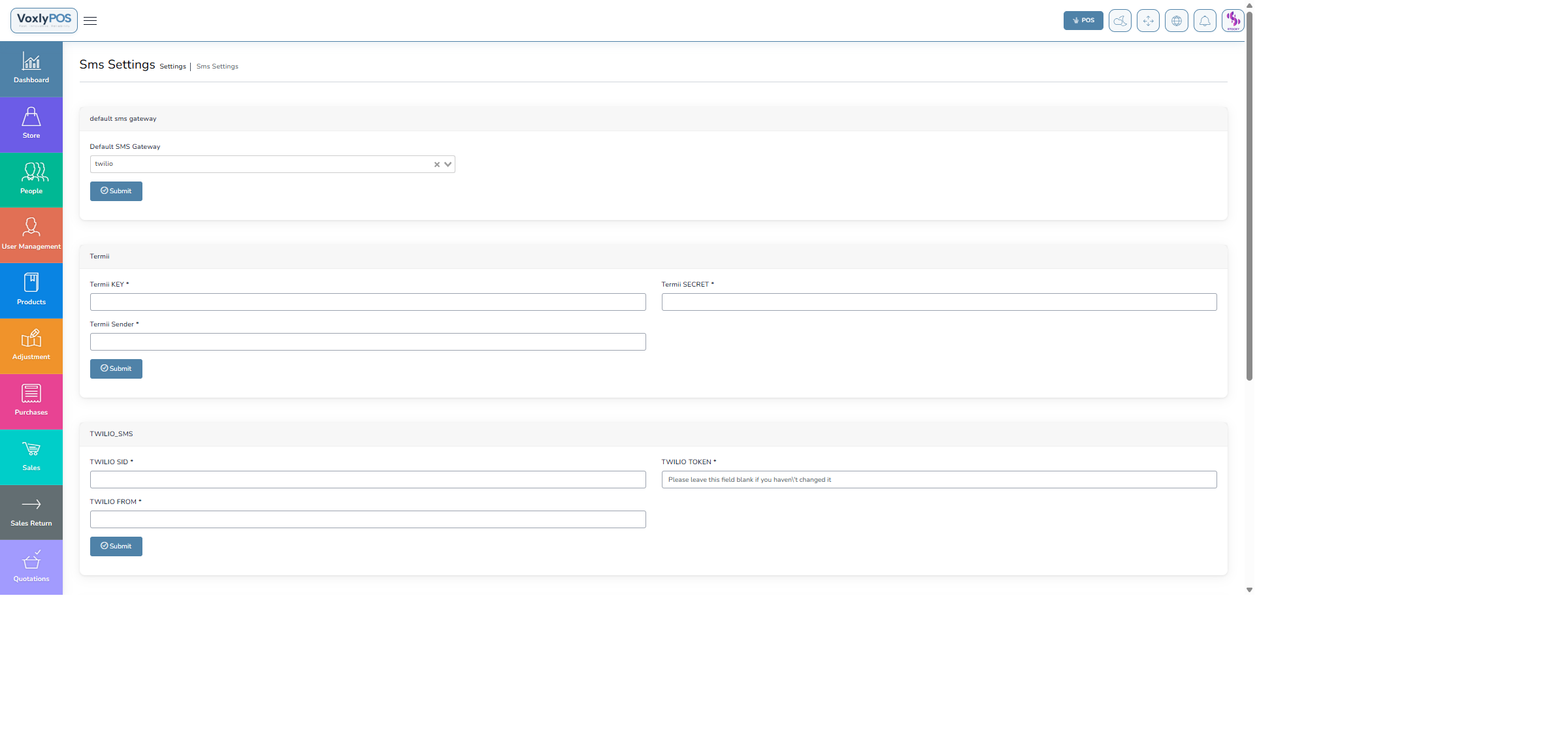
Configure SMS gateway for order and payment notifications. 🔍 Click image to enlarge
SMS Templates
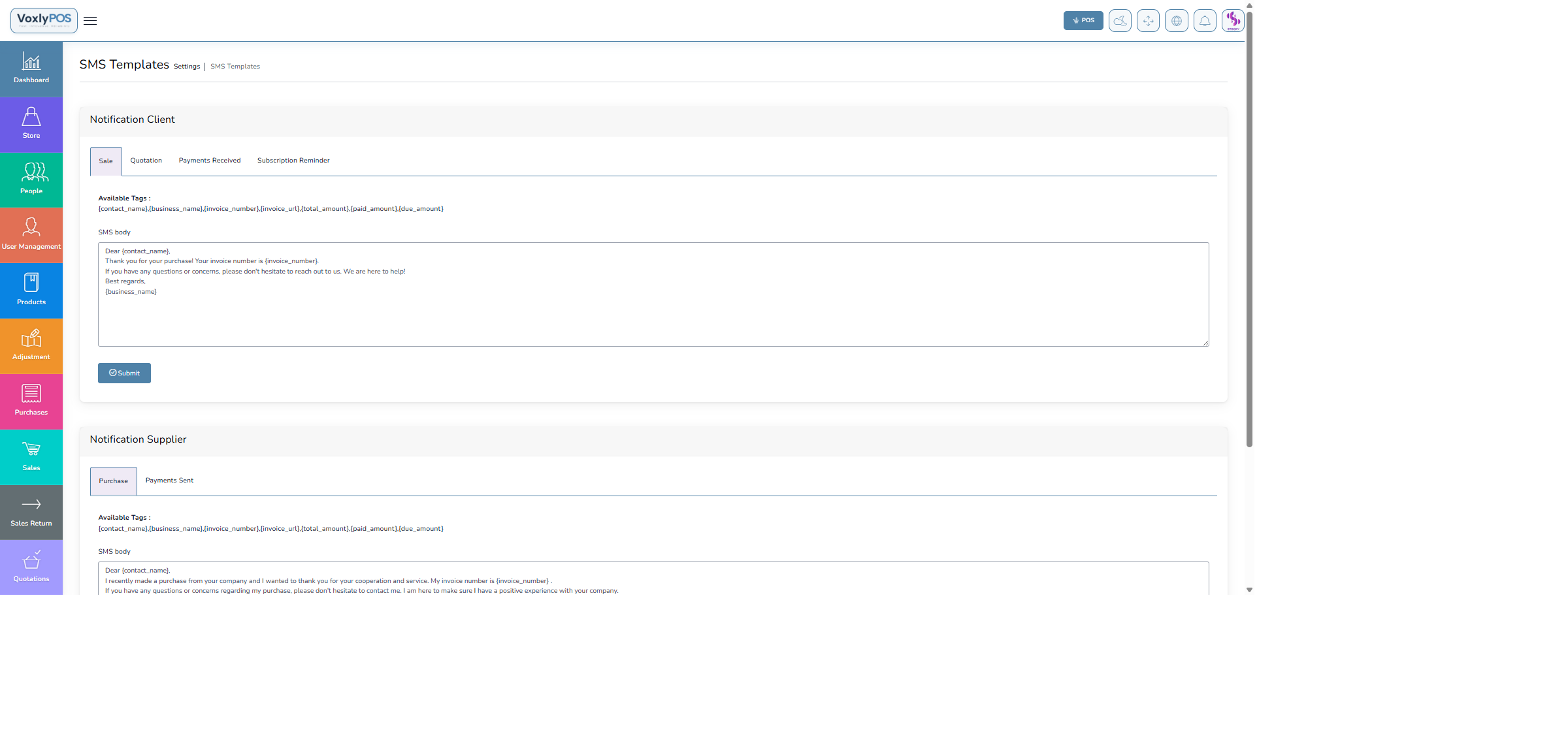
Customise SMS message templates for customer communications. 🔍 Click image to enlarge
Module Management
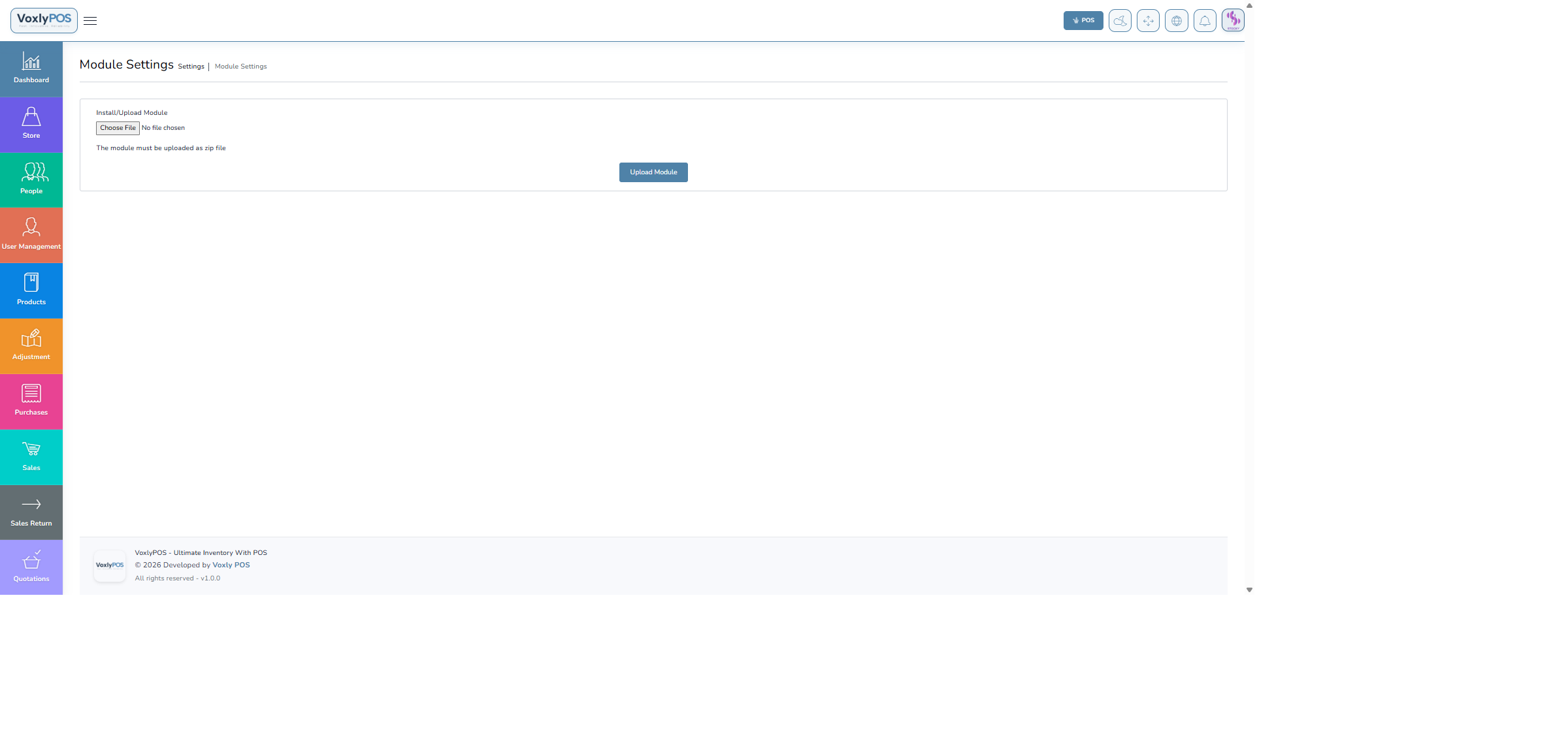
Enable or disable system modules based on your business needs. 🔍 Click image to enlarge
Backup & Restore
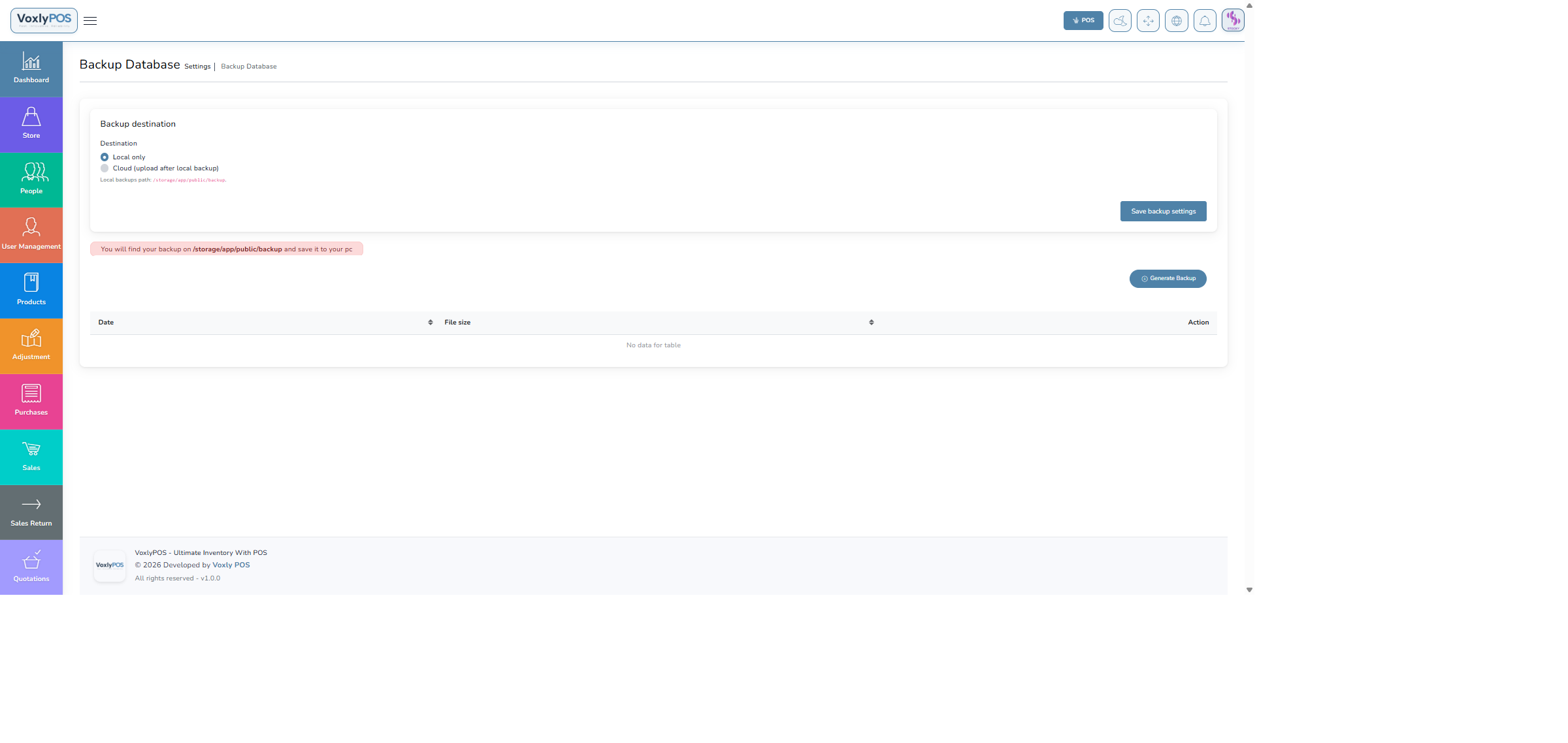
Create and restore database backups to protect your business data. 🔍 Click image to enlarge
🔗
Integrations
Connect VoxlyPOS with third-party platforms to sync products, orders, and inventory automatically.
Navigation: Settings › Integrations › WooCommerce
Sync your VoxlyPOS inventory and orders with a WooCommerce online store for seamless omni-channel retail.
WooCommerce Integration
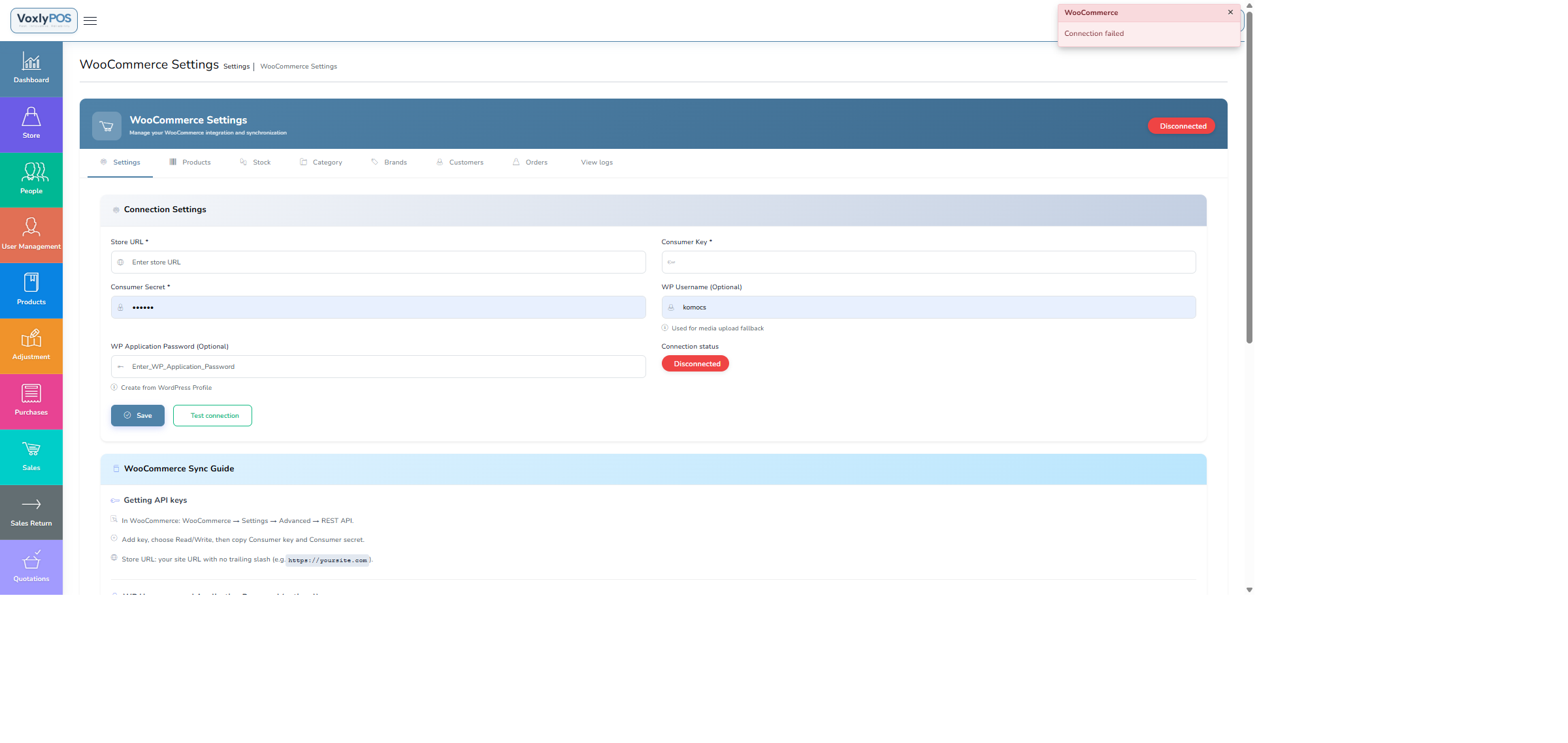
WooCommerce integration settings with API credentials and sync options. 🔍 Click image to enlarge
1
Get WooCommerce API Keys
In your WordPress admin, go to WooCommerce › Settings › Advanced › REST API and create a new key with Read/Write access.
2
Enter Store Details
In VoxlyPOS, enter your Store URL, Consumer Key, and Consumer Secret.
3
Configure Sync Options
Choose what to sync: Products, Orders, Customers, and set the sync direction.
4
Test & Save
Click Test Connection to verify, then Save the settings.
ℹ️Sync BehaviourProducts created in VoxlyPOS can be pushed to WooCommerce. Online orders placed in WooCommerce are pulled into VoxlyPOS automatically.